
Workflow
Overview
Workflow is the Work Space feature for visual multi-step automation processes. Users can browse, favorite, and run predefined workflows; administrators are responsible for creating and managing workflows.
The relationship between Workflow, Work, and Agent:
- Work: You give the AI a goal, and the AI decides how to accomplish it on the fly (high degree of freedom)
- Workflow: The process is pre-orchestrated; you only need to pass in parameters and execute the predefined steps (controllable, repeatable)
- Agent: Invoke an Agent built by others or by yourself
Entry Point
- Web: Left-side menu
Workflow→https://www.gptbots.ai/工作区/workflow - APP: Left-side menu
Workflow
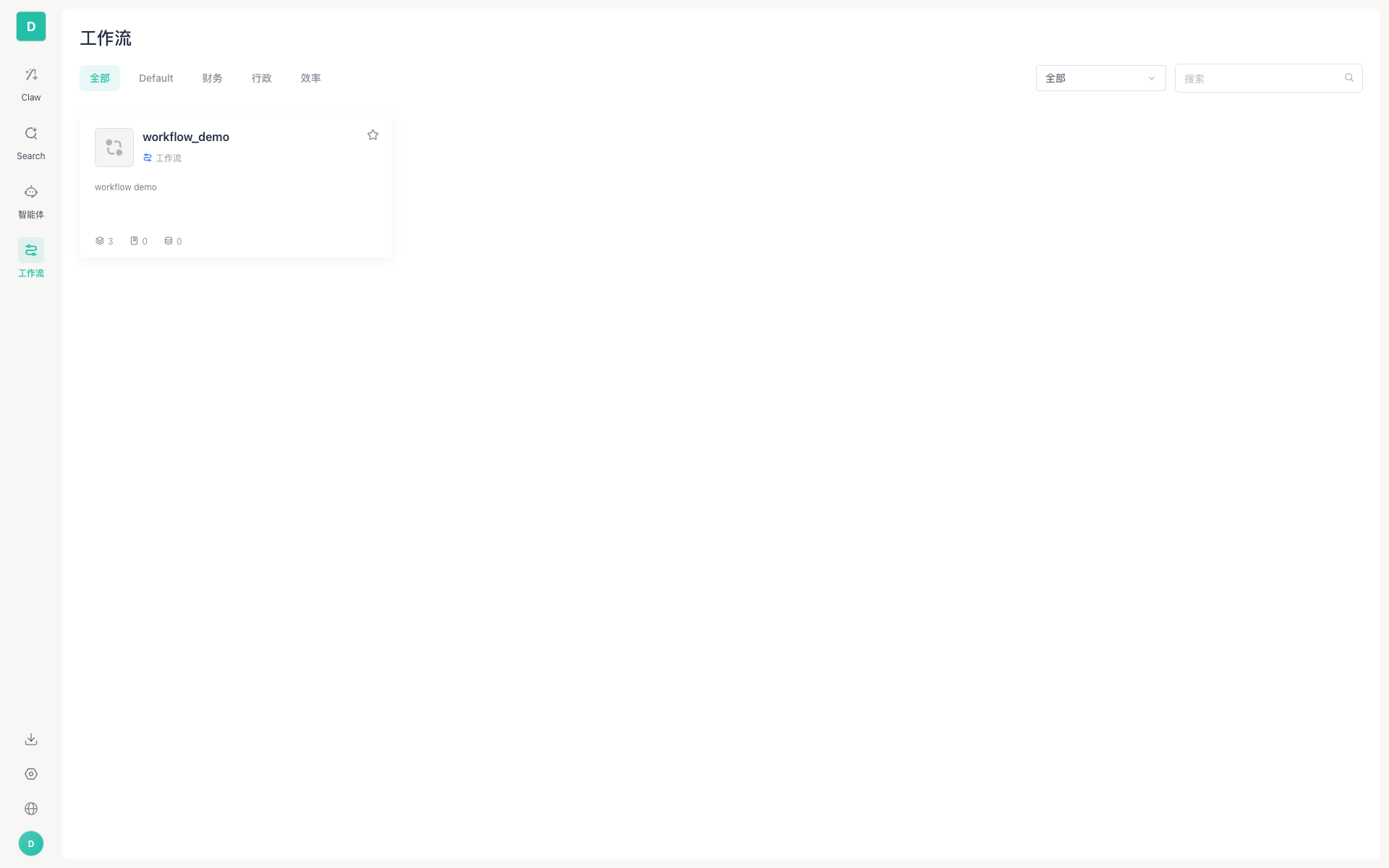
List View
Workflows are displayed as a grid of cards:
Layout
- Grid layout: 260px column width, auto-fill
- 15 items per page, with pagination navigation
Card Information
| Element | Description |
|---|---|
| Logo | Workflow icon |
| Name | Workflow title (e.g., workflow_demo) |
| Type Badge | Blue Workflow label |
| Description | Brief feature summary |
| Statistics | Number of components / datasets / databases |
| Favorite | Star in the top-right corner, toggles favorite/unfavorite |
Filtering and Search
| Feature | Description |
|---|---|
| Keyword Search | Input box in the top-right corner, search by pressing Enter, with a clear button |
| Category Filter | Switch categories via the tabs at the top (All / Default / Finance / Administration / Efficiency, etc.) |
| Sorting | Dropdown in the top-right corner: All / Usage / Favorites |
Pagination
- Simple pagination controls: first page, previous page, page numbers (with ellipsis), next page, last page
- Displays the current page number and total number of pages
Detail View
Click a workflow card to enter the detail page:

Layout
- Left — Input Configuration: An input form dynamically generated based on the workflow definition
- For example, if there is an
inputfield of typeString, it will be displayed as a text input box
- For example, if there is an
- Right — Run Results: The output after execution completes
- Bottom — Action Bar:
Resetbutton,▶ Runbutton (shortcutCmd/Ctrl + Enter) - Top — History: Clock icon in the top-right corner, view execution records
Execution Flow
- Fill in the required parameters in the "Input Configuration" area on the left
- Click the
▶ Runbutton (orCmd/Ctrl + Enter) - The "Run Results" area on the right displays the execution status and output in real time
- Once complete, view the detailed record of this execution in the "History"
Permission Control
| Permission Code | Description |
|---|---|
WORKSPACE_CONSOLE_WORKFLOW_VISIT |
Access the workflow page |
WORKSPACE_CONSOLE_WORKFLOW_USE |
Use (execute) workflows |
When you lack permission, the WorkflowAccessDenied no-permission notice page is displayed.
Operation Guide
How to Browse and Use Workflows
- After building and publishing a workflow in the development space, you can click Publish to Work Space on the integration page.
- On the Work Space - Space Management - Enterprise Resources - workflow page, administrators can review whether to bring it online.
- After the review is approved, the Workflow will be displayed in the Work Space list. Click Workflow in the Work Space sidebar.
- Browse the card list, and filter using the search box or category tabs
- Click on a workflow card you are interested in to start using it
How to Favorite a Workflow
Click the ⭐ icon in the top-right corner of a workflow card to favorite/unfavorite it. Once favorited, you can select "Favorites" in the sorting options to quickly find it.
FAQ
I can't see the Workflow menu
Your role may not have the WORKSPACE_CONSOLE_WORKFLOW_VISIT permission. Please contact your Work Space administrator to enable it in Member Permissions.
I can see workflows but cannot execute them
You may only have view permission but not use permission (WORKSPACE_CONSOLE_WORKFLOW_USE). Contact your administrator to adjust it.
Where do I edit the workflow definition
The orchestration and editing of workflows takes place on the main GPTBots platform (not within the Work Space). The Work Space side only provides browsing and execution entry points. Administrators can manage the online/offline status of workflows in Enterprise Resources → Workflow.
Related Documents
- Enterprise Resources — Enterprise-level management of workflows
- Member Permissions — Permission configuration