
Runtime Security
Overview
Runtime security in the app is spread over four pages under Settings → GWork Settings:
| Page | What it controls |
|---|---|
| Runtime | Where the Agent runs (Local or Sandbox), sandbox installation, and the system security baseline |
| Tool Level | The permission level (P0 / P1 / P2) of every tool |
| Authorization records | Grants you have given ("Always Allow") and OS-level permissions |
| Work Node | How this device is exposed to other devices and teammates |
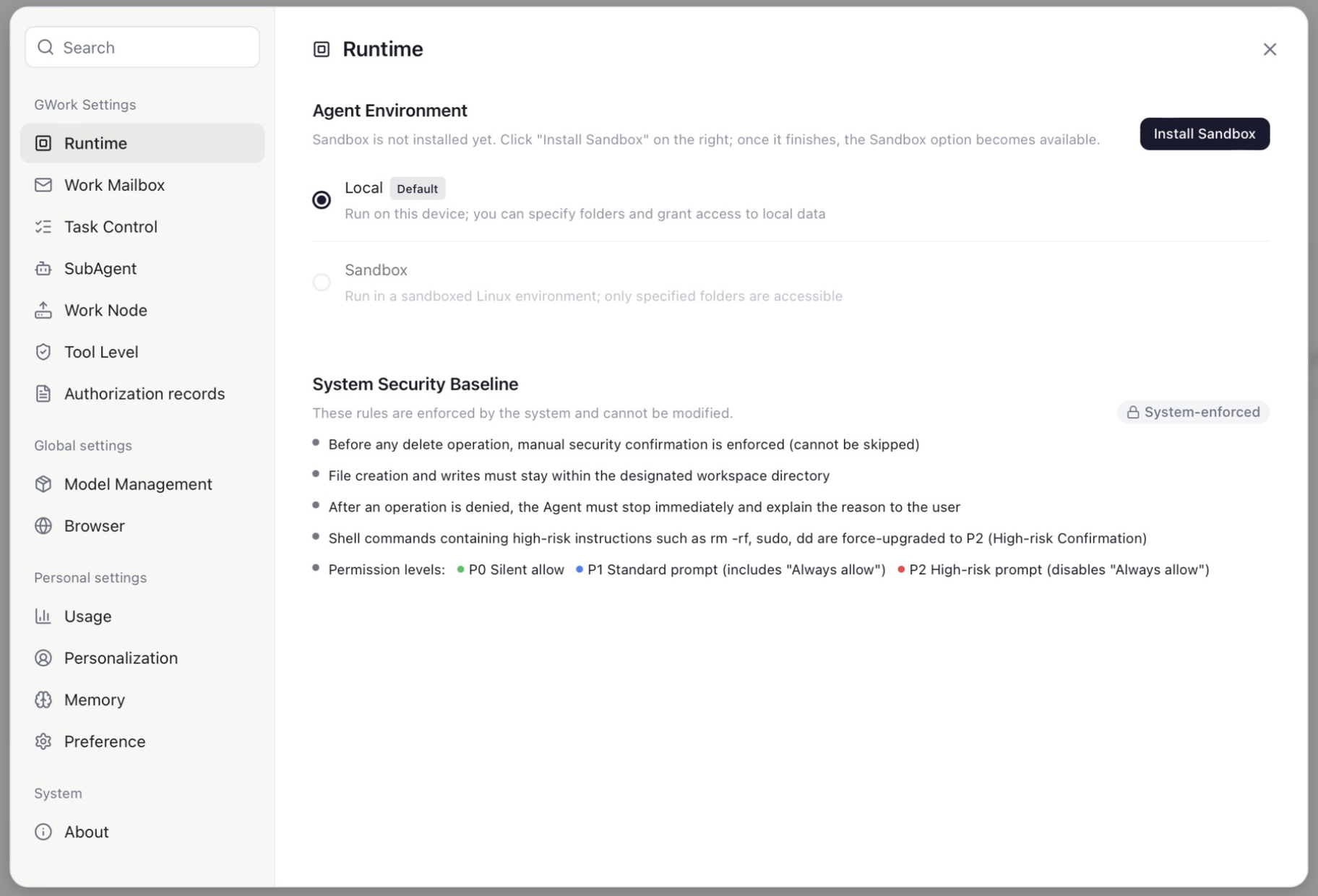
Runtime
Agent Environment
| Option | Description |
|---|---|
| Local (default) | Runs on this device; you can specify folders and grant access to local data |
| Sandbox | Runs in a sandboxed Linux environment; only specified folders are accessible. Greyed out until the sandbox is installed |
System Security Baseline
These rules are enforced by the system and cannot be modified (the page shows them with a System-enforced badge):
- Before any delete operation, manual security confirmation is enforced (cannot be skipped)
- File creation and writes must stay within the designated workspace directory
- After an operation is denied, the Agent must stop immediately and explain the reason to the user
- Shell commands containing high-risk instructions such as
rm -rf,sudo,ddare force-upgraded to P2 (High-risk confirmation) - Permission levels: 🟢 P0 Silent allow · 🔵 P1 Standard prompt (includes "Always allow") · 🔴 P2 High-risk prompt (disables "Always allow")
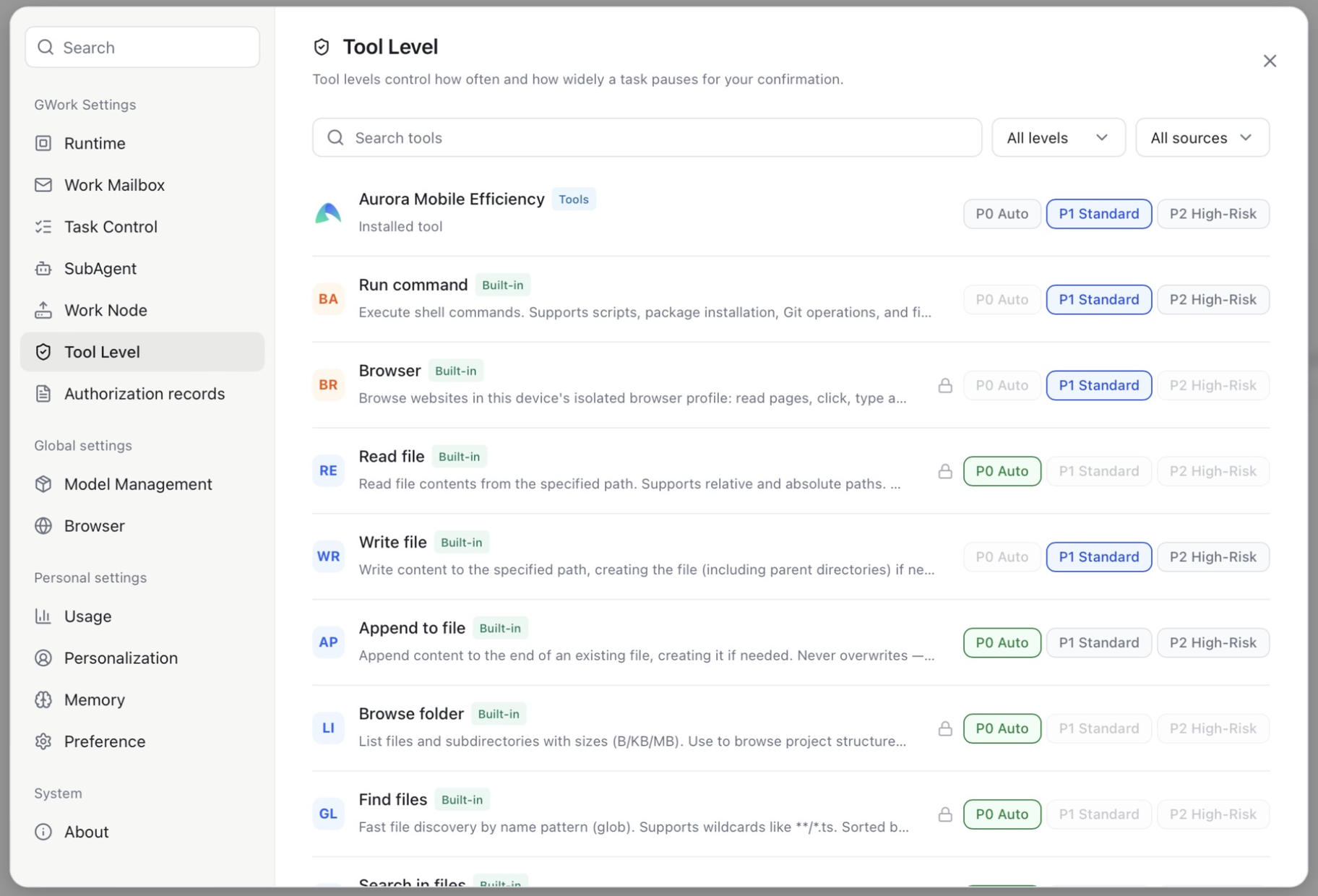
Tool Levels
All tools are classified into three levels:
| Level | Name | Behavior | Example Tools |
|---|---|---|---|
| P0 | Auto | No user confirmation required, executes silently | Read file, Browse folder, Find files, Append to file |
| P1 | Standard | A permission card is shown; Always Allow is available | Run command, Write file, Browser |
| P2 | High-Risk | A permission card is shown on every call; "Always Allow" is disabled | Destructive commands, anything you choose to lock down |
Levels are set in Settings → Tool Level: each tool row shows the tool name, its source (Built-in or an installed tool), and three buttons P0 Auto / P1 Standard / P2 High-Risk. A 🔒 lock icon means the level is fixed by the system or by the organization's Security Guardrails and can only be tightened, not loosened.
Permission Card
When the Agent calls a P1 / P2 tool, a permission card appears at the bottom of the conversation:
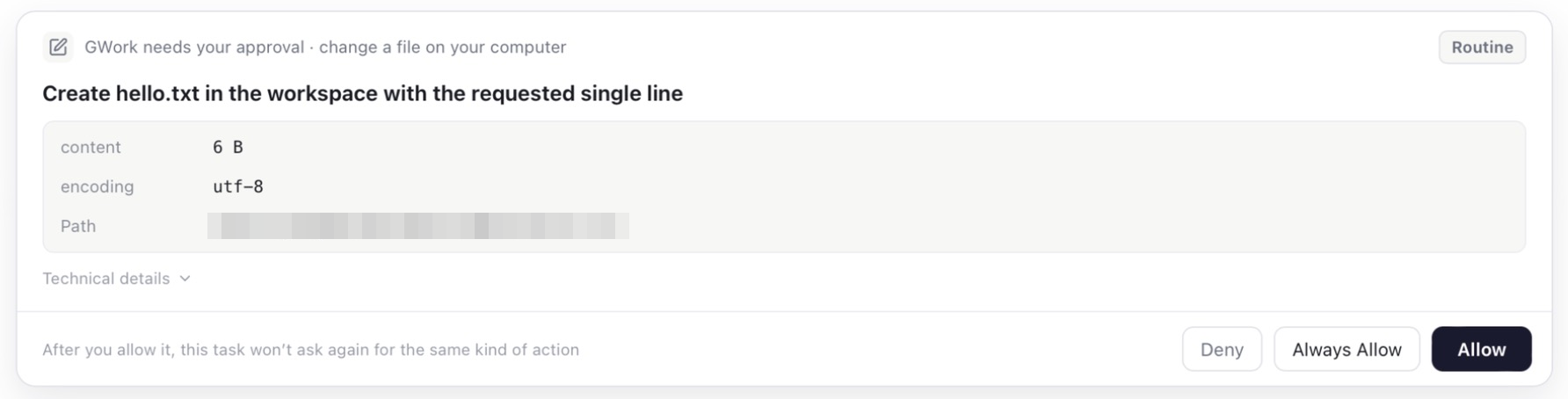
| Element | Description |
|---|---|
| Header | "GWork needs your approval · kind of action" (e.g. change a file on your computer), plus a risk badge such as Routine |
| Operation description | What the tool is about to do |
| Parameters | The inputs the tool received (e.g. content size, encoding, path); Technical details expands the raw call |
| Deny | Reject; the Agent stops and explains |
| Always Allow | Allow, and don't ask again for the same kind of action in this task (P1 only) |
| Allow | Allow this one call |
Authorization records
Settings → Authorization records lists what has already been granted:
| Section | Description |
|---|---|
| Tool authorization | Tools authorized as "Always Allow" (tool name, source, time). Click Remove to revoke so the tool prompts again |
| System authorization | Operating-system permissions the app relies on, e.g. Full Disk Access (needed when shell tasks touch protected locations such as Mail or Backups). Use Open System Settings to review or change them |
Sandbox Execution Environment
The sandbox provides an isolated Linux environment that protects the host system.
Installation
- Open App → ⚙ Settings → Runtime
- Click Install Sandbox at the top right
- The button changes to Installing… and a progress bar shows Downloading runtime environment … with the percentage
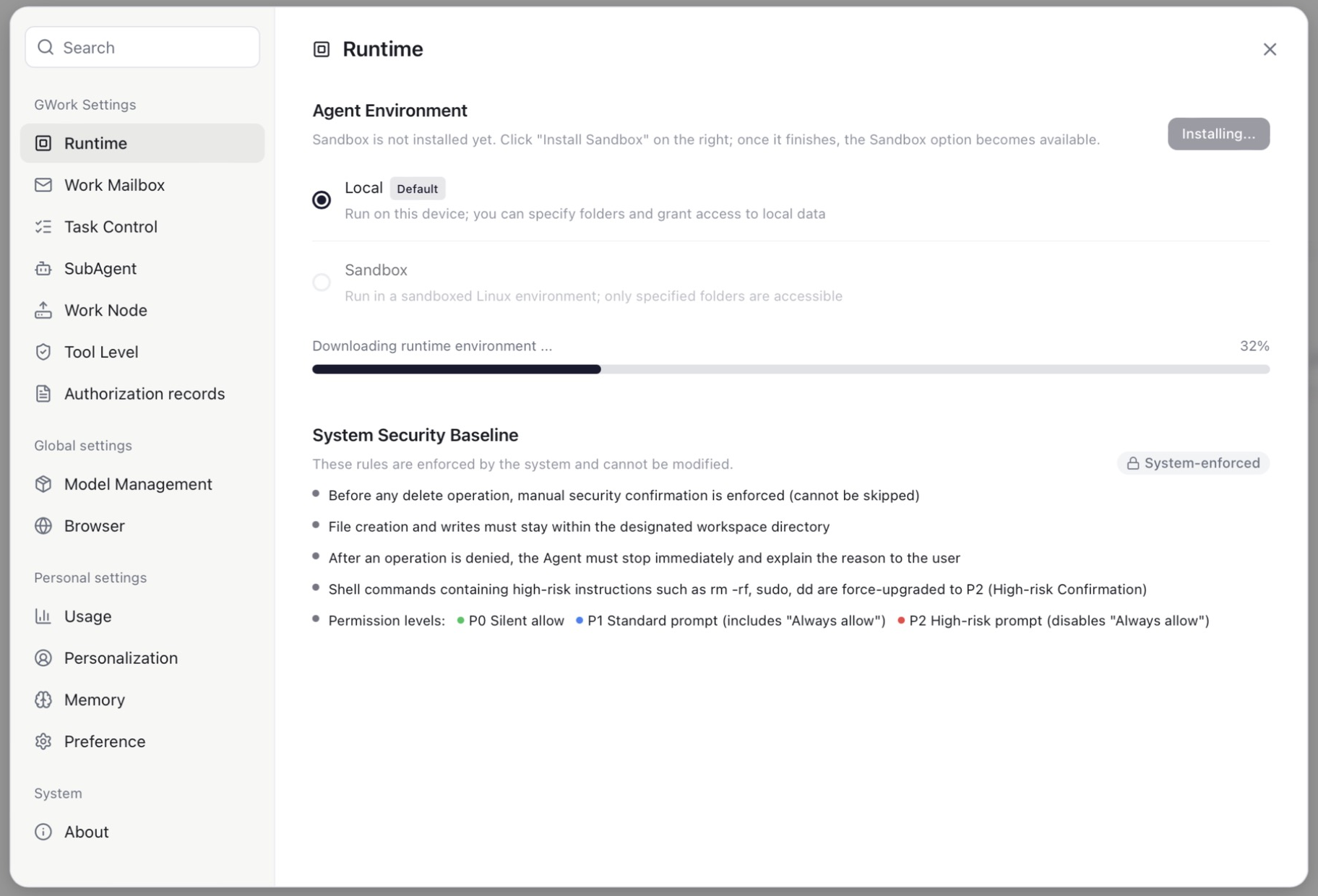
- When the download finishes, the Sandbox option under Agent Environment becomes selectable
- Choose Sandbox to make it the default, or pick it per scheduled task via the task's Environment field
Note: The sandbox image is a sizeable download; keep the app open until the progress reaches 100%.
Real-World Impact of the Sandbox
| Comparison Dimension | Local | Sandbox |
|---|---|---|
| File Operations | The Agent directly reads and writes your local files | The Agent operates in an isolated environment; only the folders you specify are visible |
| Installing Software | npm install installs directly into your project |
Installed inside the sandbox, disappears after exit |
| Dangerous Commands | rm -rf directly deletes your files (after P2 confirmation) |
Only affects the virtual file system inside the sandbox |
| Execution Speed | Native speed | Slightly slower (virtualization overhead) |
| Applicable Scenarios | Trusted daily tasks | Running untrusted code, experimental operations |
Work Node
Settings → Work Node describes how this device participates as a node:
| Item | Description |
|---|---|
| Node name | Editable; a clear name makes the node easier to identify and discover. The hostname and connection status (Connected) are shown next to it |
| Work Node Type | Private: only devices signed in with your account can discover and call this node. Public: members of your organization can also see it and dispatch tasks to it |
| System Info | Auto-detected OS, CPU, memory and free disk, included in the node's capabilities |
| Custom Capabilities | Up to 5 short descriptions (e.g. "Python 3.12, Docker available, GPU: NVIDIA RTX 4090") that help the dispatcher pick this node |
| Commands | Commands this node exposes to remote callers |
Real-World Impact of the Node Type
| Setting | Impact |
|---|---|
| Private | Only you (on your other devices) can see and call this node. Team members cannot see it. |
| Public | All members of the same organization can see this node and can dispatch tasks to this device for execution. |
Tip: Setting it to Public means that tasks initiated by team members may execute on your computer (including file read/write and command execution). Please make sure you understand this impact and trust your team members. Cross-account tasks cannot read your personal memory (see Memory Management).
Real-World Impact of Tool Levels
| Scenario | P0 (Auto) | P1 (Standard) | P2 (High-Risk) |
|---|---|---|---|
| Agent needs to read a file | Reads silently | Card on first call, then "Always Allow" possible | A card every time |
Agent runs npm install |
Executes directly | Card on first call | A card every time |
Agent runs rm -rf node_modules |
Forced to P2 by the security baseline | Forced to P2 | A card every time |
| Agent opens a web page | Opens directly | Card on first call | A card every time |
Recommendations for Choosing Levels
| Usage Environment | Recommended Configuration | Reason |
|---|---|---|
| Personal dev machine, fully trusted | Run command / Write file: P1, others: P0 | Efficient, with confirmation on commands and writes |
| Shared device / Public node | Run command: P2, Write file / Browser: P1, others: P0 | Every command execution requires confirmation |
| Novice users | All P1 or P2 | Learn the Agent's behavior through the permission cards |
| Demo environment | All P2 | Maximum control |
Related Documentation
- Security Guardrails — Enterprise-level security policies (organization floor)
- Tool Management — Built-in tools and the Tool Market
- Multi-Node Architecture — Node security mechanisms