
Scheduled Tasks
Overview
Scheduled tasks let the Agent automatically run a preset prompt on a schedule — without you manually starting a conversation. This is a desktop-app-only feature; the task runs on this device.
Typical scenarios:
- Every day at 9:00, scrape 5 competitors' websites, compare changes, and send the results to DingTalk
- Every Friday at 16:00, turn what you shipped this week into a concise status update
- Every morning, scan recent activity and surface anything waiting on you
- On the 1st of every month, generate a team work summary report for the previous month
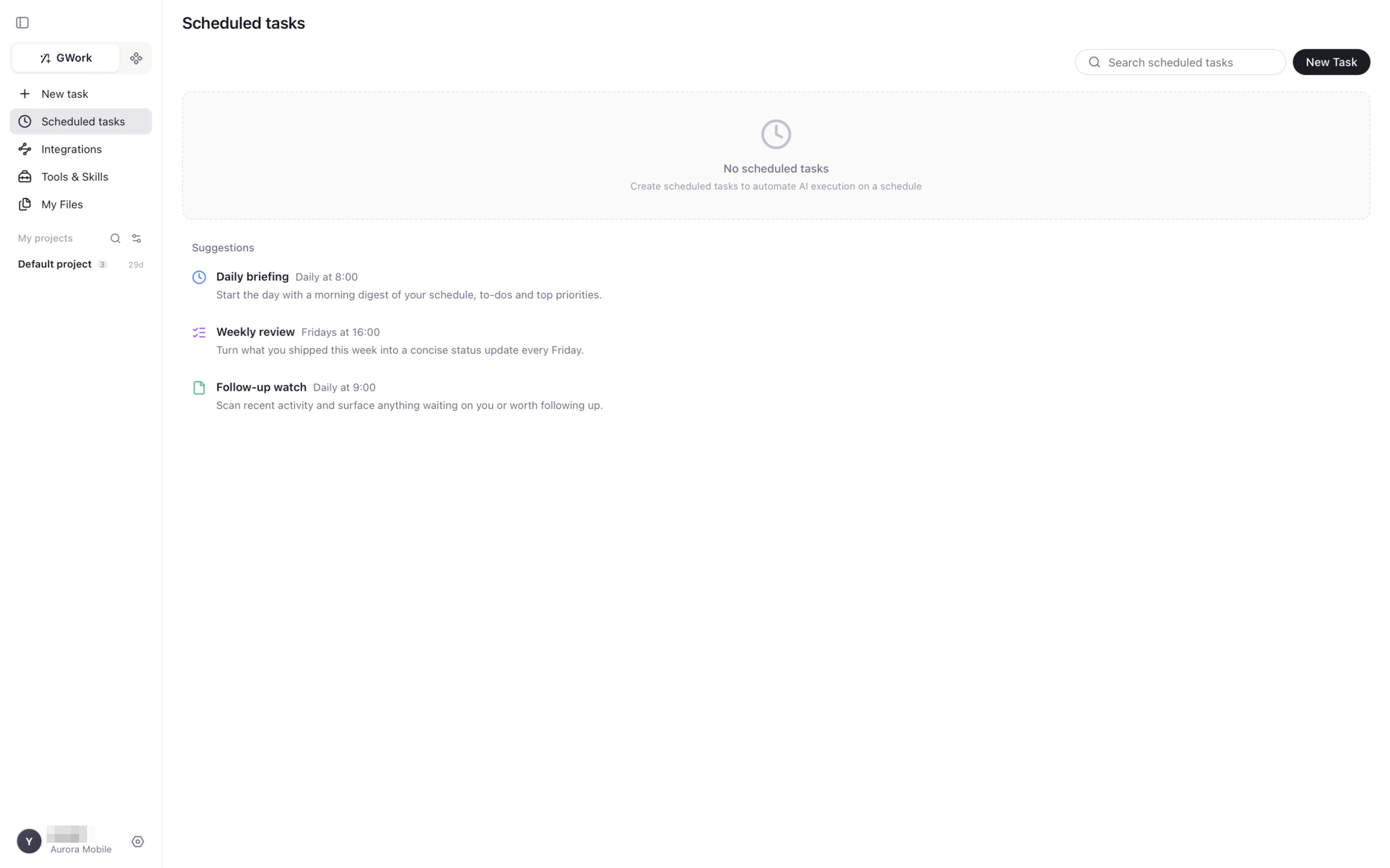
Entry Point
Left navigation → Scheduled tasks
The page shows your task list (with a search box), a New Task button, and — while the list is empty — a few Suggestions (Daily briefing, Weekly review, Follow-up watch) you can create with one click.
Creating a Task
Click New Task to open the Create Task dialog:
| Field | Description | Default |
|---|---|---|
| Title | Task name shown in the list | — |
| Prompt | The instruction the Agent executes each time | — |
| Frequency | How often it runs: pick the type (daily, weekly, …) and the time of day | Daily · 09:00 |
| Skip days | Days on which the task should not run | None |
| Environment | Where it runs: Local or Sandbox (see Runtime Security) | Local |
| Model | Follow the global model, or pin a specific model for this task | Follow global |
| Validity | When the schedule expires | No expiry |
| Project | The project the runs are filed under | Default project |
| Session | New each time (every run starts a fresh session) or reuse a session so the Agent keeps context between runs |
New each time |
| Notification channel | Where to send the result (a connected Integration) | None |
Click Create Task to save.
Which Session Mode to Choose
- Tasks that are independent of each other (daily monitoring, reports) → New each time
- When you want the Agent to remember previous results (an ongoing project you keep following up on) → reuse a session
Example Prompt
                      Fetch the home pages of the following 3 competitor sites,
compare them with yesterday (new products, announcements, pricing),
and output a summary of the changes:
- Competitor A: https://...
- Competitor B: https://...
- Competitor C: https://...
Notification Channel
After a run finishes, the result can be pushed to a channel you have connected on the Integrations page (Telegram, WhatsApp, Discord, Slack, Teams, WeChat, DingTalk). Connect the channel first, then select it in Notification channel.
For channel configuration details, see Channels.
Managing Tasks
| Action | Description |
|---|---|
| Search scheduled tasks | Filter the list by title |
| Open a task | View its configuration and run history |
| Enable / disable | A disabled task stops being scheduled but keeps its configuration |
| Run now | Trigger a single execution without affecting the next scheduled time |
| Edit / delete | Change the prompt or schedule, or remove the task |
Each run is also a normal task in the selected Project, so you can open it from the project list to read the full conversation and outputs (files appear under My Files).
Organization Isolation
Scheduled tasks belong to the organization you were in when you created them — when you switch organizations, the task list switches accordingly.
FAQ
Can scheduled tasks execute tools that need confirmation?
Yes, but a P1/P2 tool will raise a permission card just like in a normal conversation. If nobody responds, the run waits and may time out. To avoid blocking:
- Run the task manually once and click Always Allow on the permission cards it raises (grants are listed under Settings → Authorization records)
- Or lower the level of the tools the task needs (e.g.
Run command,Write file) in Settings → Tool Level, if your organization allows it - Keep high-risk operations (deletes,
sudo) out of scheduled prompts — they are always forced to P2
What to do if a task fails to execute
Open the task and check the failed run. Common causes:
- Model unavailable: check Settings → Model Management (and your key, in Owner Key mode)
- Network issues: the tool may be unable to access the internet
- Permission timeout: refer to the previous question
- Loop / error limits hit: see Settings → Task Control (Max Loop Count, Max Error Count)
Will tasks still run if the app is closed?
No. Scheduled tasks require the app to be running on this device. If you need 24/7 execution:
- Keep the app running (enable Launch at Login and Prevent device sleep under Settings → Preference)
- Consider deploying the app on a dedicated machine that stays powered on
Can the Agent create scheduled tasks for me?
Yes. Install the scheduled-task skill from Tools & Skills. Then say in a conversation "help me scrape these 3 websites every day at 9," and the Agent creates the task for you.
Related Documentation
- Channels — Connect Telegram, DingTalk and others for notifications
- Skill Management — The
scheduled-taskskill - Runtime Security — Tool permission levels and authorization records