
Agents
Overview
The Agents page (sidebar menu Agents) is the entry point for browsing and using AI agents within the workspace. It supports two agent types:
- A2A protocol agents: standardized Agents exposed by third parties via the A2A protocol — add a URL and start chatting
- Traditional agents (QuestionAnswer / Flow types): agents published on the GPTBots platform, embedded via iframe
Key difference: Unlike Work, the Agents page is an app marketplace — you invoke an Agent already built by others or yourself, rather than starting a task from scratch.
Entry Point
- Web:
https://www.gptbots.ai/工作区/agent - App: "Agents" in the left menu
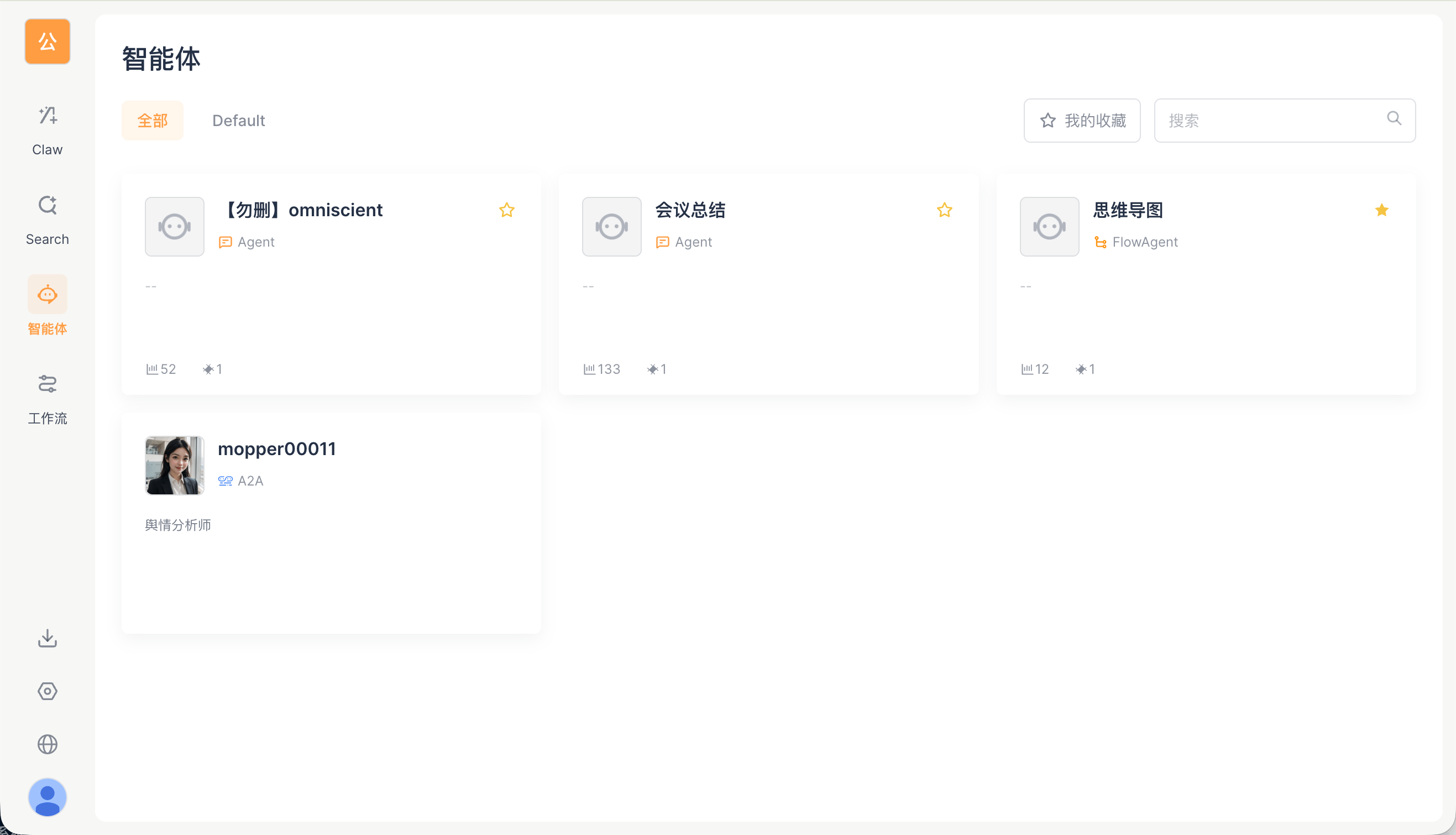
List View
Agents are displayed as a card grid:
| Element | Description |
|---|---|
| Icon + Name | Agent avatar and display name |
| Type badge | Agent (traditional agent) or A2A (A2A protocol agent) |
| Description | Brief overview of the agent's capabilities |
| Stats | Usage count, favorites count, etc. |
| Favorite star | Click to favorite; once favorited, quickly find it under "My Favorites" |
Filtering
- Top category tabs: All / Default / custom categories (such as Finance / Administration / R&D / Legal)
- Keyword search: search box in the top-right corner
- My Favorites: button in the top-right corner, showing only favorited agents
A2A Agents
Adding an A2A Agent
Add a standard A2A protocol agent via an Agent Card URL:
- On the Agents page, click the Add A2A Agent button (admins only)
- Enter the agent's Agent Card URL (for example,
https://agent.example.com/.well-known/agent.json) - The system automatically retrieves the agent's information (avatar, name, description, capability list)
- Set the category and display name
- After saving, the agent appears in the list
What is an Agent Card URL? It is the HTTP endpoint exposed by a third-party A2A agent, returning the agent's identity description information (in JSON format). It is usually provided by the agent developer.
A2A Conversations
Click an agent card to enter the A2aChatView conversation interface:
| Feature | Description |
|---|---|
| SSE streaming responses | Receive agent replies in real time |
| Structured responses | Supports four content block types: text / file / data / a2ui |
| Session management | Automatically reuse an existing session, or force a new one |
| Message history | Browse past conversation records |
Structured response types:
| Part type | Rendering method |
|---|---|
text |
Markdown rendering (including math formulas, code highlighting, tables) |
file |
File attachment (inline image or download link) |
data |
JSON data (displayed as a code block) |
a2ui |
Agent-to-UI interactive component (rendered by A2UIRenderer) |
For technical details of the protocol, refer to the A2A protocol.
Cross-Account Invocation
A2A agents support cross-account Gateway dispatch — when a user invokes an enterprise-scoped agent from the Web, the request is routed through the Gateway to the target node for execution. See Multi-Node Architecture — Permission Popup Dispatch Rules.
Traditional Agents
Traditional agents (QuestionAnswer / Flow types) are embedded via iframe into the agent details page of Space Web.
| Type | Description |
|---|---|
| QuestionAnswer | Q&A agent, based on a RAG knowledge base |
| Flow | Flow agent, based on an orchestrated workflow |
After clicking a traditional agent card, you enter the AgentDetailPage, which embeds the /space/agent-details/{botId} page of Space Web.
Permission Control
| Role | Actions |
|---|---|
| All members | Browse the list, search, filter, favorite, and chat with agents |
| Admin | Add, edit, and delete agents |
Admin permissions are checked via canManageAgents() (role is Owner / Admin or has a specific permission code).
How-To Guide
How to Add an A2A Agent
- After building and publishing an Agent in the development space, you can publish it to the workspace from the Integration page.
- On the Workspace - Space Management - Enterprise Resources - Agent page, admins can review whether to bring it online.
- Once approved, the Agent is displayed in the workspace list. Click Agents in the workspace sidebar.
- Find the Agent you just brought online, and click the card to enter the conversation interface.
How to Chat with an Agent
- Find the target agent card on the Agents page
- Click the card to enter the conversation interface
- Enter a message and press Enter to send
- Wait for the agent's reply (SSE streaming, displayed in real time)
Tip: By default, the system reuses the previous session. If you want to start a brand-new conversation, click the "New Session" button.
FAQ
Agent connection fails
- Confirm the Agent Card URL is reachable from the current network
- Confirm the URL is HTTPS and not an internal-network address (the system has SSRF protection)
- If the agent requires authentication, confirm the authType and credentials are configured correctly
Agent reply is empty or has an abnormal format
- It may be an issue on the agent side; try resending
- Check whether the agent supports Chinese (some agents may only support English)
Related Documents
- A2A protocol — technical details of Agent Card, JSON-RPC, and structured responses
- Enterprise Resources — enterprise-level management of A2A agents
- Multi-Node Architecture — cross-account Gateway routing