
Memory Management
Overview
The Memory page (Settings → Personal settings → Memory) is used to view and maintain the memory the Agent has about you. Personal memory is bound to your account and shared across organizations — when you log in to the same account in different organizations, your memory follows you.
When an Agent starts a new task, it can query your memory and inject the relevant entries into its context as a "user profile." This lets the Agent truly "know you."
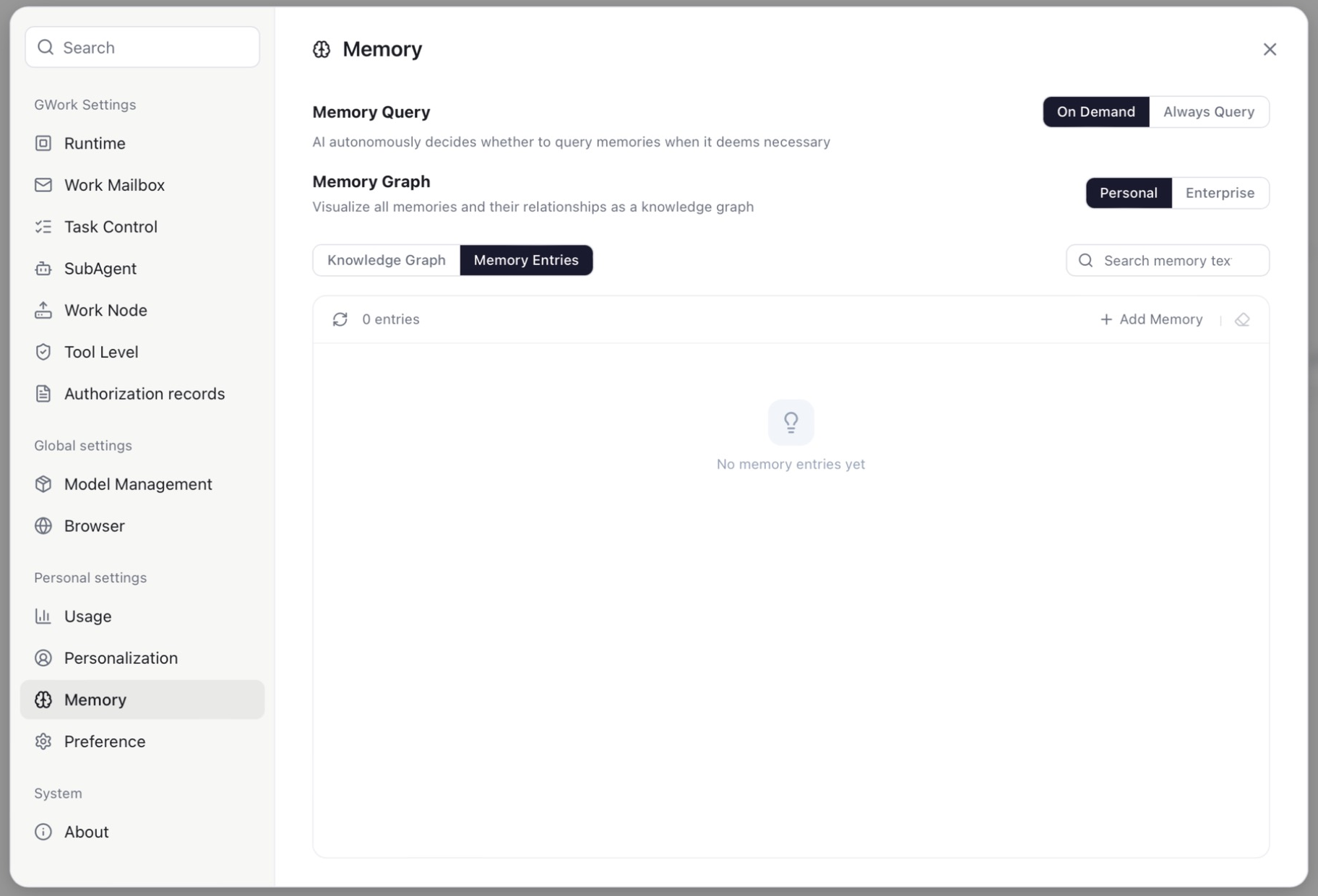
Page Layout
| Setting | Options | Description |
|---|---|---|
| Memory Query | On Demand / Always Query |
On Demand: the AI decides on its own whether to query memory when it deems necessary. Always Query: memory is queried at the start of every task |
| Memory Graph | Personal / Enterprise |
Which memory store the view below shows: your own, or the organization-level memory maintained by administrators |
| Knowledge Graph / Memory Entries | tabs | Switch between the graph view and the list view |
| Search memory text | — | Filter entries by keyword |
The number of entries injected into a task is capped by Memory Injection Limit in Settings → Task Control (default 12).
Memory Entries (List View)
The list shows every memory entry with its text, plus:
| Action | Description |
|---|---|
| Refresh | Reload the list (entry count is shown next to it) |
| + Add Memory | Enter a new memory entry manually |
| Edit / Delete | Modify or remove a single entry |
| Clear (eraser icon) | Clear all entries in this store (⚠️ irreversible) |
Knowledge Graph
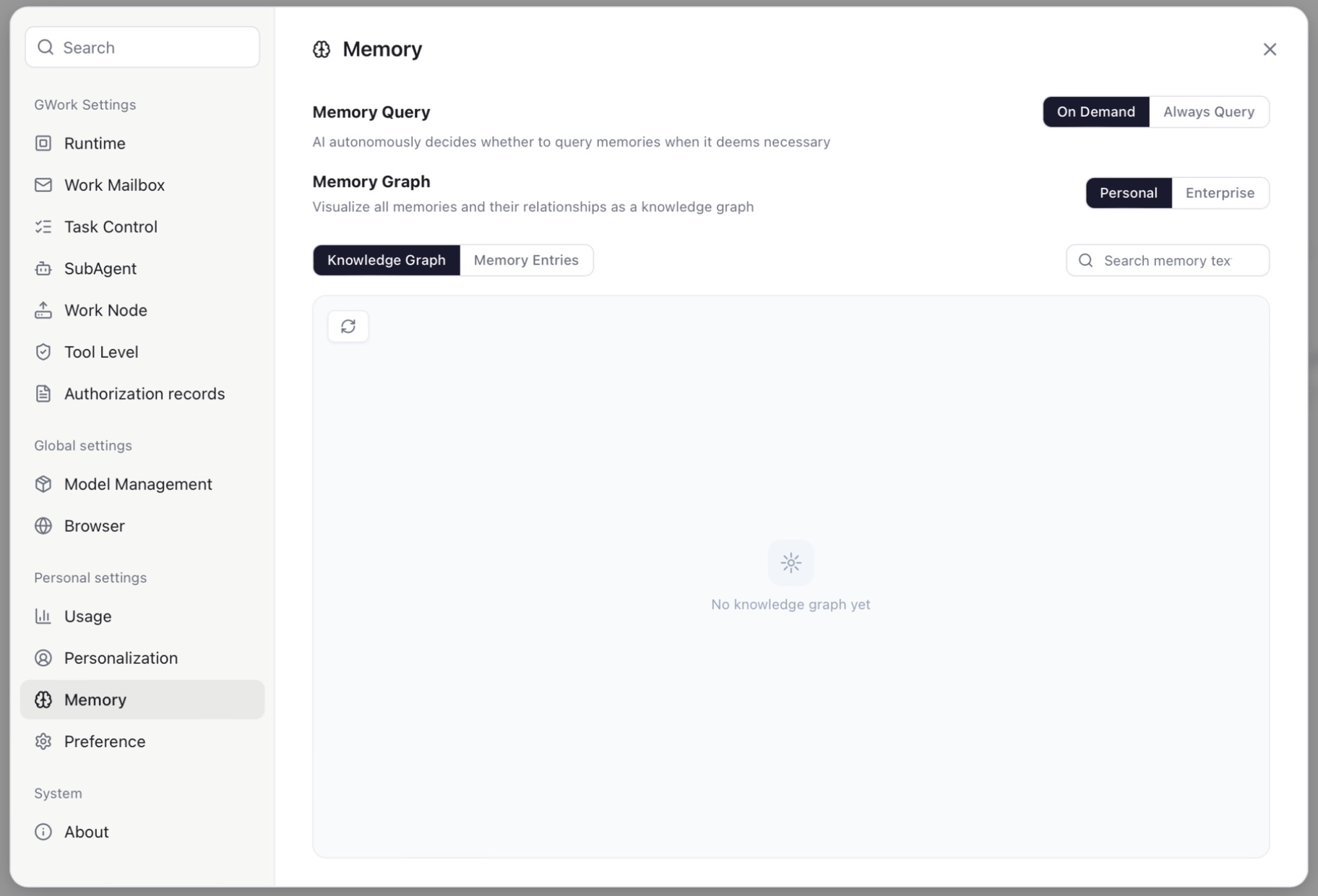
Switch to the Knowledge Graph tab to visualize the relationship network between memories:
| Node | Description |
|---|---|
| Center node | You (or the organization, in Enterprise view) |
| Memory node | A single memory entry |
| Entity node | An entity extracted from memories (e.g. "TypeScript", "Project X"); entities connected to each other indicate associations |
Interactions:
- Click a node: view details, edit or delete
- Hover a node: show the full text
- Drag: adjust node position
- Scroll: zoom the view
- When the graph is dense, labels are hidden until you zoom in, so the view stays readable
The graph is empty ("No knowledge graph yet") until memories have been accumulated; use the refresh button to rebuild it after adding entries.
How Memory Is Written
Manual Add
In the Memory Entries view, click + Add Memory, enter the text, and save.
Automatic Extraction from Conversation
The Agent automatically detects information worth remembering during a conversation and stores it:
| Trigger | Example |
|---|---|
| Explicit command | "Remember I like to use TypeScript" |
| Implicit detection | "My name is Zhang San, I'm a frontend developer" |
For the detailed extraction mechanism, see Three-Dimensional Memory System.
Personal vs. Enterprise Memory
| Personal | Enterprise | |
|---|---|---|
| Owner | You; follows your account across organizations | The organization; maintained by administrators in Advanced Settings — Enterprise Memory |
| Who can read it | Your own tasks only | Every member's tasks in that organization |
| Where to view | Memory page → Personal | Memory page → Enterprise (read-only for members) |
Cross-Account Isolation
To protect privacy, tasks dispatched to your Work Node by another account cannot access your personal memory:
- When your node is set to Public and called by a teammate, that execution cannot read your personal memory
- Only enterprise memory can be accessed by cross-account tasks
- Your own tasks are not affected
For details, see Multi-Node Architecture — Cross-Account Isolation.
Operation Guide
How to Manually Add a Memory
- Open App → ⚙ Settings → Memory
- Make sure Personal is selected and switch to Memory Entries
- Click + Add Memory, enter e.g. "I prefer to write code in TypeScript", and save
Effect: the next time you start a task, the Agent can know you prefer TypeScript and use it in code-related replies.
How to Clear Memory
- On the Memory page, click the clear (eraser) icon next to + Add Memory
- Confirm
Note: the clear operation is irreversible. After clearing, the Agent will no longer know any of your preferences, background, or historical information. Only use this when you truly need to "start over."
The Impact of Memory on Conversation Quality
| Memory State | Conversation Experience |
|---|---|
| Rich and accurate memory | The Agent understands your identity, preferences, and project background, delivering personalized and precise replies |
| Empty memory | The Agent acts as if meeting you for the first time, requiring you to re-explain your background and preferences each time |
| Outdated or incorrect memory | The Agent may give inappropriate suggestions based on incorrect information |
| Too much memory | Only the most relevant entries (up to the injection limit) are used; keep entries concise |
Recommendation: Periodically browse the memory list and delete outdated or no-longer-accurate entries. Keeping your memory concise and accurate is the key to the best conversation experience. Standing rules for how the AI should work ("lead with the conclusion") belong in Settings → Personalization → Custom instructions rather than in memory.
FAQ
Why didn't the Agent remember what I said?
- Not judged worth remembering: express it more explicitly — "Please remember, I like using a dark theme."
- Filtered: pure questions, small talk, content inside code blocks, and time-sensitive information are not extracted.
- Extraction delay: memory is extracted after a conversation round ends; if the conversation is interrupted, extraction may not complete.
Why did the Agent answer based on incorrect memory?
- Open the Memory page and search for the relevant entry
- Edit it or Delete it
- You can also say in the conversation: "Forget that I said I liked Python before, I use TypeScript now."
The Agent never seems to use my memory
Set Memory Query to Always Query, and check that Memory Injection Limit in Task Control is not 0.
Related Documentation
- Three-Dimensional Memory System — technical deep dive into the memory system
- Advanced Settings — Enterprise Memory — enterprise-level memory management (admin)
- Multi-Node Architecture — cross-account isolation