
Enterprise Resources
Overview
The Enterprise Resources page is used to manage organization-level AI resources: Skills, Tools, A2A agents, Agents, and Workflows. All resources are strictly isolated by orgId — different organizations cannot see or interact with each other.
Resources that administrators configure centrally here are automatically synced to and made available to all members of the organization.
Five Sub-tabs
| Tab | Managed Object | Description |
|---|---|---|
| Skills | Enterprise skills | Toggle preset skills + add enterprise skills |
| Tools | Enterprise tools | API tools, MCP tools, authentication management |
| A2A | A2A agents | Third-party A2A protocol agents |
| Agents | Agents | Traditional Agents (QuestionAnswer / Flow) |
| Workflow | Workflows | Publish/unpublish management for workflows |
Skills
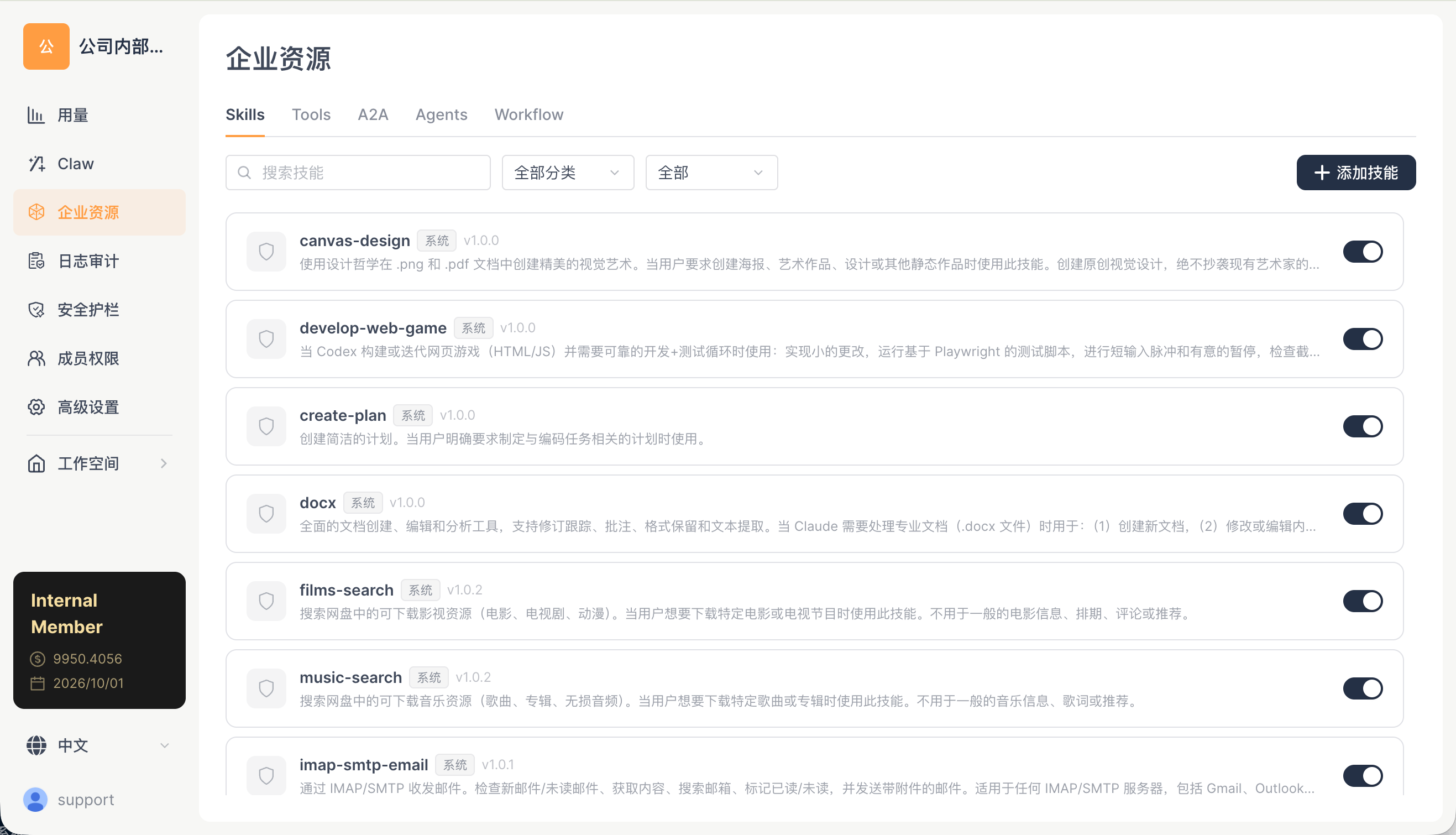
The page displays 21 system preset skills (System tag) + enterprise custom skills.
Each skill card includes:
- Icon + Name +
Systemtag + version number - Description: an explanation of the skill's functionality (optional)
- Toggle: enable / disable
Common system skills include:
- canvas-design
v1.0.0— Canvas design, static artwork creation - develop-web-game
v1.0.0— Web mini-game development - create-plan
v1.0.0— Create structured plans - docx
v1.0.0— Word document processing - films-search
v1.0.2— Film and TV search - music-search
v1.0.2— Music search - imap-smtp-email
v1.0.1— Sending and receiving email - frontend-design
v1.0.0— Frontend UI design - pdf
v1.0.0— PDF processing - local-tools
v1.0.0— Local toolset - remotion
v1.0.0— Programmatic video generation - playwright
v1.0.0— Browser automation - seedance / seedream — AI video/image generation
- scheduled-task — Scheduled task creation
- skill-creator — Meta-skill (create skills)
- web-search — Web search
- technology-news-search — Tech news search
- weather — Weather lookup
- xlsx — Excel processing
- pptx — PowerPoint processing
For the complete list of skills, see Skill Management.
Adding Enterprise Skills
The + Add Skill button in the upper-right corner (administrators only):
- Click Add Skill
- Upload or select a skill package (ZIP or directory)
- Set the skill name, description, and security level
- After saving, the skill becomes available to all members of the organization
Tools
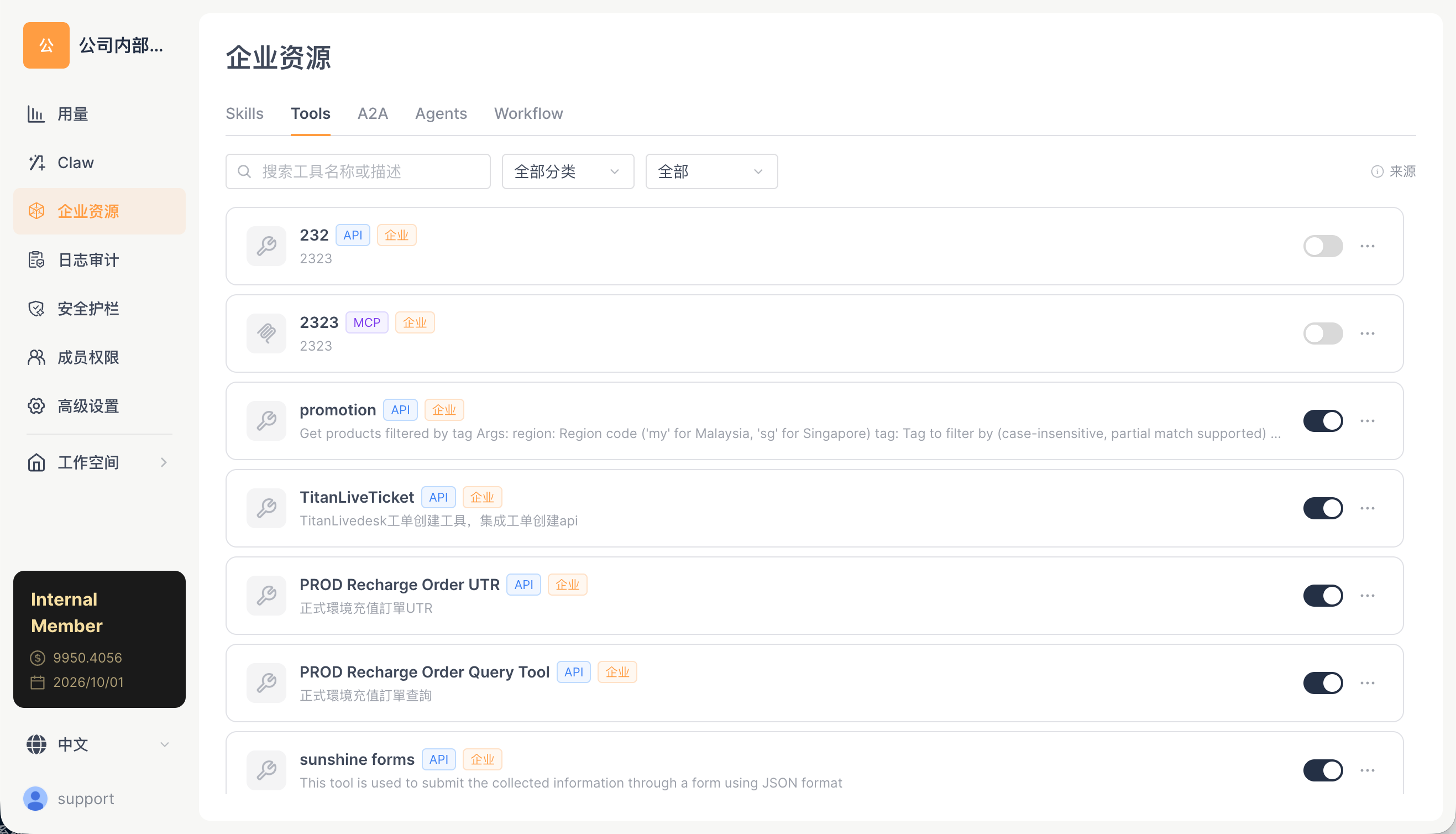
Manage enterprise-level API tools + MCP tools:
| Action | Description |
|---|---|
| Add tool | Configure an enterprise-level API tool (based on the OpenAPI specification) or MCP server |
| Authentication management | EnterpriseToolAuthModal centrally manages tool authentication (Bearer / Basic / OAuth2, etc.) |
| Enable/disable | Control whether a tool is available |
| Custom tools | Use ToolDirectoryManager to manage tools under {dataDir}/TOOLs/{orgId}/_custom/ |
A2A (A2A Agents)
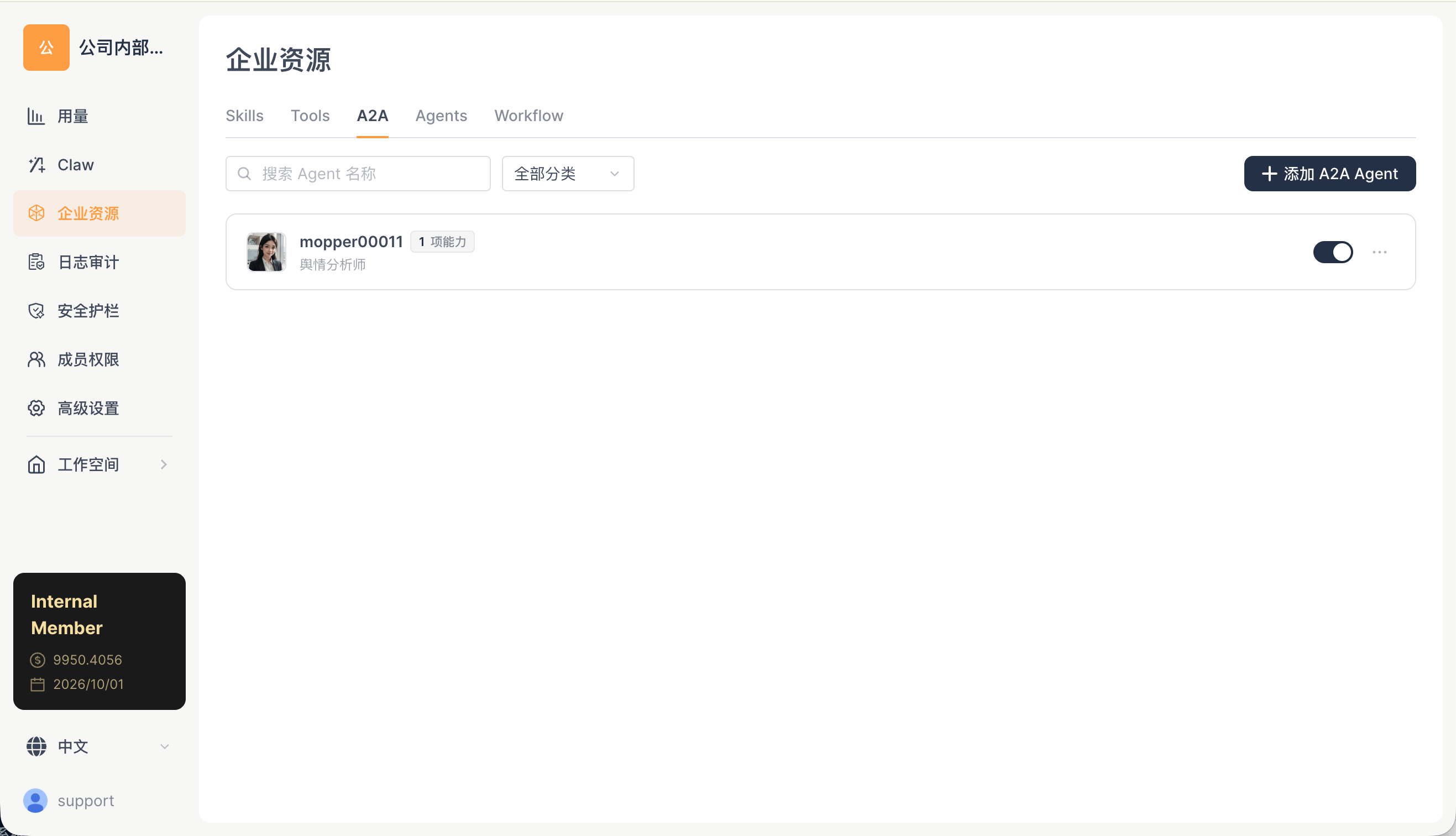
Add standard A2A protocol agents via Agent Card URL:
| Action | Description |
|---|---|
| Add agent | Enter the Agent Card URL, and the system automatically parses the agent information |
| Edit | Modify name and category |
| Enable/disable | Control the agent's status (ACTIVE / DISABLED) |
| Delete | Remove the agent |
Added agents automatically appear on the "Workspace → Agents" page, available to all members.
Agents
Review and manage Agents, FlowAgents, and A2A-type agents published to the organization.
| Action | Description |
|---|---|
| Review | Review Agents submitted by members |
| Publish/unpublish | Control whether an Agent is available |
| List management | Search and filter by category |
Workflow
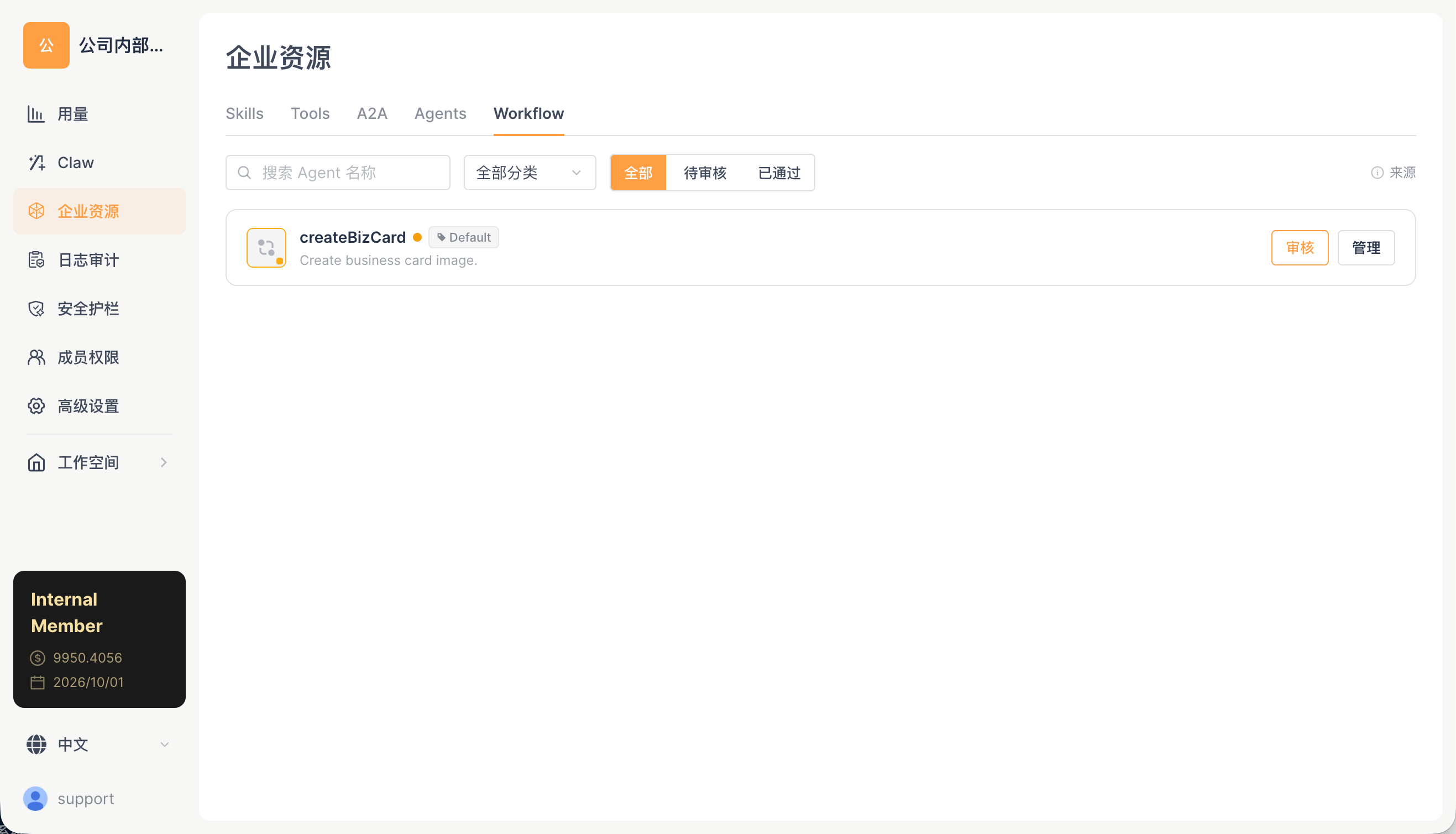
Review and manage workflows published to the organization:
| Action | Description |
|---|---|
| Review | Review workflows submitted by members |
| Publish/unpublish | Control whether a workflow is available |
| Permission codes | WORKSPACE_CONSOLE_ENTERPRISE_AGENT_ONLINE, etc. |
Organization Isolation
All enterprise resources are strictly isolated by orgId:
- Skills, tools, agents, Agents, and Workflows are all bound to a specific organization
- Members can only see and use resources belonging to their own organization
- Administrator actions only affect the current organization
Operation Guide
How to Publish an Enterprise Skill
- Open Enterprise Resources → the Skills tab
- Click
+ Add Skill - Upload or select a skill package
- Set the skill name, description, and security level
- After saving, the skill becomes available to all members of the organization
Impact: After publishing, members' APP clients will automatically fetch the enterprise skill on their next sync (up to 30 minutes). Members can see and enable it in the skill list.
How to Manage A2A Agents
- Switch to the A2A tab
- Click
Add A2A Agentand enter the Agent Card URL - After the system retrieves the agent information, set the category
- You can enable/disable or delete the agent at any time
Impact: The added A2A agent will appear on all members' Agents page. Once disabled, members can no longer see the agent.
Related Documentation
- Skill Management — Using skills on the APP client
- Tool Management — Using tools on the APP client
- Agents — A2A agent conversations