
Work Conversation Overview
What Is Work
Work is the core conversation interface of the workspace — the primary place where you collaborate with the AI Agent, and the module that carries the workspace's "AI avatar" capability.
Unlike a traditional chat window, the Agent in Work has an autonomous reasoning-execution loop (Agent Loop) — you give it a goal, and it automatically breaks down the task, invokes tools, and executes continuously until the task is complete. You don't need to guide every step by hand.
Entry Points
| Platform | Entry Point |
|---|---|
| Web | Visit https://www.gptbots.ai/工作区/myclaw in a browser, or click the Work menu on the left after logging in |
| Desktop APP | After launching the APP, you enter the Work page by default; Work is also the first item in the left-side menu |
Interface Layout
The Work page uses a conversation stream + overlay layout:
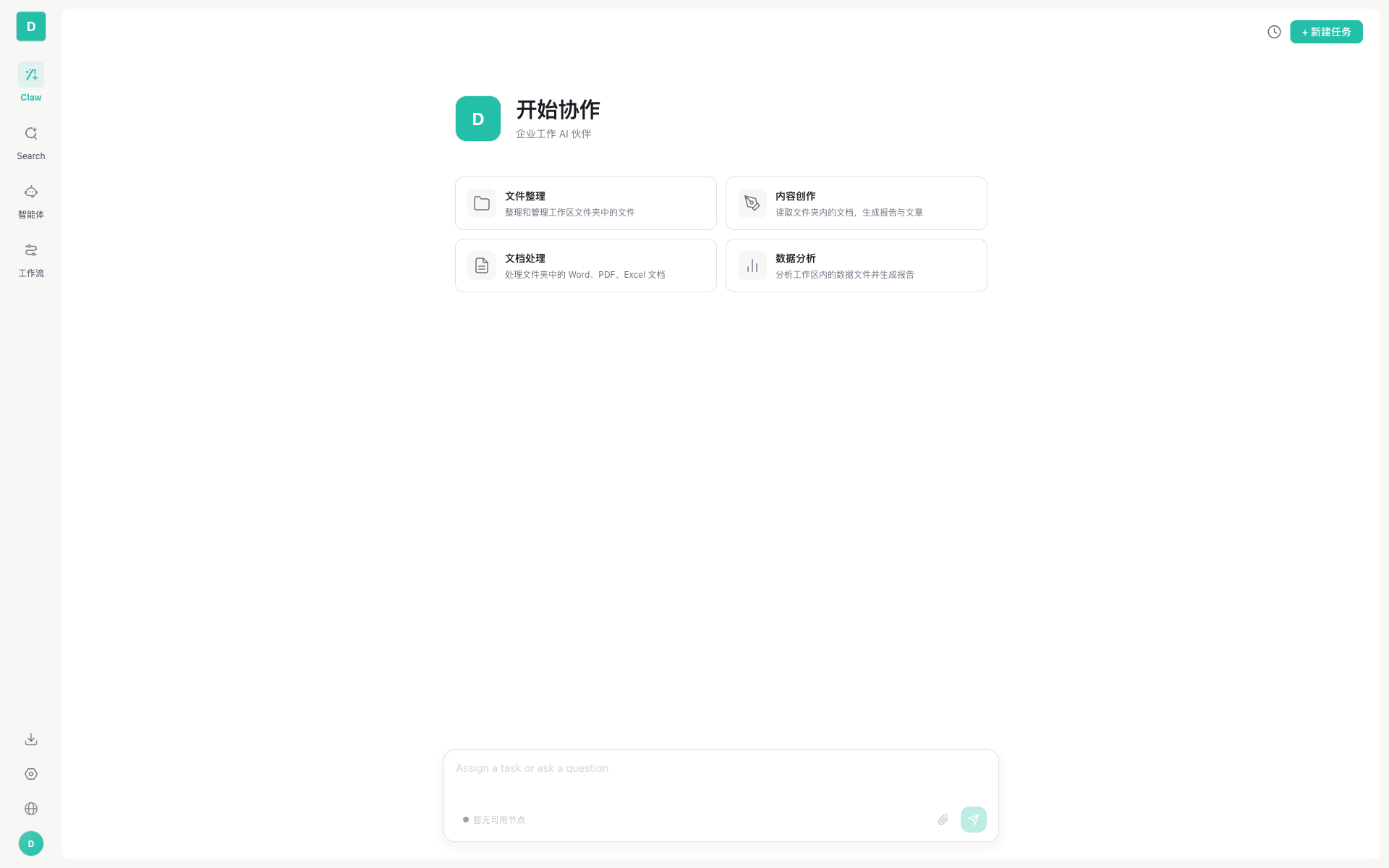
| Area | Component | Description |
|---|---|---|
| Left sidebar | Side navigation | Switch between Work / Search / Agent / Workflow and other menus |
| Top | Toolbar | History button, + New Task button |
| Center | Conversation/Welcome page | New sessions show the welcome page; ongoing conversations show the message stream |
| Bottom | PromptInput | Input box + node selection + model selection + working directory + attachments |
Tip: On the APP, a LOCAL badge appears in the top-left corner of the window, indicating that the current node is the local node.
Welcome Page
When you create a new conversation, Work displays the welcome page:
- Workspace Logo and brand name: customizable in Space Management → Advanced Settings
- "Start collaborating" tagline: defaults to "Your Enterprise Work AI Partner"
- Quick action cards: administrators can configure common task templates in the workspace, for example:
- 📁 File organization — organize and manage files in the workspace folder
- ✏️ Content creation — read documents in a folder and generate reports and articles
- 📄 Document processing — process Word, PDF, and Excel documents in a folder
- 📊 Data analysis — analyze data files in the workspace and generate reports
Click a card to start a new conversation with a preset prompt.
Input Area (PromptInput)
The input area is located at the bottom of the conversation area and provides rich input capabilities:
| Feature | Description |
|---|---|
| Text input | Multi-line text input; Enter to send, Shift+Enter for a new line |
| Attachment upload | Supports images, documents, audio, and other files, automatically converted into multimodal content blocks |
| Node selection | Select the target execution node (local or remote APP node) |
| Model selection | Switch the LLM model used for this conversation |
| Working directory | Select which directory the Agent works in (affects the default paths for Bash, Read File, etc.) |
| History button | Top-right corner, view all past sessions |
| + New Task | Top-right corner, start a new conversation |
When no node is available:
● No node availableis displayed below the input box. This means no APP node is online under your account, so tasks cannot be executed. Please start the desktop APP first, or ask a teammate to turn on their APP (set as an enterprise node).
Session History
Click the "History" icon in the top-right corner to open the session list panel:
| Action | Description |
|---|---|
| Search | Filter session titles by keyword |
| Pin | Pin important sessions to the top |
| Group | Organize sessions using folders |
| Delete | Remove sessions you no longer need |
| Rename | Change the session title |
| Icon distinction | Local conversations show a computer icon, remote node conversations show a server icon, and IM channel conversations show the corresponding platform icon |
Platform Adaptation (PlatformAdapter)
The Work page achieves shared use across Web and APP through the PlatformAdapter pattern:
- Shared layer: core components such as
WorkPage,PromptInput, andSessionListreside in theclaw-shared/directory, with the source in the Web repository - Web adapter:
webPlatformAdapter.ts— based on Redux + Gateway WebSocket - APP adapter:
appPlatformAdapter.ts— based on Redux + coworkService (local Sidecar)
The interface users see on both ends is largely identical, but the underlying execution differs.
Quick Start: Your First Conversation
Step 1: Start a Conversation
- Click Work in the workspace sidebar
- If you are a new user, you will see the welcome page and quick action cards
- Enter your question or task in the input box at the bottom, and press Enter to send
- The Agent starts processing, and you will see the reply text and the tool invocation process in real time
Step 2: Experience Tool Invocation
Try asking the Agent to perform tasks that require tools:
| Try these prompts | What the Agent will do |
|---|---|
| "Show me what files are in the current directory" | Invokes the List Directory tool |
| "Search for the latest TypeScript tutorials for me" | Invokes the web-search skill |
| "Create a hello.py file" | Invokes the Write File tool |
| "What's in this image?" (with an image attached) | Uses vision capability to analyze the image |
Step 3: Manage Sessions
- New conversation: click the
+ New Taskbutton in the top-right corner - Search history: "History" icon in the top-right corner → search box at the top
- Pin important conversations: right-click a session → Pin
FAQ
The Agent replies slowly
- Check the model currently in use (large models are slower than small ones)
- Complex tasks involve multiple rounds of tool invocation and take more time
- If you are using a remote node, network latency also increases response time
The Agent seems to "forget" the content from the beginning of the conversation
When a conversation gets long, the system automatically compresses the context. This is normal behavior — the system intelligently retains the most important information. If you need the Agent to remember a key piece of information, you can say "Please remember..." to store it in the memory system.
A confirmation dialog popped up during tool invocation
This is a security mechanism. P1/P2-level tools (such as Bash) require your confirmation before execution. Check the tool name and parameters, and click "Allow" once you are sure it is safe. You can adjust the permission level in Runtime Security.
Sending a message on the Web shows "No node available"
The Web cannot execute tasks on its own and requires at least one APP node to be online. Please install and start the desktop APP (APP Quick Start), or ask a team member to set their APP node as enterprise.
Related Documents
- Conversation Interaction — message stream, tool invocation, streaming output, session management
- Multimodal Input and Output — image/document/audio input, 9 kinds of file preview
- Sub-agents — automatic creation, pre-registration, cross-node dispatch
- Agent Loop Engine — detailed explanation of the underlying Agent Loop technology
- 5-Layer Context Compression — context management strategy