
Channels (Integrations)
Overview
Integrations let you connect your Agent to external IM platforms, so you and your team can talk to the Agent directly in Telegram, WhatsApp, Slack and other tools. Messages from a channel are executed by this app (your Work Node) and replies are pushed back to the platform.
Channels are configured on the Integrations page (left navigation → Integrations).
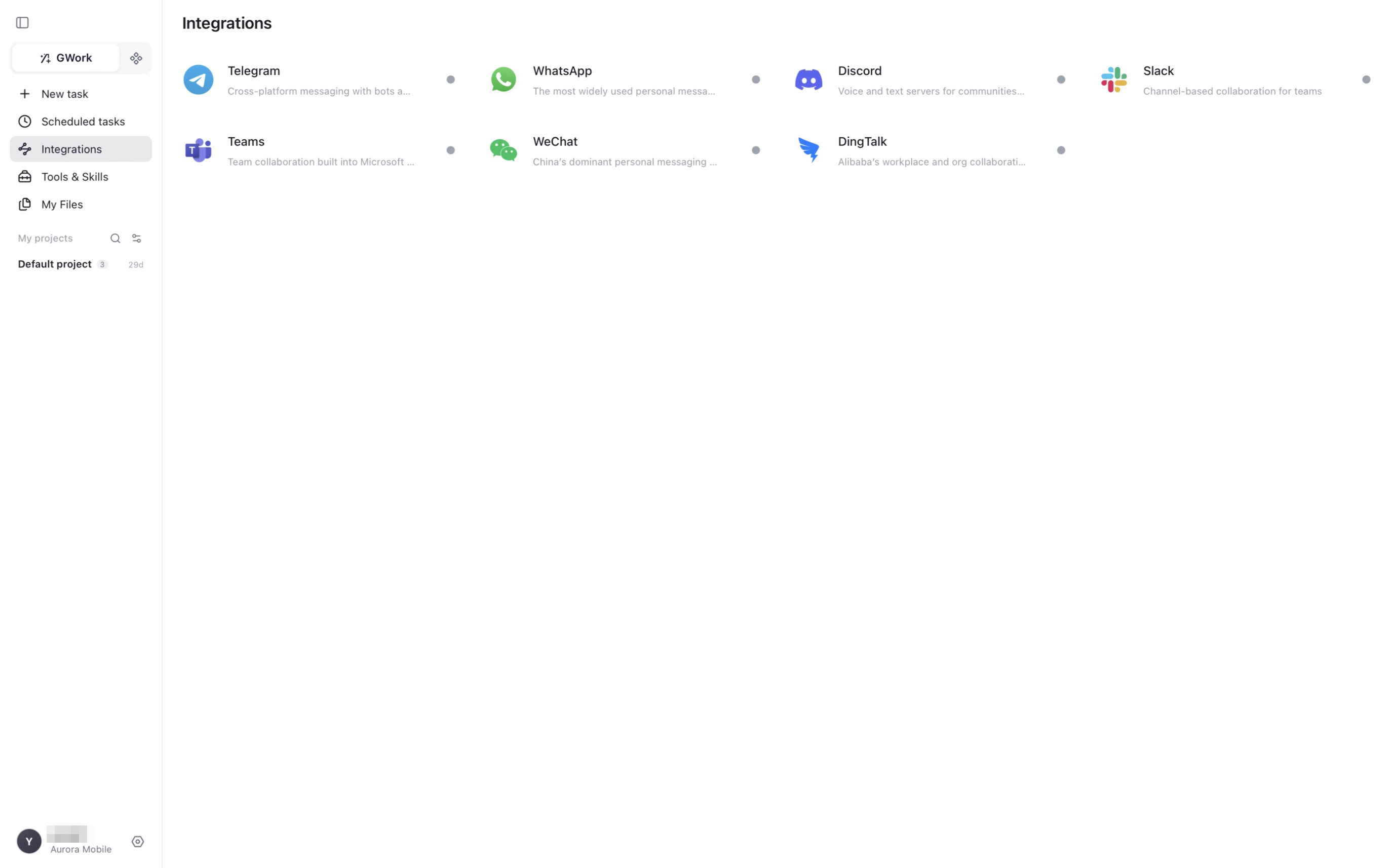
Supported Channels
| Channel | Type | Description |
|---|---|---|
| Telegram | Global IM | Cross-platform messaging with bots; group and private chat |
| Global IM | The most widely used personal messaging app | |
| Discord | Community | Voice and text servers for communities |
| Slack | Enterprise collaboration | Channel-based collaboration for teams |
| Teams | Enterprise collaboration | Team collaboration built into Microsoft 365 |
| Chinese IM | China's dominant personal messaging app | |
| DingTalk | Enterprise collaboration | Alibaba's workplace and organization collaboration platform |
Each row on the Integrations page shows the platform icon, name, a short description, and a status dot (grey = not connected, green = connected). Click a row to open its configuration page.
For the multimodal capability matrix of each channel, see Channel List.
General Configuration Flow
Every channel page follows the same pattern:
| Element | Description |
|---|---|
| Enable toggle (top right) | Turns the channel on or off |
| Test Connection | Validates the credentials; the status badge next to the channel name changes from Disconnected to connected |
| Credential fields | Bot Token / App Key / QR code — depends on the platform |
| Allowed Senders | Allowlist of users (by @username or numeric ID) who may talk to the Agent through this channel. Leave empty to allow everyone, or add entries with Add |
- Open Integrations → click the channel
- Enter the credentials required by the platform
- (Recommended) add Allowed Senders so only trusted users can trigger the Agent
- Click Test Connection, then switch the enable toggle on
- Send a message to the bot from the platform; the Agent replies
Telegram Configuration Steps

- Search for @BotFather in Telegram and send
/newbot - Follow the prompts to set the Bot name, and obtain a Bot Token in a format such as
123456789:ABCdefGHIjklMNOpqrsTUVwxyz - Open App → Integrations → Telegram
- Paste the token into Bot Token (use the eye icon to show / hide it)
- Under Allowed Senders, enter your Telegram
@usernameor numeric ID and click Add - Click Test Connection; once the status shows connected, switch the toggle on
- Find your Bot in Telegram and send a message; the Agent will reply automatically
Tip: Telegram Bots support both group and private chat modes. After adding the Bot to a group, you can trigger the Agent to reply by mentioning it with @BotName.
WhatsApp Configuration Steps
- Open App → Integrations → WhatsApp
- Follow the on-screen pairing flow (linked-device mode with a QR code)
- Open the WhatsApp mobile app → Settings → Linked Devices → Link a Device, and scan the code
- After successful pairing, the app keeps the connection alive (auto-reconnect on disconnection)
Note: Linked-device mode requires the WhatsApp mobile app to stay logged in. If you log out on the phone, the connection will be broken.
DingTalk Configuration Steps
- Create an enterprise internal app on the DingTalk Open Platform
- Obtain the app's AppKey and AppSecret
- Open App → Integrations → DingTalk, fill in the credentials, and configure the message callback the page provides
- Click Test Connection and switch the toggle on
Multimodal Message Support
Some channels support sending and receiving multimodal messages:
| Capability | Description |
|---|---|
| Receive images | Images sent by users in the IM are passed to the Agent |
| Receive files | Documents/files sent by users are passed to the Agent |
| Send text | The Agent's text replies are pushed to the IM |
| Send images | Images generated by the Agent are pushed to the IM |
| Send files | Files generated by the Agent are pushed to the IM |
For the specific multimodal capability differences of each channel, see Channel Multimodal Capability Matrix.
Conversation Display
Conversations started from a channel appear in the app's project / task list with the platform icon, helping you distinguish the source of messages. Produced files appear under My Files.
Notes on Channel Messages
| Note | Description |
|---|---|
| The app must be running | Channel messages are executed by this app; if it is closed or offline, messages are not answered |
| Message latency | Channel messages travel IM platform → Agent → IM platform, usually with a few seconds of delay |
| Text length limit | Each platform has a different maximum message length (such as Telegram's 4096 characters); overly long replies are split and sent in segments |
| Format limitations | Some channels do not support Markdown; replies are downgraded to plain text |
| File sending | Channels that do not support files receive a download link instead |
| Permissions | Tool permission cards raised by channel tasks follow the same P0/P1/P2 rules; use Always Allow or adjust Tool Level for tools that channel tasks use often |
| Conversation context | Each channel user's conversation is an independent session, and the Agent remembers the conversation history of the same user |
Related Documentation
- Channel List and Capability Matrix — Complete channel list
- Scheduled Tasks — Use a connected channel as the notification channel of a scheduled task