
AI Search
Overview
AI Search is the intelligent search feature of the workspace. Unlike Work's task-oriented conversations, Search targets open-ended queries: ask a question in natural language, and the AI provides a comprehensive answer based on the latest web and internal resources.
Access it via the Search menu in the left sidebar on the web; the desktop app is in the same location.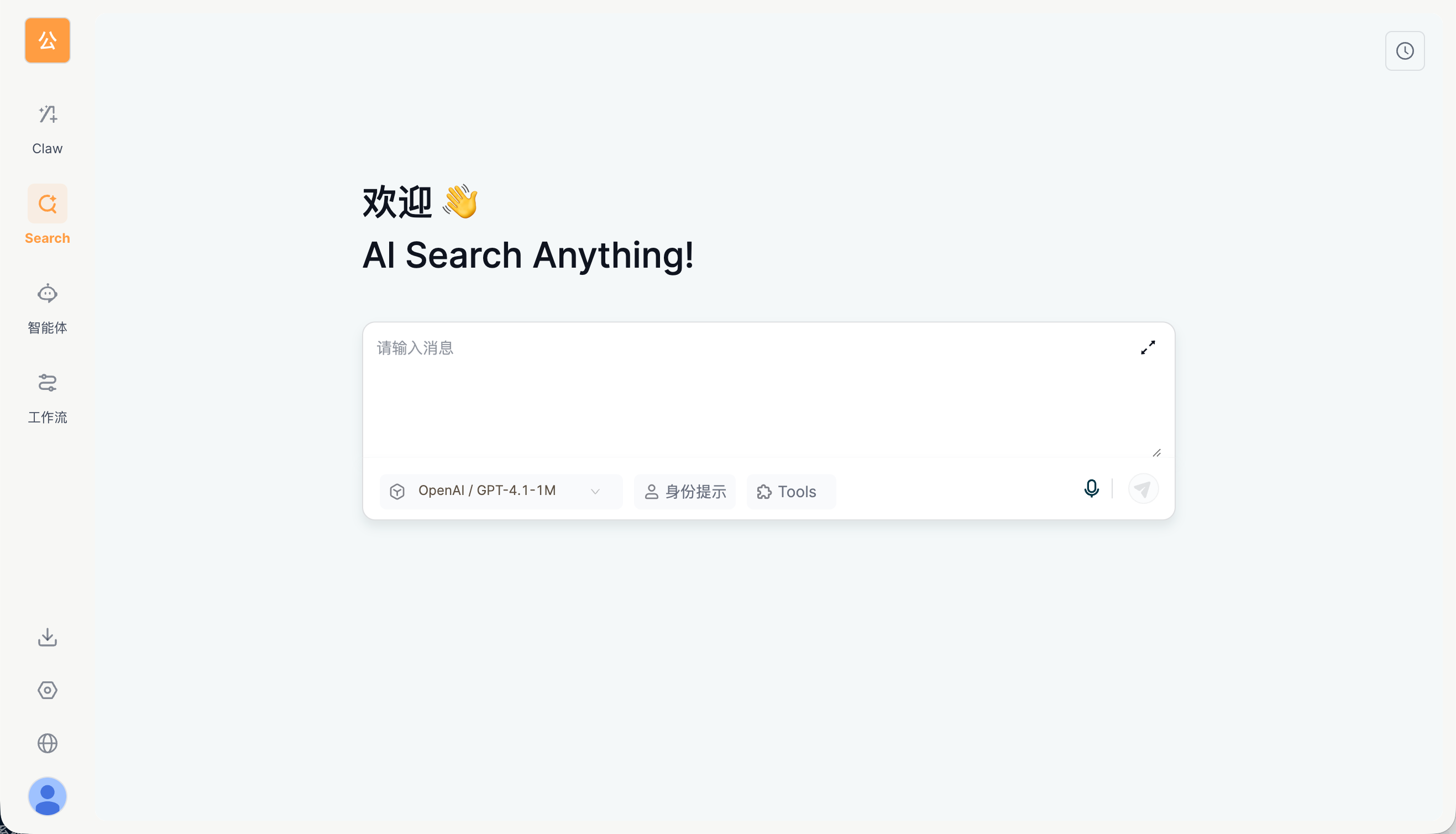
Difference from Work
| Dimension | Work | AI Search |
|---|---|---|
| Scenario | You need the AI to complete a task (write files, run code, edit documents) | You need the AI to answer questions or synthesize information |
| Tools | Full toolbox (Bash, files, memory, etc.) | Search-focused + identity prompt + Tools |
| History | Conversations are recorded in Work | History is recorded in Search (clock icon in the upper-right corner) |
| Result format | Multi-round execution process + final deliverable | A one-time comprehensive answer (supports follow-up questions) |
Interface Elements
| Area | Description |
|---|---|
| Welcome message | "Welcome 👋 AI Search Anything!" |
| Input box | Multi-line text input; the "Expand" button in the upper-right corner enables full-screen editing |
| Model selection | Switch the LLM used for search in the lower-left corner (default OpenAI / GPT-4.1-1M) |
| Identity prompt | Set a role/stance for Search (e.g., "You are a senior data analyst") |
| Tools | Enable or disable the tools available to Search |
| Voice input | The microphone icon in the lower-right corner; press and hold to speak |
| Send | The paper-plane button in the lower-right corner, or press Enter to send |
| History | The clock icon in the upper-right corner to view search history |
Typical Use Cases
| Scenario | Example Query |
|---|---|
| Industry news | "What new developments have there been in large-model inference frameworks over the past three months?" |
| Technical comparison | "Compare the applicable scenarios of React Query and SWR" |
| Policy interpretation | "What are the practical impacts of the EU AI Act on startups?" |
| Fact-checking | "What was OpenAI's revenue in Q1 2025?" |
| Solution advice | "How should a 100-person team plan a knowledge base system?" |
Search Settings
Identity Prompt
Similar to a "role setting": have the AI answer questions as a specific persona.
For example, after setting "You are a senior legal counsel; cite specific legal provisions in your answers," the AI's responses will be more professional and focused.
Tools
Enable/disable the tools available during the search process. Defaults typically include:
- Web search tool
- Internal knowledge base retrieval tool
- Code interpreter (when calculations/charts are needed)
Relationships with Other Modules
| Module | Relationship |
|---|---|
| Space Management — Usage Statistics | The AI Search tab displays search usage data |
| Space Management — Log Audit | The Search tab displays search operation logs |
| Space Management — Enterprise Resources | Search-related MCP tools can be configured |
Implementation Notes
Technical details: The web Search page is currently embedded via an iframe into the Space frontend's
/space/searchpage; the native React implementation is being migrated. The desktop app shares the same implementation.
Related Documentation
- Usage Statistics — Search usage monitoring
- Log Audit — Search operation logs
- Work Conversation Overview — Task-oriented conversation entry point (complementary to Search)