
Official Tools
Official Tools
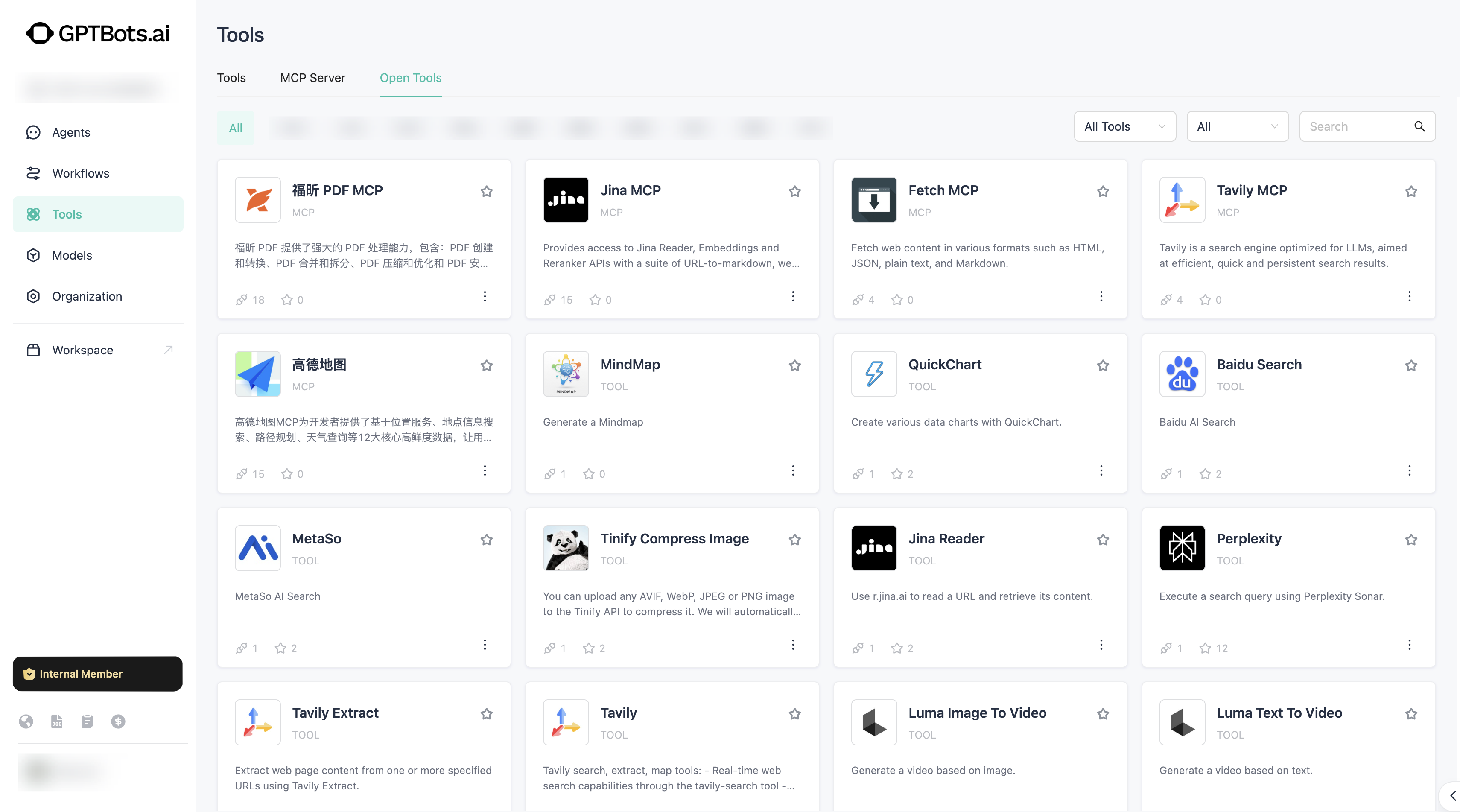
Here, you can view all the tools developed by GPTBots officially and provided for users to use. You can add and use these tools in the Agent/Workflow configuration interface.
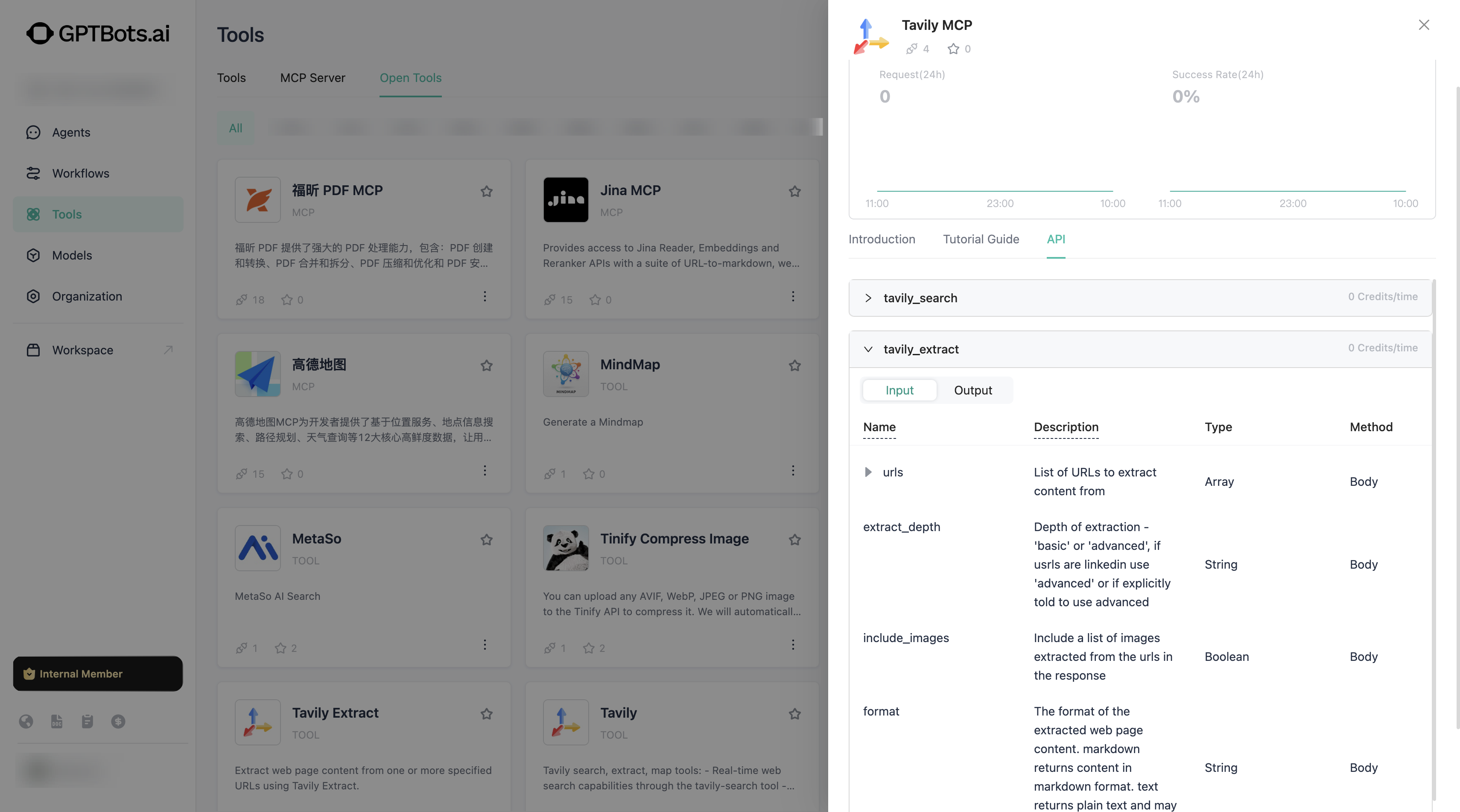
Each tool allows you to view its specific information, including its introduction, usage, input parameters, and output parameters.
OAuth Tools
GPTBots presets some OAuth-type tools, which can be used by both Agents and Workflows.
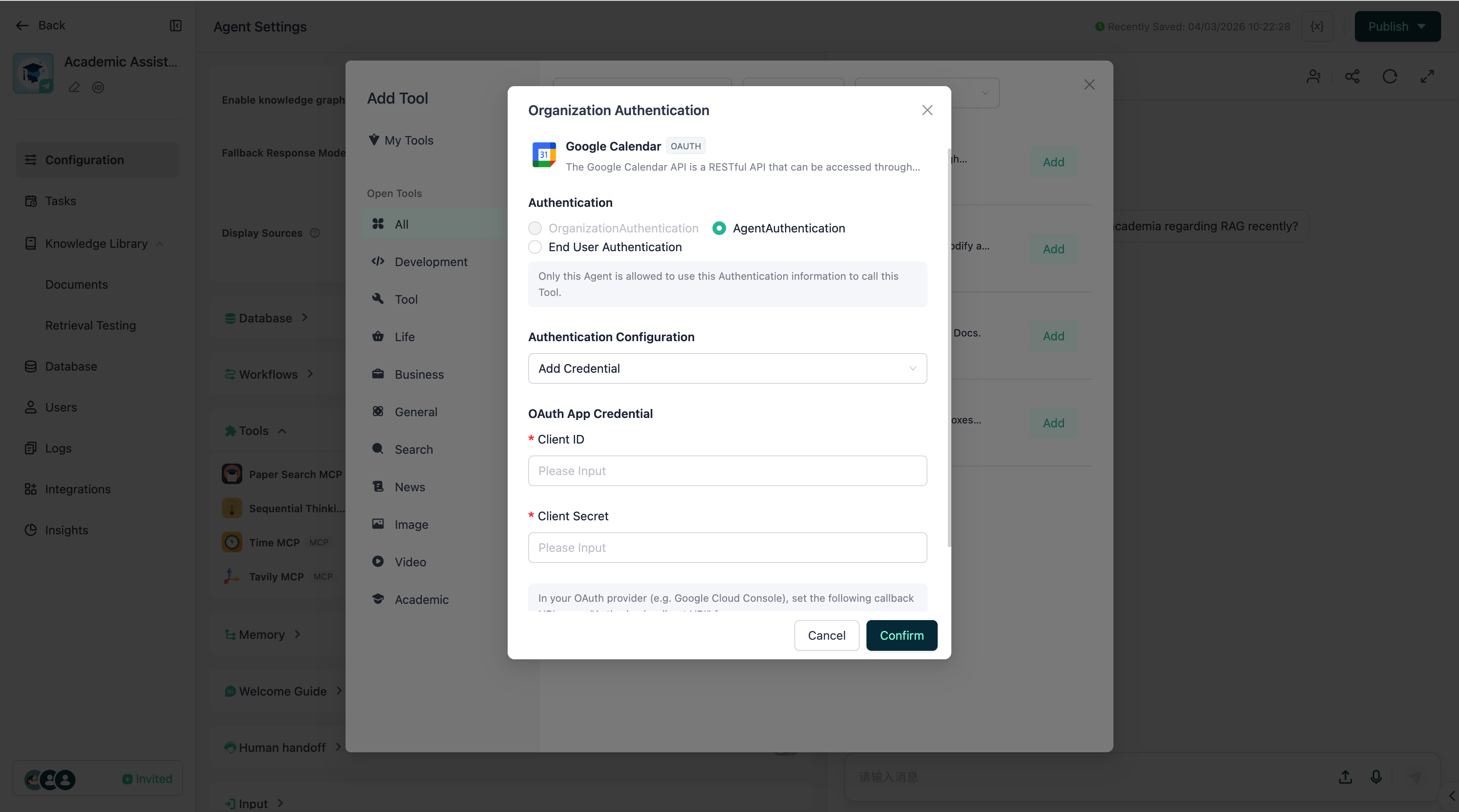
When adding an OAuth tool, you need to perform the following operations:
- Select the authorization method.
- Organization Authorization: Once the tool is authorized, it is available across the entire organization. Organization authorization needs to be completed in [Tools - Official Tools].
- Agent Authorization: Once the tool is authorized, it can only be used in the current Agent.
- End-user Authorization: When this tool is added to an Agent, no authorization is required. If the end user wants to invoke this tool during a conversation with the Agent, the user needs to complete authorization during the conversation. This ensures that each user can authorize and use the tool with their own account.
- Enter Client information. The information required for each OAuth tool may vary. Taking Google tools as an example, you need to first register a client in Google Cloud, obtain
client_idandclient_secret, and enter them here. - Fill in the
redirect URIin your client settings. Copy the link provided by GPTBots below and paste it into your OAuth client configuration. - Click [Confirm] to complete the authorization.