
Livedesk Configuration Guide
Livedesk Integration Guide
Log in to the Livedesk Developer Console, select your target project under the Livedesk product, and follow the steps below:
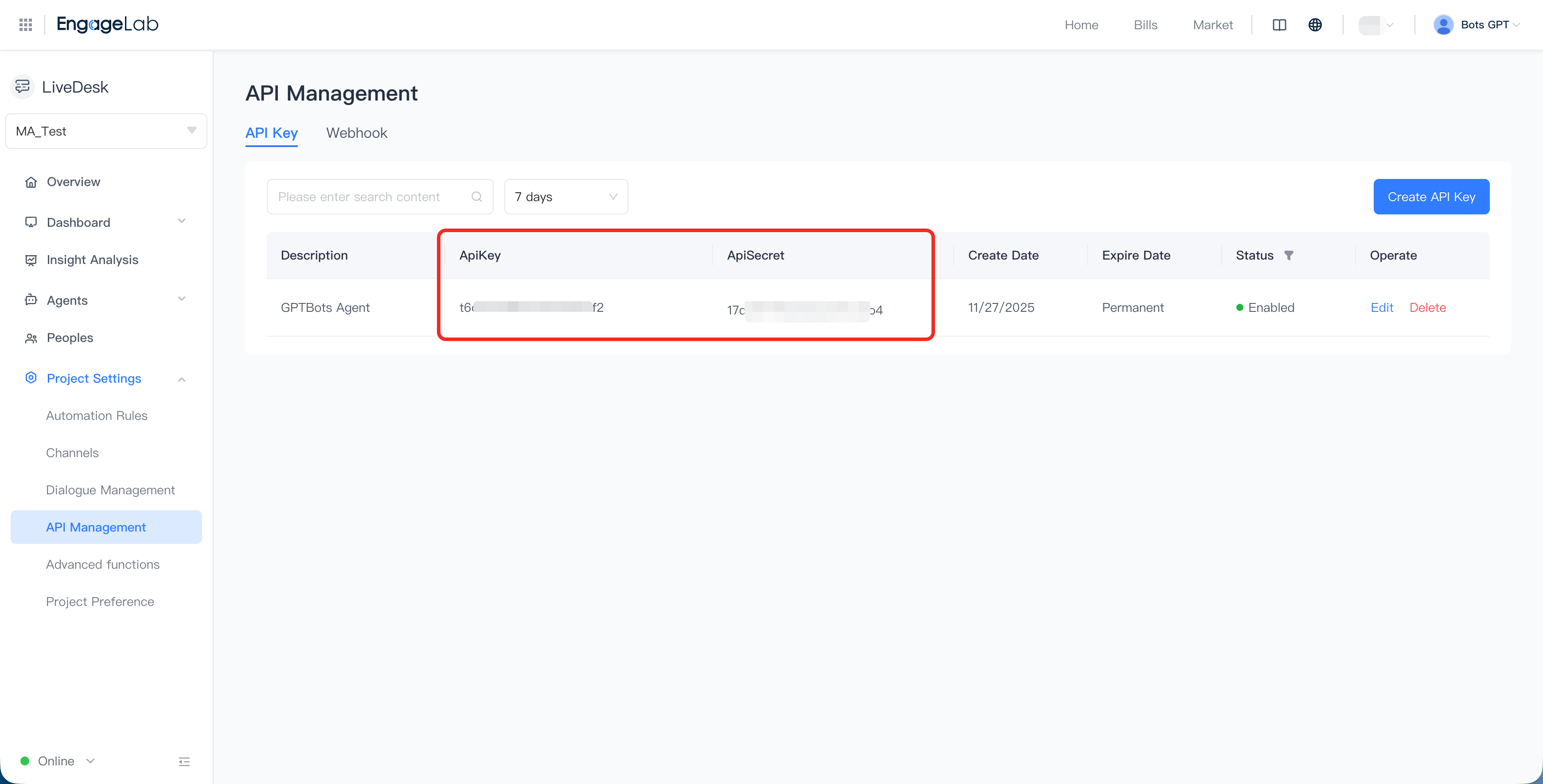
Navigate to "Project Settings > API Management > API Key" and copy your API Key and API Secret.
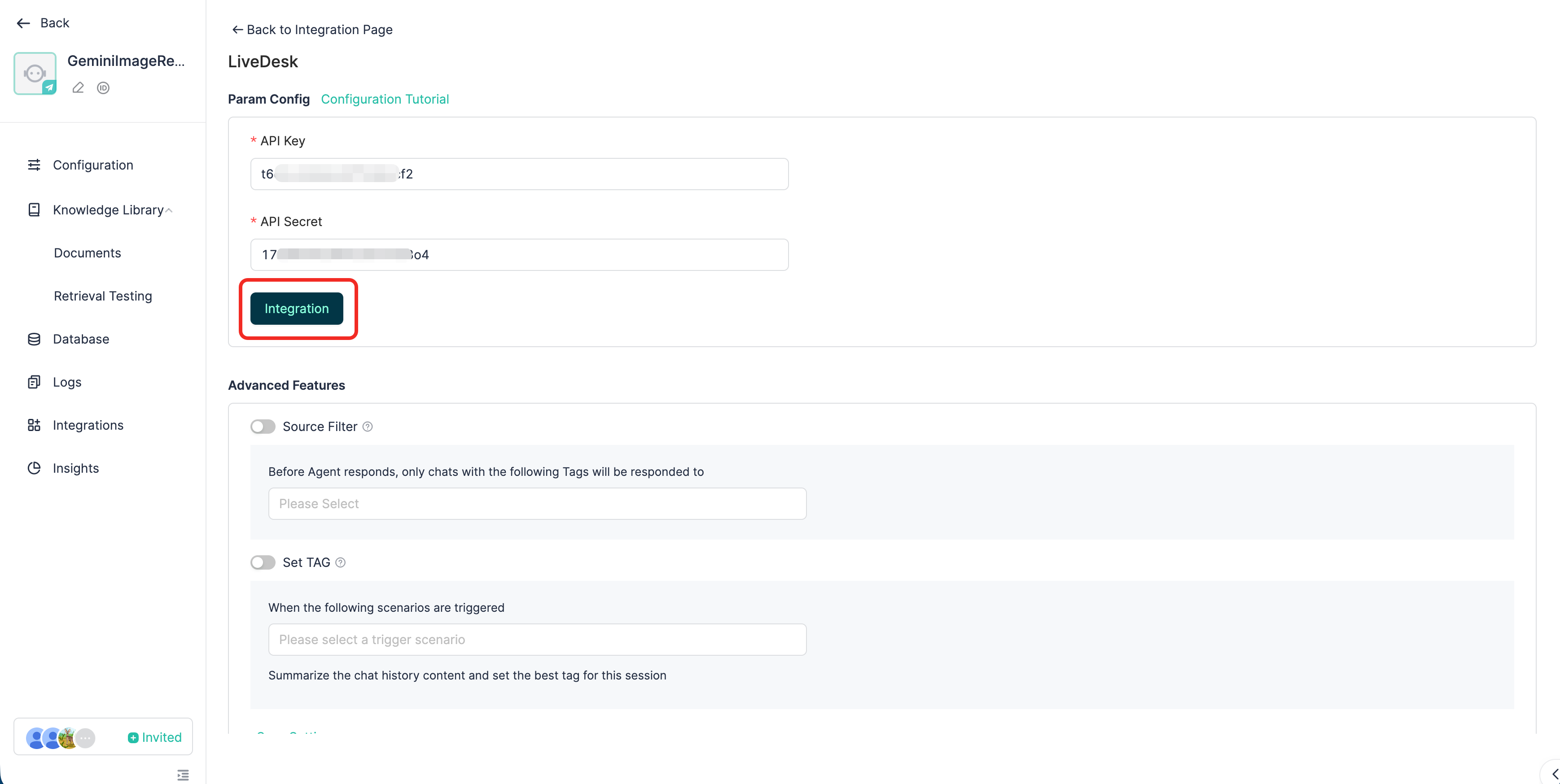
Switch to GPTBots, open "Agent → Integrations → Livedesk", paste the key into Access Token, and click Integrate. Remember to enable the Livedesk channel toggle so the agent can receive and reply to messages.
The agent is now linked. You can view or manage it under “Livedesk → AI Agents”.

In “Livedesk → Channels”, pick the target channel, open its settings, choose AI Agent, select the agent you just added, and save.

That’s it—your AI Agent is live on Livedesk.
To let the agent take over user chats, set the human-service mode to Livedesk to Livedesk in the agent’s configuration and select the human-service team to hand conversations over to. If you don't have a Livedesk support team yet, you can create one under Agent > Team.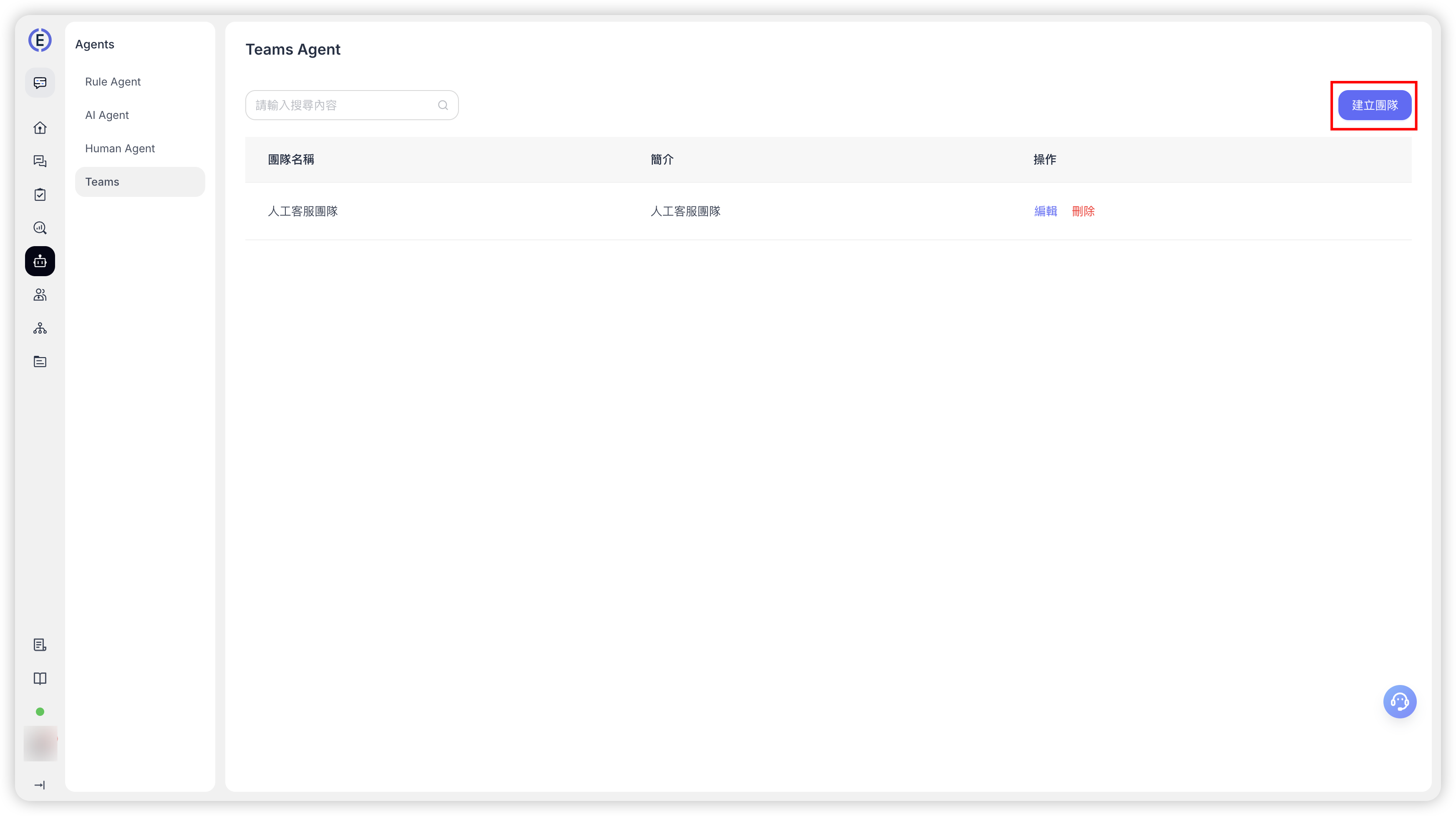
Managing the AI Agent
- Delete: Go to “Livedesk → AI Agents”, choose the agent, and click Delete.
GPTBots will automatically remove the auth record and disable the channel. - Sync info: Whenever you update the agent’s name, description, or avatar in GPTBots, the changes are pushed to Livedesk instantly.
Advanced Livedesk Features
Auto-Tagging
Enabling this makes the system listen for all selected events in the project and may consume extra credits.
After the initial auth is complete, you can turn on Auto-Tagging:
- Trigger events
– Close conversation: fired when the visitor actively closes the chat.
– Transfer chat: fired when the chat is handed off to another agent. - Tags
The system pulls the existing tag list from your Livedesk project.
When a chosen event occurs, the AI Agent reads the transcript, picks the most relevant tag, and calls the Livedesk tagging API automatically—helping human agents spot customer needs faster.
Source Filtering
Once authenticated, you can enable Source Filtering:
- The system loads all tags defined in the Livedesk project.
- Select one or more tags as filter criteria.
- When a visitor starts a chat, GPTBots checks the chat’s tags.
– If they match, the message is sent to the AI Agent.
– Otherwise, the message is ignored.
User ID Mapping
When using LiveDesk to serve users, developers can track identities across platforms by setting a User ID. By calling the Livedesk set User ID while a user is logged in, GPTBots automatically maps this information to the user_id field. This helps the AI Agent identify users quickly and improve service efficiency.
| LiveDesk | LiveDesk API | Description |
|---|---|---|
| user_id | user_id | When a Livedesk conversation includes the user_id field, GPTBots sets user_id to its value. |
| coneact_id | anonymous_id | When a Livedesk conversation includes the contact_id field, GPTBots sets anonymous_id to its value. |
When a Livedesk conversation includes the email field, GPTBots sets email to its value. |
||
| phone | phone | When a Livedesk conversation includes the phone field, GPTBots sets phone to its value. |
Browser Field Mapping
When a conversation from the Livedesk Widget is sent to the Agent, GPTBots automatically maps the browser metadata to the corresponding browser fields in GPTBots. Developers can use these browser attributes for variable referencing and conditional logic.
Custom Variable Mapping
When a Livedesk conversation is sent to the Agent, GPTBots automatically parses the conversation attributes in the metadata. If a field name matches a Custom Variable in GPTBots, the value is automatically assigned. Developers can use these variables for logic and referencing.
User Attribute Mapping
When a Livedesk conversation is sent to the Agent, GPTBots automatically parses the contact attributes (user attributes) in the metadata. If a field name matches a User Attribute in GPTBots, the value is automatically assigned. Developers can use these attributes for logic and referencing.