
Telegram
You can integrate the GPTBots Agent into a Telegram Bot (TG Bot), allowing your Telegram users to interact with the Agent through the TG Bot.
Telegram currently supports three types of Agent and user interactions:
- Private Chat: Agent and user communicate one-on-one
- Group Chat - Passive Listening: Agent only responds when the user @mentions the TG Bot
- Group Chat - Active Listening: Agent continuously listens to all user messages and responds
Create a TG Bot

Go to BotFather, enter the /newbot command, and follow BotFather’s instructions to create a TG Bot.
Once created, you will obtain the TG Bot link (Telegram Agent Link) and token.
Configure in GPTBots

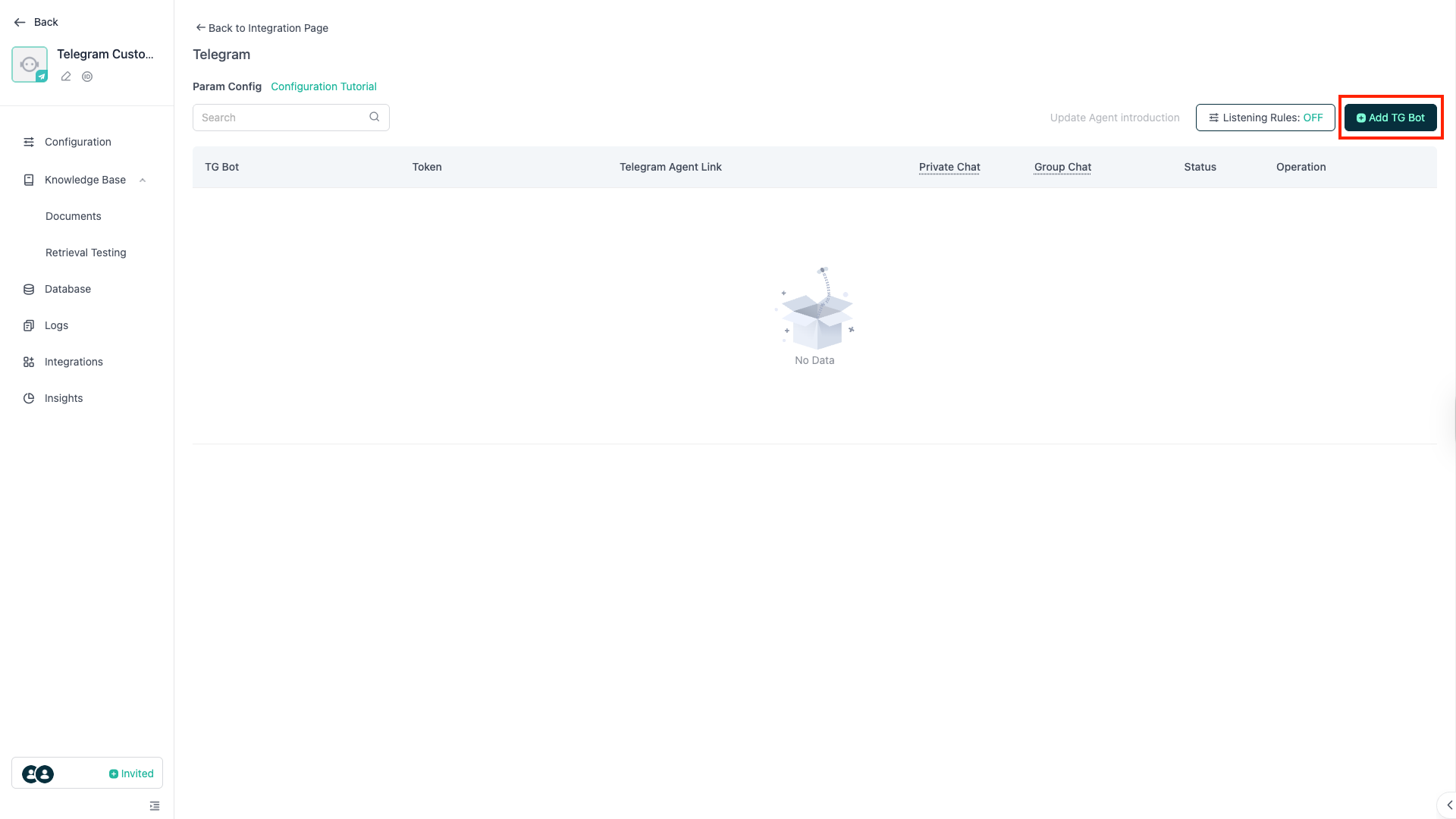
Go to GPTBots, enter Integrations - Telegram, toggle the switch, and open the Manage page. Click Add TG Bot.
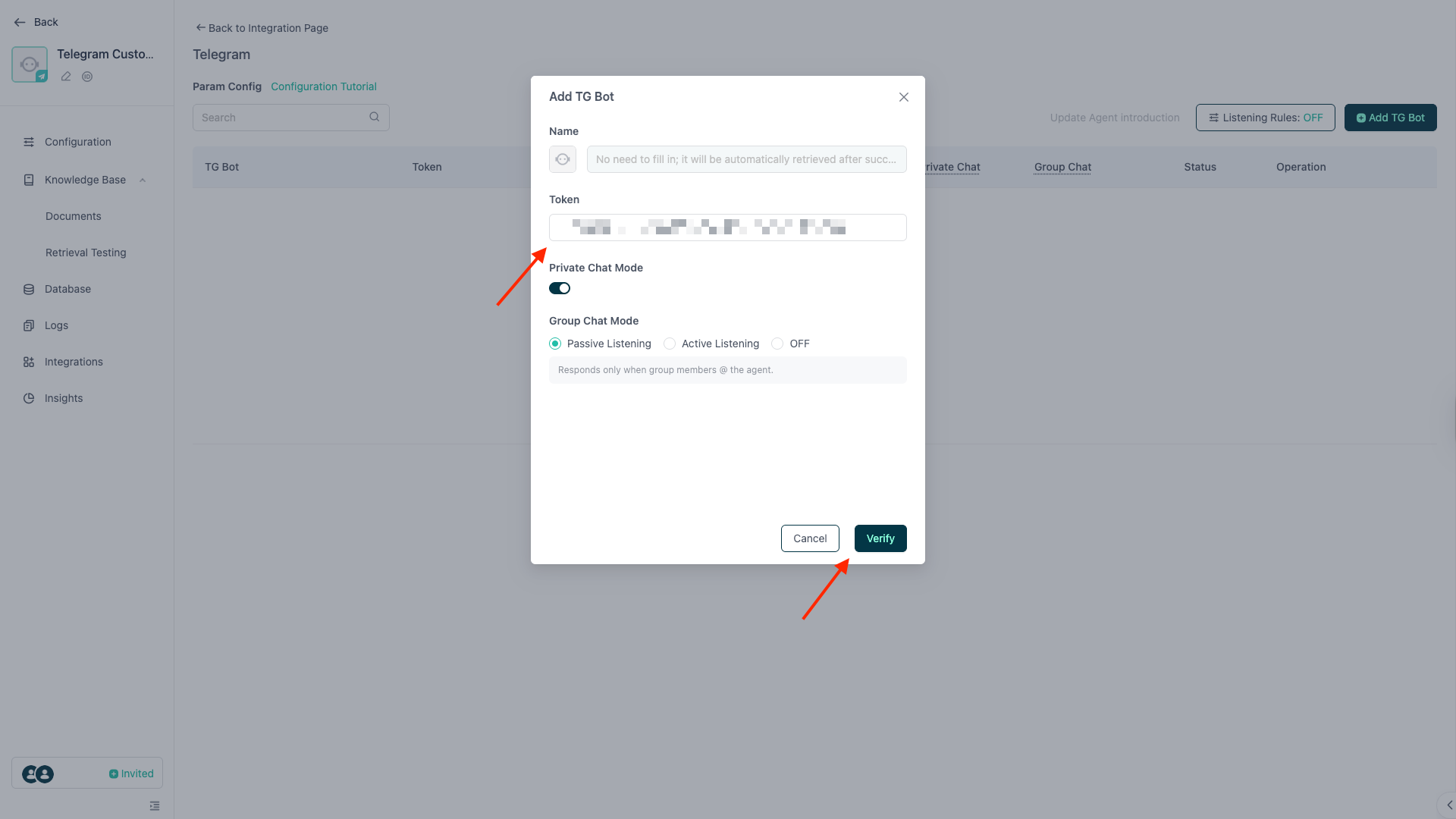
Enter the token obtained from BotFather and click Verify at the bottom.
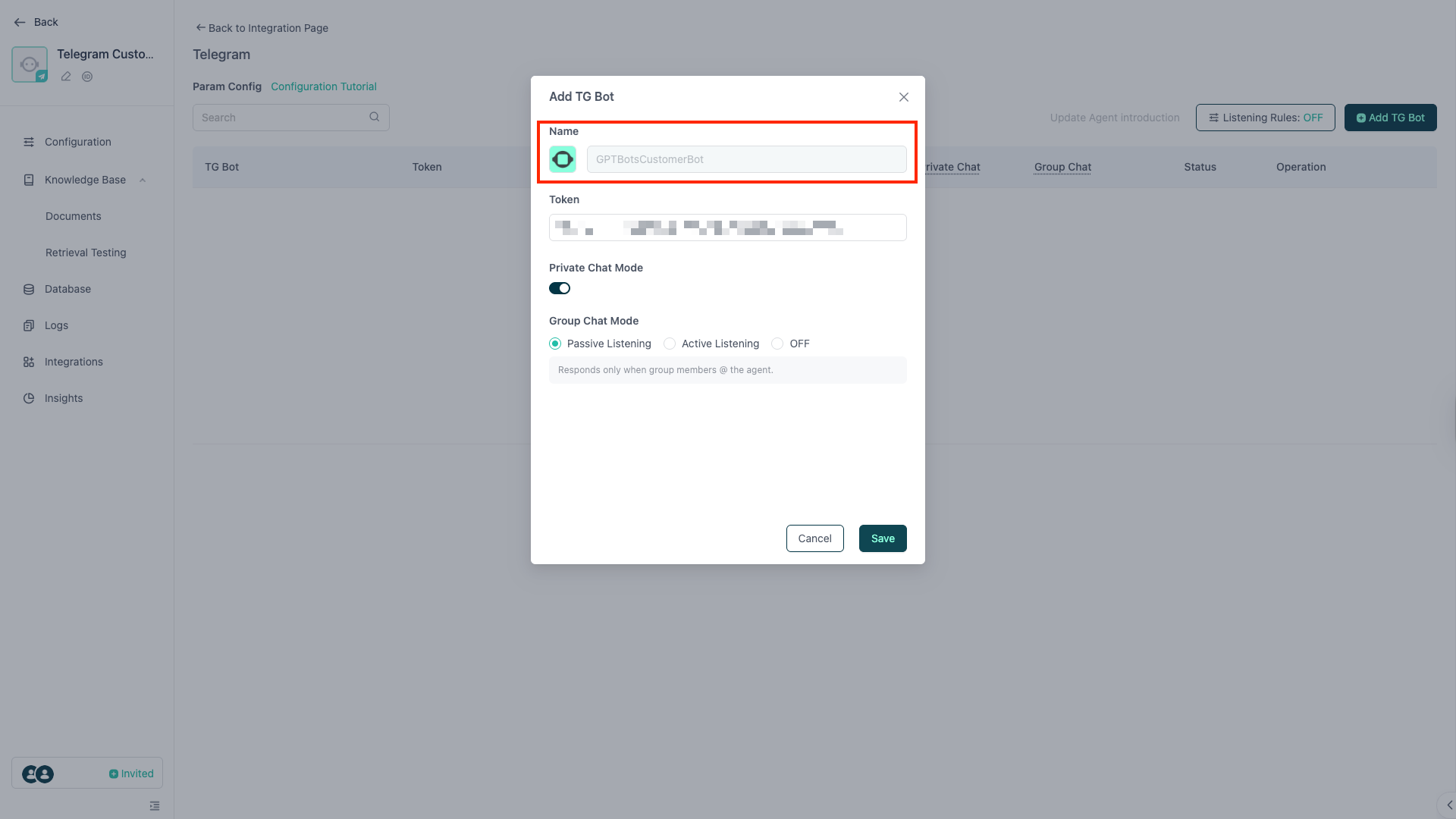
After successful verification, the fields above will refresh with the avatar and name (Username) set in your TG Bot. Once confirmed, select the chat mode for this TG Bot to respond to, then click Submit.
Note: To use the Active Listening feature, you must first configure both Listening Frequency and Listening Rules. For detailed instructions, see the section at the bottom.
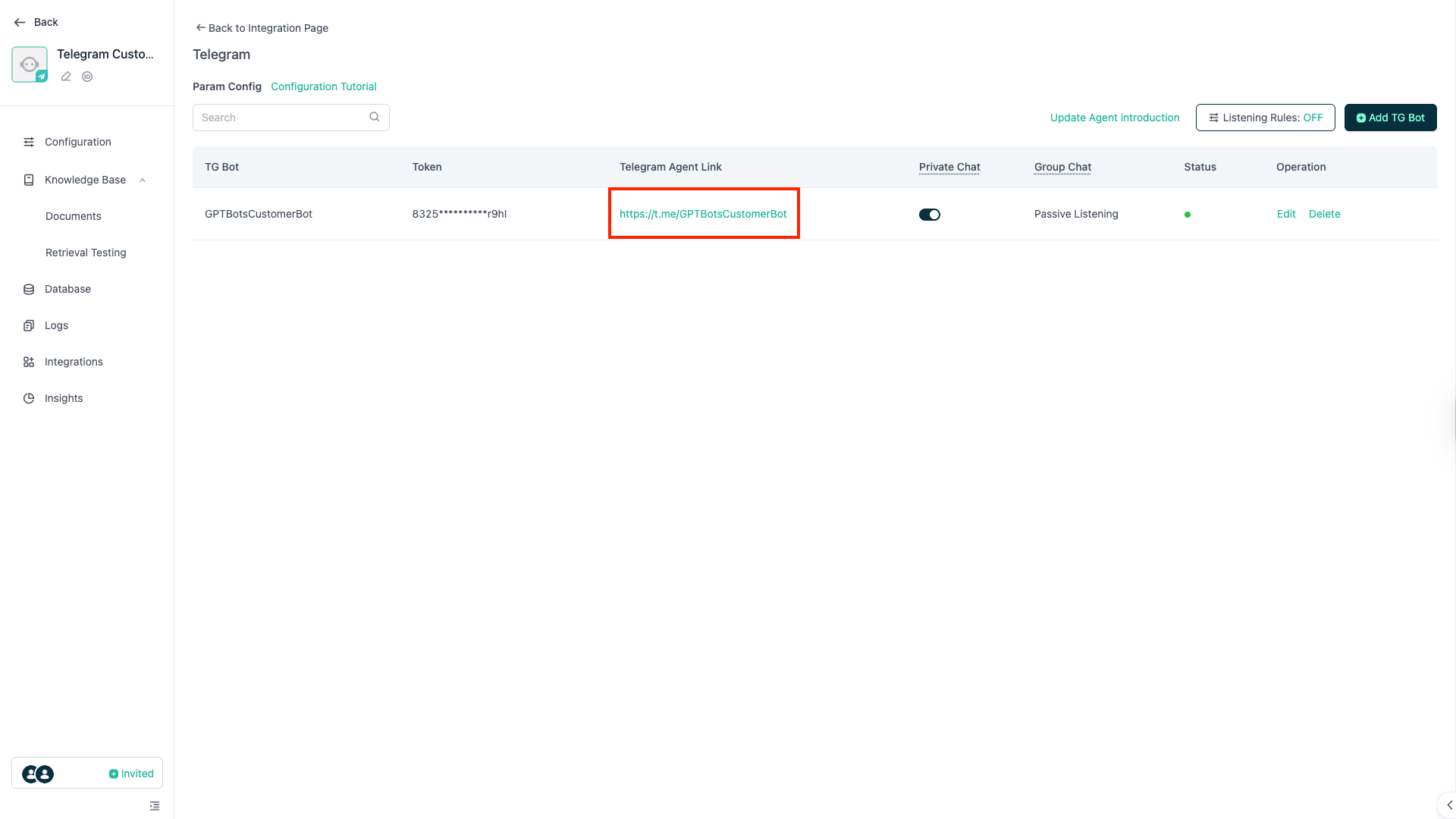
After submitting successfully, the system will provide the TG Bot link (Telegram Agent Link). This link can be shared with your users, who can use it to access the TG Bot and start chatting with it.
Update Agent introduction
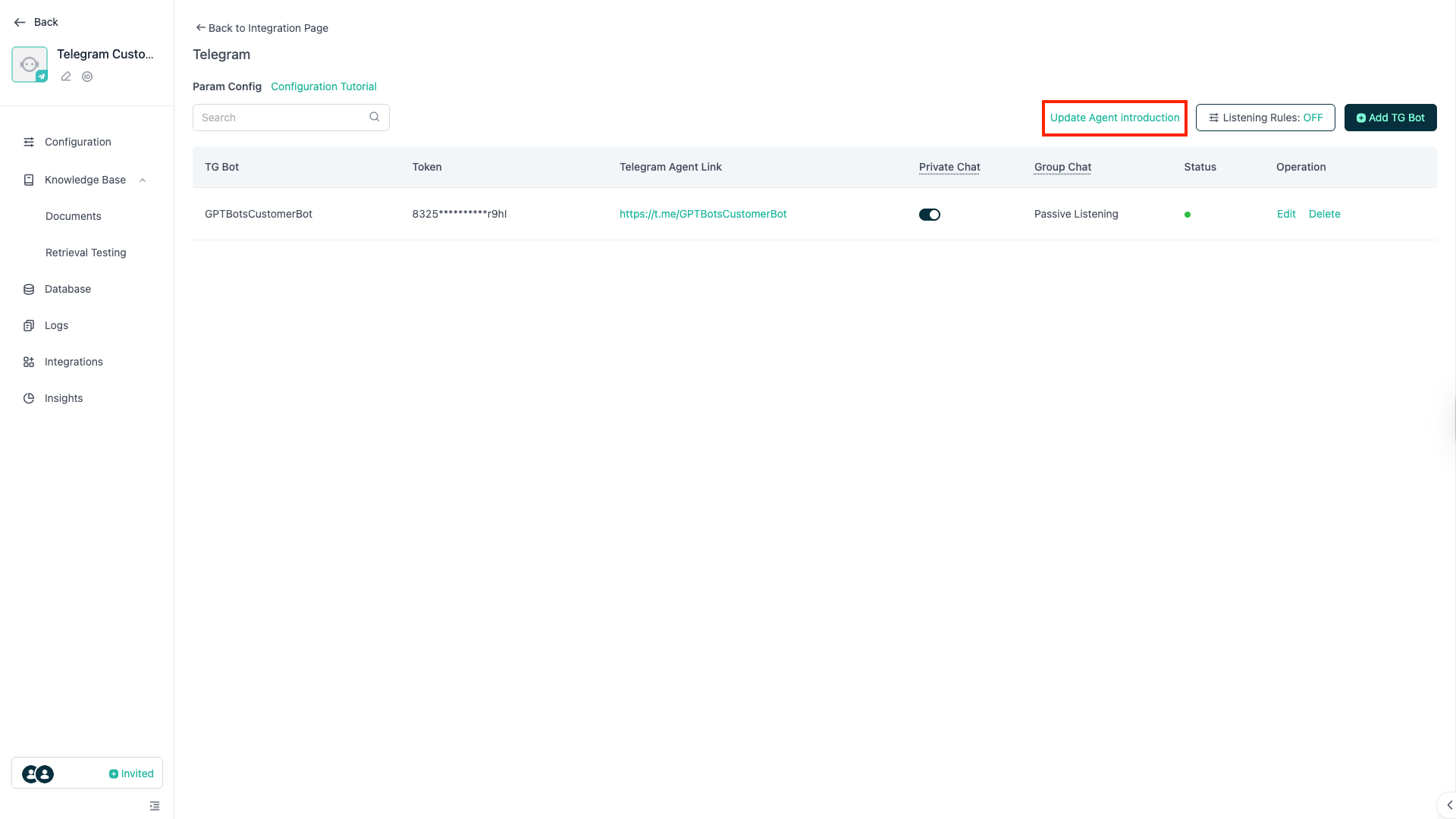
Click Update Agent introduction to update the current description of the Agent to all TG Bots.
Private Chat in Telegram
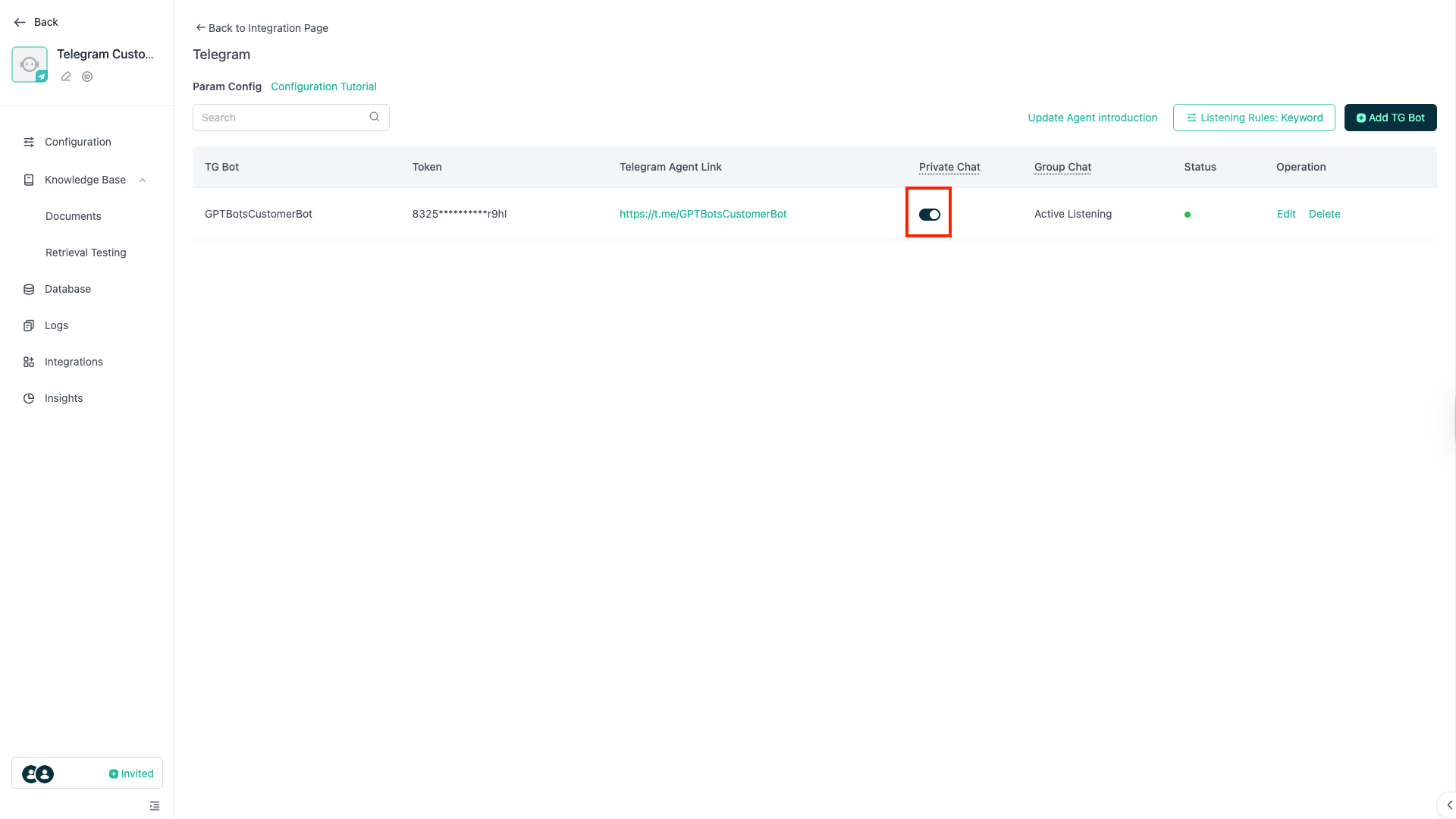
Enable the Private Chat button.
When users access the Telegram Agent Link, they can chat with the Agent directly in Telegram.
Group Chat in Telegram (Passive Listening)
Group Chat (Passive Listening): The Agent only responds when the user @mentions the TG Bot.
Setup Tutorial
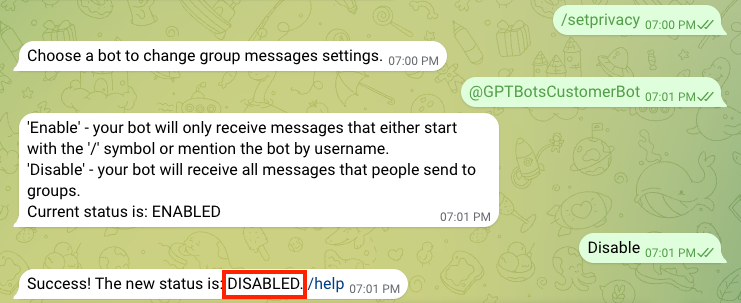
First, in BotFather, enable group-chat permissions.
- Enter
/setprivacy - Enter the TG Bot whose permissions you want to adjust, e.g. “@YourBotName”
- If the Current status is
Enabled, the permission is not yet open - Enter
Disable - When TG returns
Disable, the permission has been enabled

Next, open the TG Bot’s profile page and click Add to Group or Channel.

Choose the group to which you want to add the TG Bot.

Keep using Admin Rights to provide the TG Bot with full permissions, then click Add Bot as Admin to complete the process of adding the TG Bot to the group.
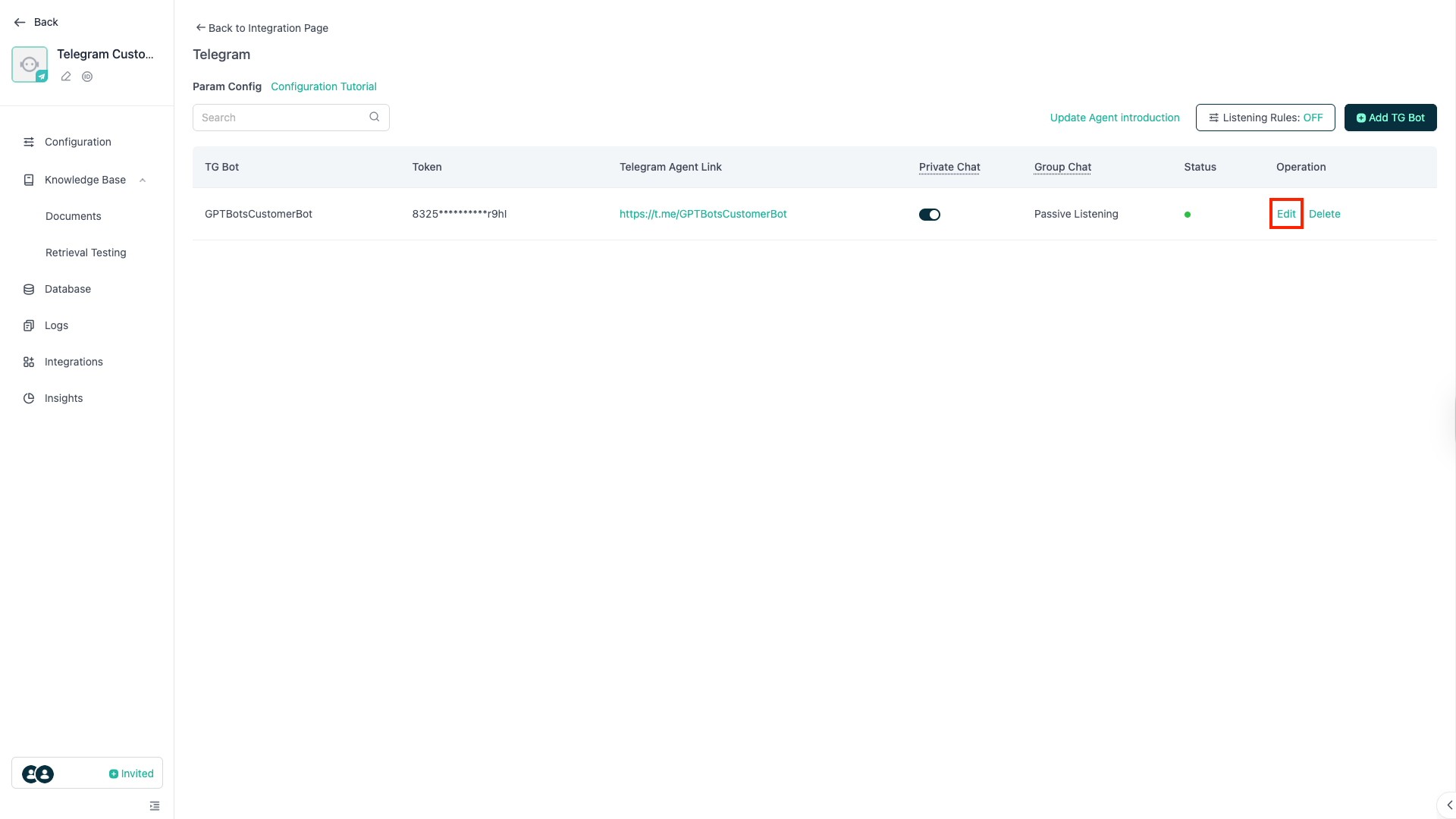
Next, go back to the GPTBots Telegram integration page and click Edit.
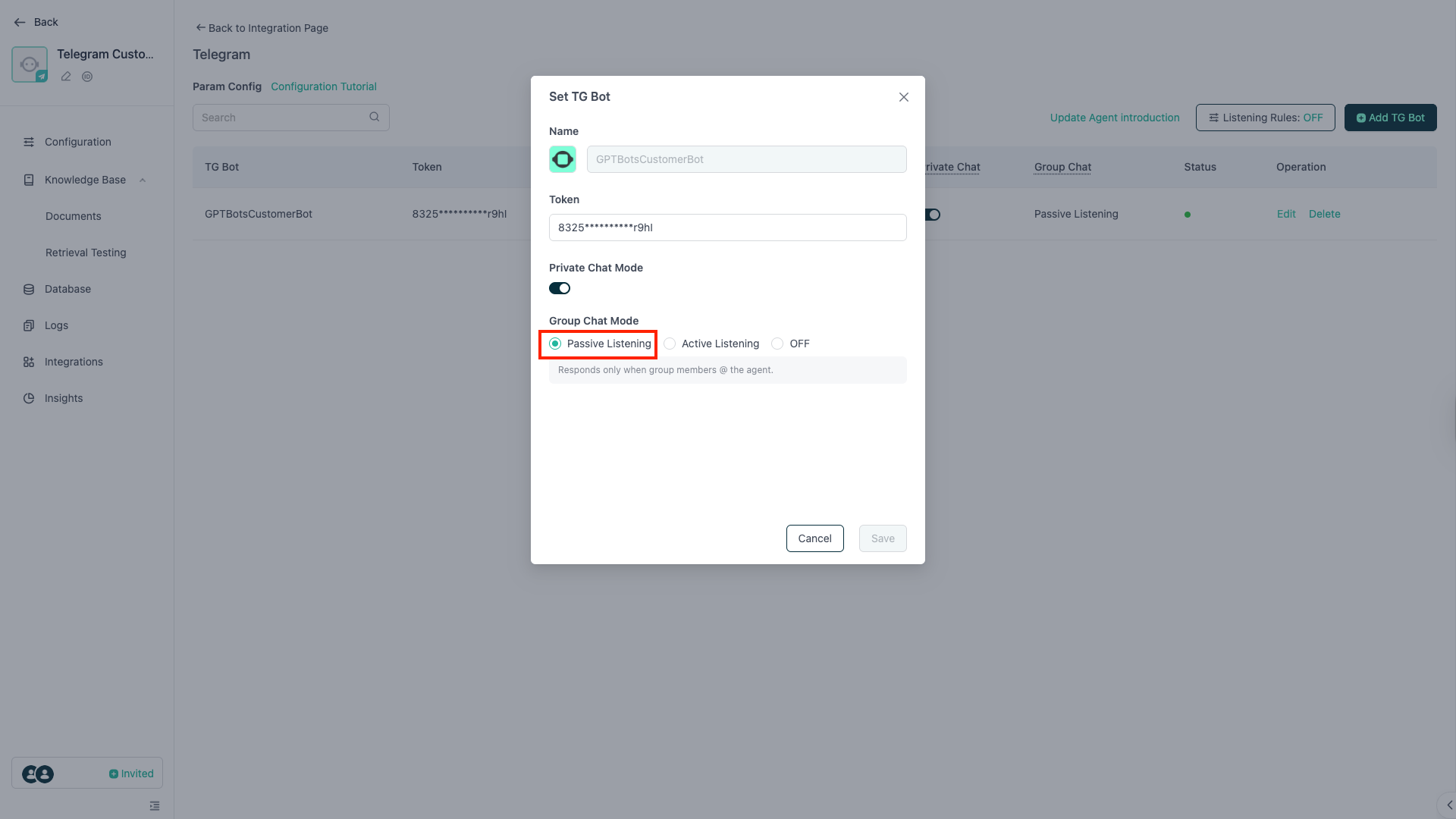
In Group Chat mode, select Passive Listening, click Save, and the setup is complete.
Group Chat in Telegram (Active Listening)
Group Chat (Active Listening): The Agent continuously listens to all user messages and responds.
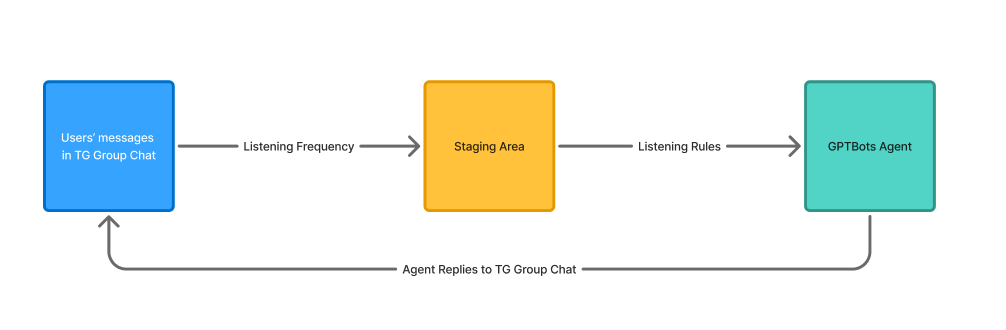
Complete process: The system collects group chat messages at intervals based on the configured Listening Frequency and stores them in the staging area. The messages are then matched against Listening Rules, and if a match is found, the group chat messages are forwarded to the Agent for response.
Setup Tutorial
First, in BotFather, enable group-chat permissions.
- Enter
/setprivacy - Enter the TG Bot whose permissions you want to adjust, e.g. “@YourBotName”
- If the Current status is
Enabled, the permission is not yet open - Enter
Disable - When TG returns
Disable, the permission has been enabled
Next, open the TG Bot’s profile page and click Add to Group or Channel.
Choose the group to which you want to add the TG Bot.
Keep using Admin Rights to provide the TG Bot with full permissions, then click Add Bot as Admin to complete the process of adding the TG Bot to the group.
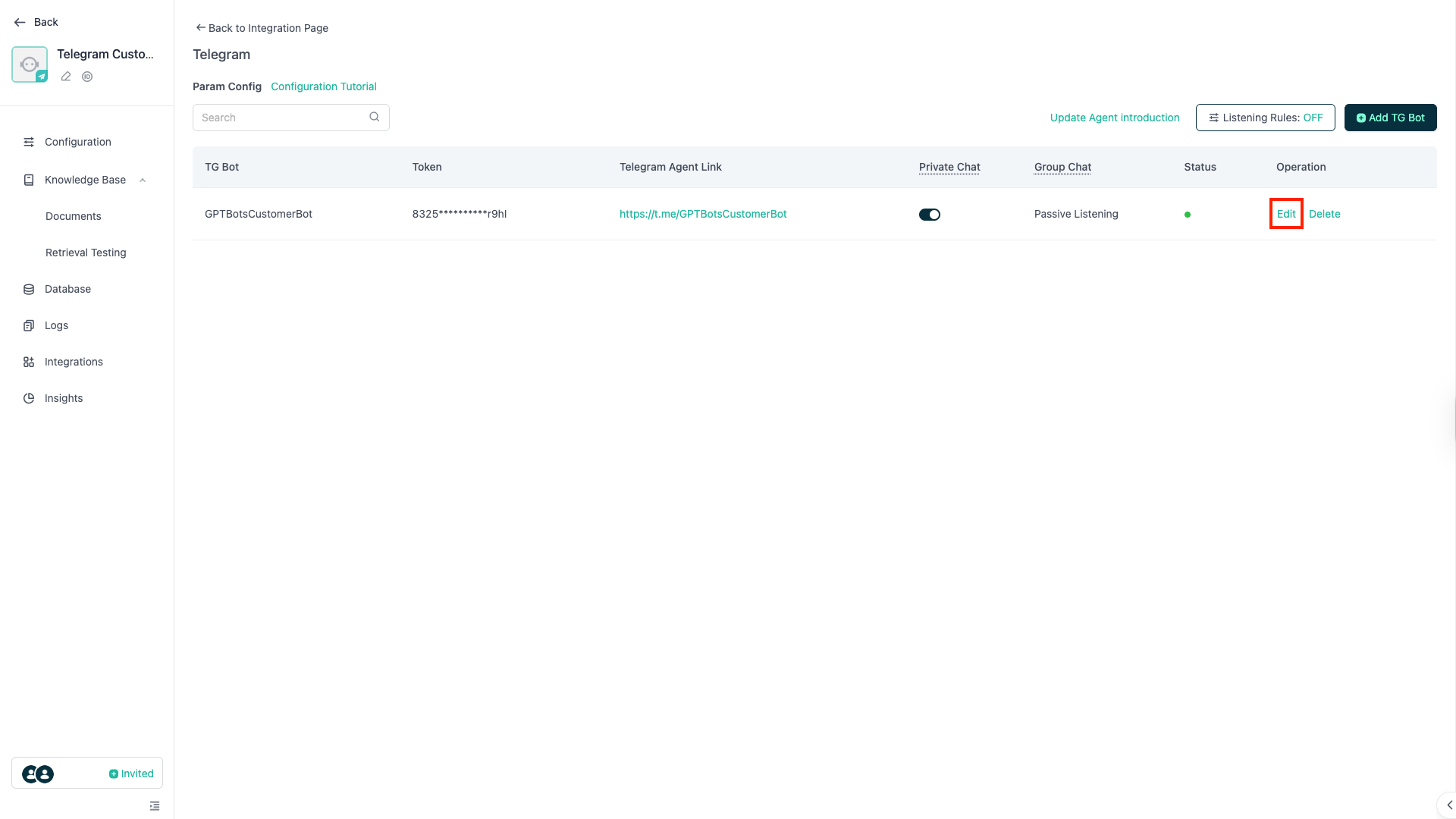
Next, go back to the GPTBots Telegram integration page and click Edit.
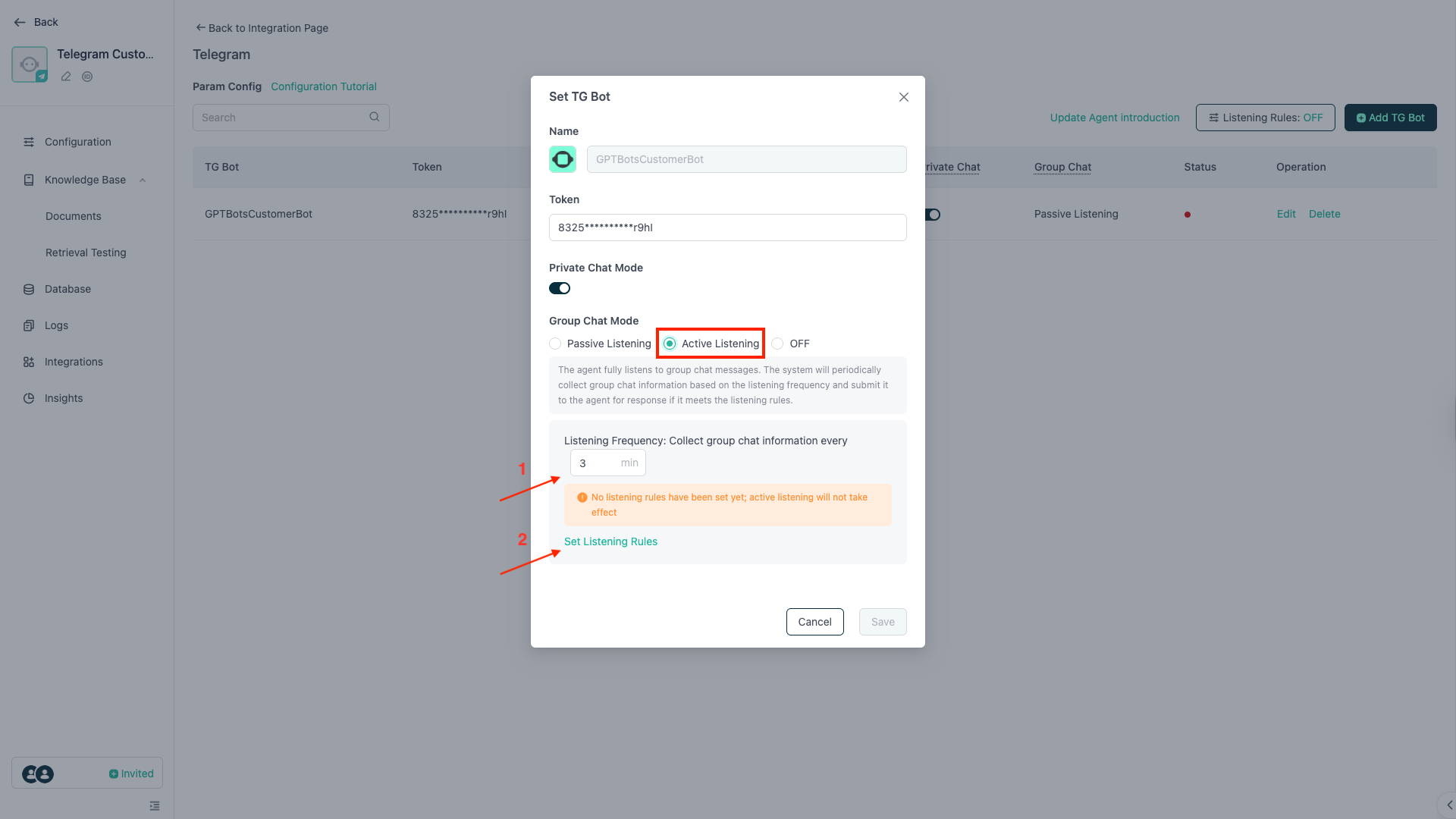
In Group Chat mode, select Active Listening. Active Listening requires two settings.
Step 1: Adjust the Listening Frequency. Listening Frequency determines how often the system collects group chat messages. The shorter the interval, the more frequently the Agent responds.
Step 2: Configure the Listening Rules. Click Set Listening Rules.
Note: Both Listening Frequency and Listening Rules are required. You must configure both to enable Active Listening.
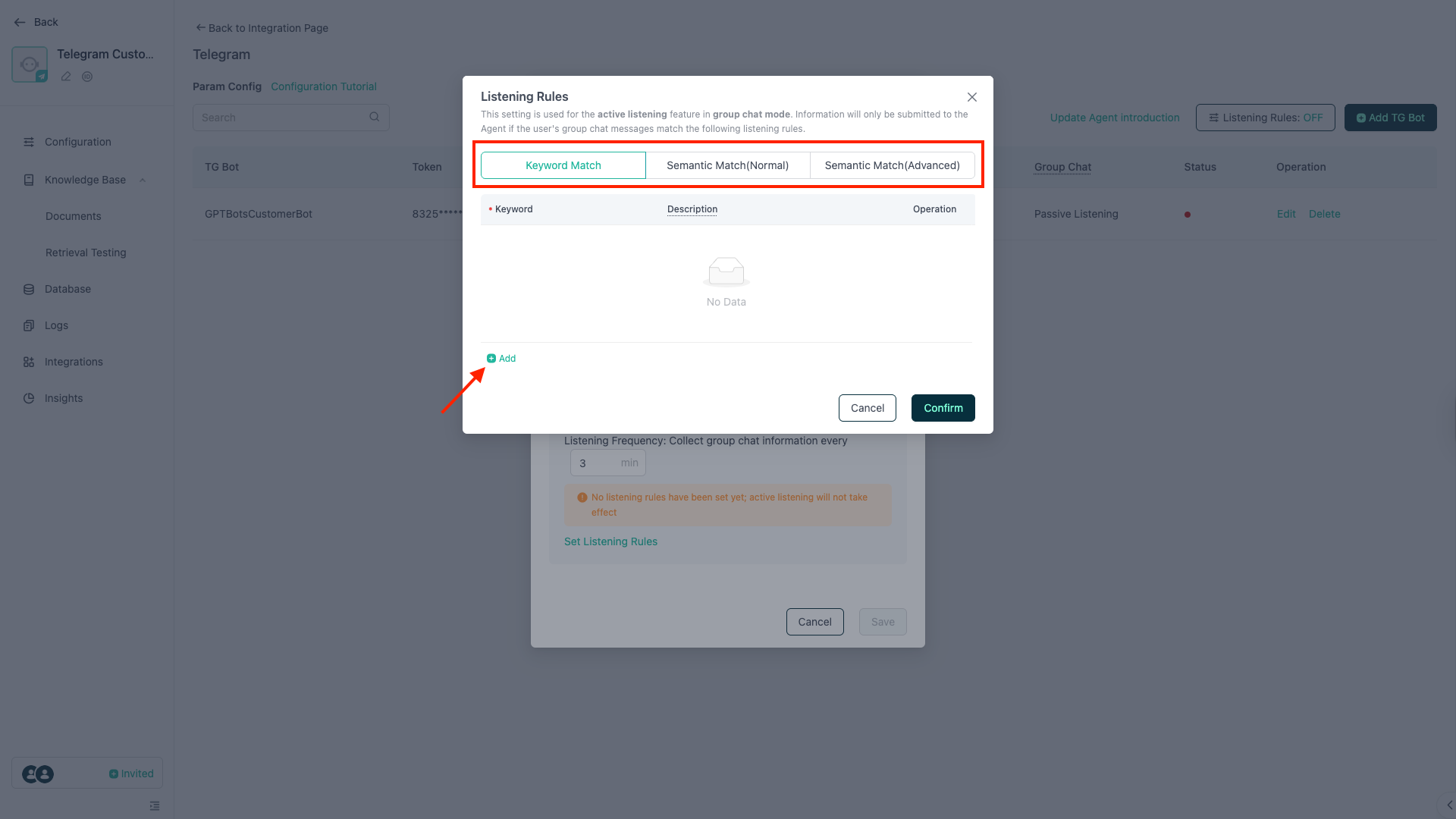
Listening Rules provide three options:
- Keyword Match: Supports regex. Only when a group chat message matches a keyword in the list will the message be forwarded to the Agent.
- Semantic Match (Normal): The LLM checks messages against the list of keywords. If a match is found, the message is submitted to the Agent for response. Normal mode: fast speed, low credit consumption, moderate accuracy.
- Semantic Match (Advanced): The LLM checks messages against both keywords and descriptions. If a match is found, the message is submitted to the Agent for response. Advanced mode: fast speed, high credit consumption, high accuracy.
After selecting a matching rule, add keywords and descriptions in the list below.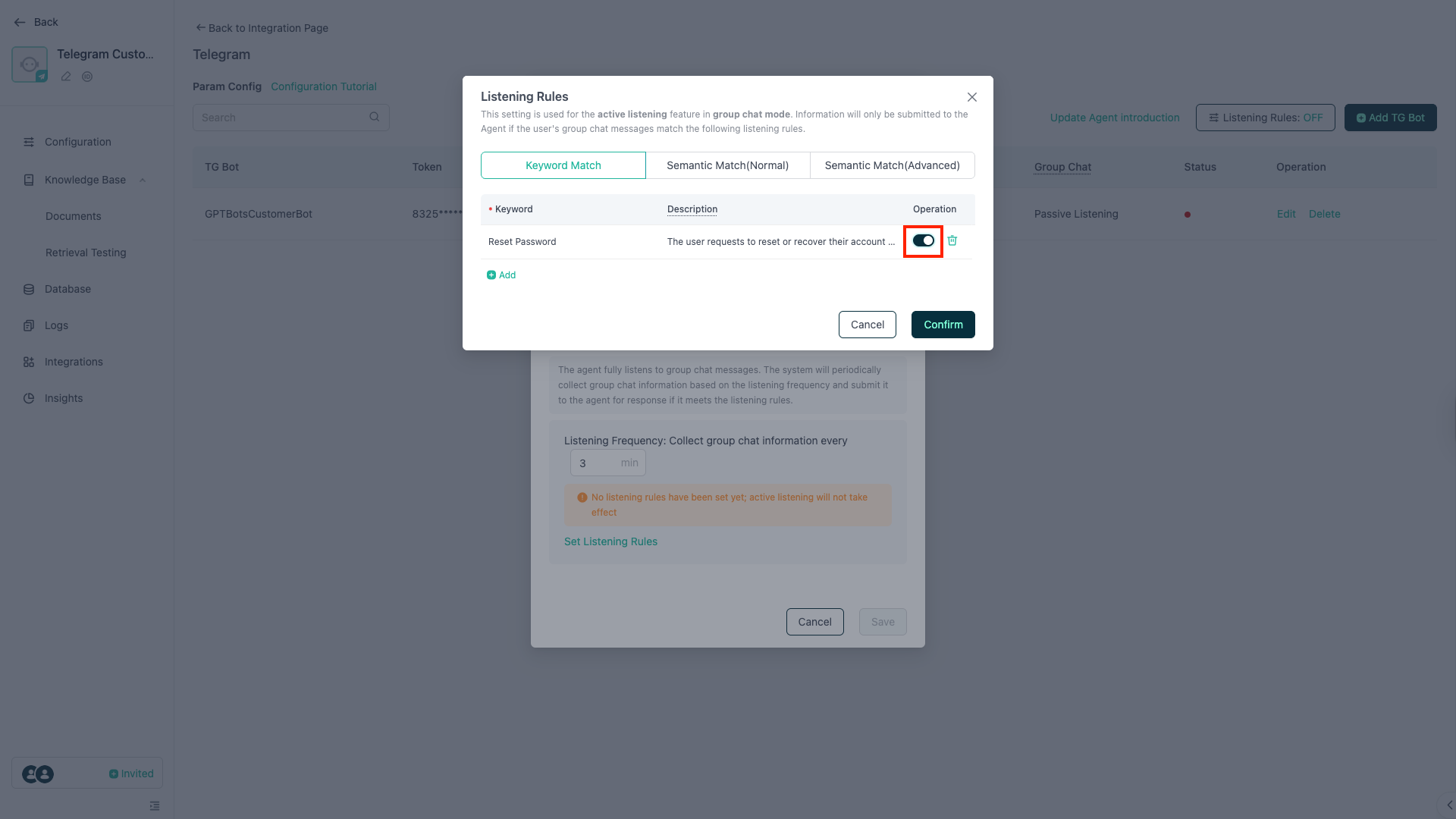
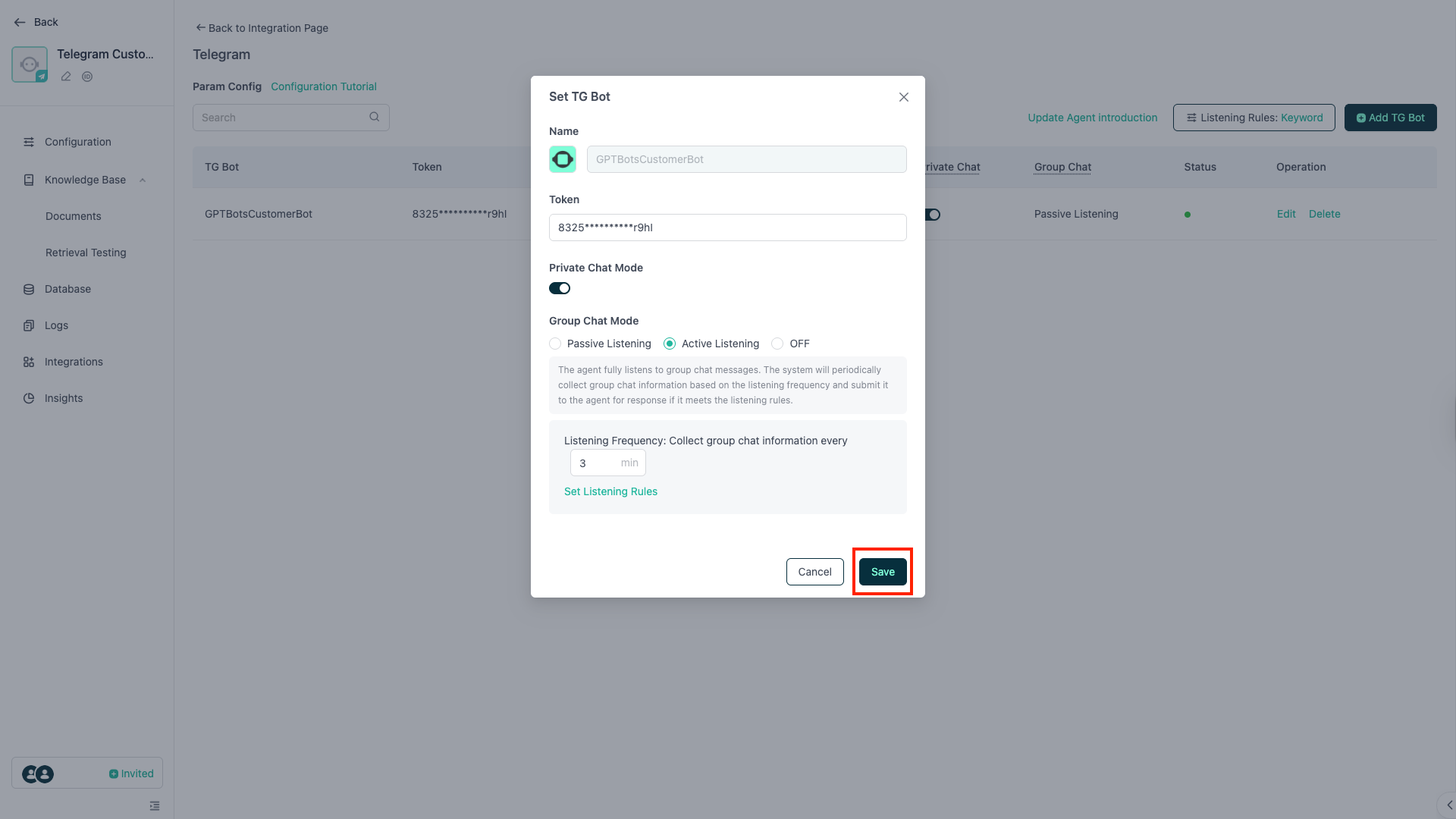
After filling in the keywords and descriptions, make sure to toggle the enable button, then click Confirm. Next, go back to the Set TG Bot popup and click Save. The Active Listening setup is now complete.
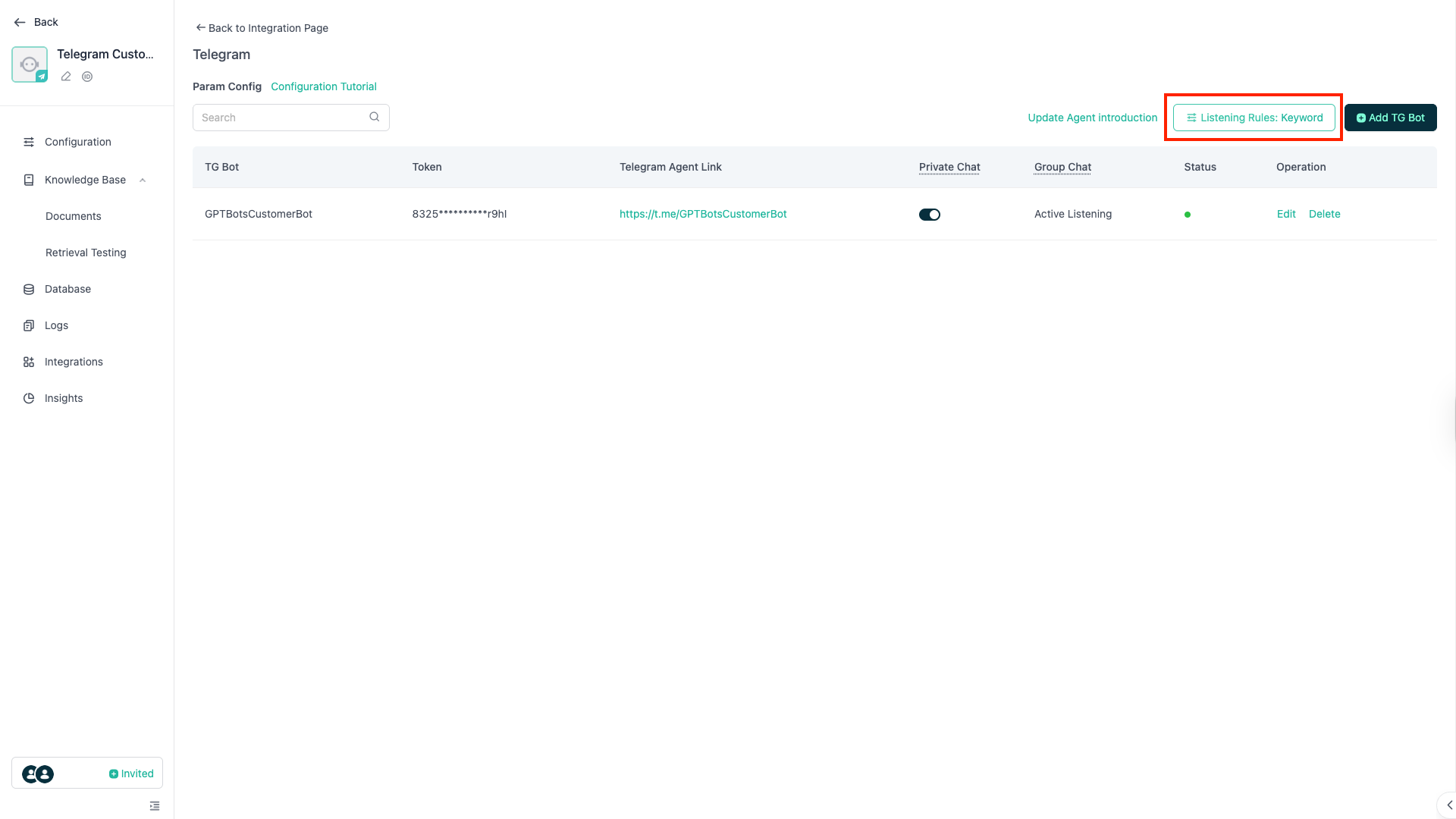
If you need to adjust the content of the Listening Rules later, you can also click Listening Rules in the page to modify them.
Note: Using the Semantic Match feature in Active Listening mode may consume a large number of credits. To avoid high credit consumption, use Keyword Match instead.
Control Active Listening with Group Commands (LoopAgent Only)
Telegram group owners and administrators can turn a specific TG Bot's active listening on or off, or check its status, directly in the group. This feature is available only for LoopAgent. Regular Agents and FlowAgents retain their existing Telegram behavior.
Enable Command Control
- Open Integrations → Telegram in your LoopAgent and connect a TG Bot.
- In the TG Bot's Settings, select Active Listening, configure the listening frequency, and make sure the Bot has joined the target group and can receive its messages.
- Open Input Settings → Command Control and turn the switch on.
Command Control is off by default. This switch determines whether new group control commands are accepted. It does not turn active listening on or off for individual groups. Listening frequency, message filters, and private chat continue to follow their existing settings.
Send Commands in the Group
Replace YourBotName below with the TG Bot's Username, not its display name.
| Command | Action |
|---|---|
/monitor_on@YourBotName |
Turn on this Bot's active listening in the current group |
/monitor_off@YourBotName |
Turn off this Bot's active listening in the current group |
/monitor_status@YourBotName |
Check this Bot's final listening state after the current cycle is processed |
You can also mention the Bot before the command:
@YourBotName /monitor_off
Keep the following rules in mind:
- Only Telegram group owners and administrators can execute listening controls. An administrator role in a GPTBots organization does not replace Telegram group permissions.
- Specify the target Bot even when the group contains only one Bot. A bare command such as
/monitor_offdoes not trigger system listening controls. - Commands from ordinary members, commands sent while Command Control is off, and commands without a target or addressed to another Bot do not trigger this Bot's control action or system acknowledgement. They follow the existing rules for ordinary messages and may receive an Agent response.
- Each TG Bot and group has its own state. Controlling BotA does not change BotB in the same group, or the same Bot in another group.
- In a group with Topics, all Topics share the listening state of that Bot within the group.
When Commands Take Effect
Commands are processed according to the configured listening cycle; they do not take effect immediately when sent. For example, with a five-minute listening frequency, wait for the corresponding cycle to be processed rather than assuming the Bot has stopped listening at the time you sent the command.
If a cycle contains multiple on/off commands, the last on/off command determines the action. /monitor_status independently reports the final state for the cycle and does not override an on/off command.
When turning listening off, the system first finishes processing business messages already collected. If an album is incomplete, it waits for the complete album to be processed before turning listening off. The OFF acknowledgement is sent after the current business processing ends. If the same batch contains both an on/off command and a status query, the system sends the control acknowledgement first, followed by a separate status reply. Each reply quotes the corresponding last command message.
Use the system command acknowledgement and status reply to confirm the state. An Agent's ordinary chat response saying that monitoring is on or off does not mean the system state has changed.
After active listening is turned off, ordinary group messages that do not mention the Bot are no longer collected for active listening. Business messages mentioning the Bot continue to follow the existing passive-listening rules. Repeating an on command when already on, or an off command when already off, produces an acknowledgement that the Bot is already in that state.
What Happens When Command Control Is Turned Off
Turning off Command Control in GPTBots requires confirmation. Once confirmed:
- New group control commands are no longer accepted. Commands already accepted continue to be processed.
- Existing ON/OFF states for every Bot and group are preserved. Groups with listening turned off are not automatically resumed.
- Previously registered Telegram command menus remain unchanged. A visible menu does not mean Command Control is enabled.
- Private chat continues to follow its existing rules and is unaffected by the group Command Control switch.
To resume active listening in a group where it is off, first enable Command Control again. A group administrator must then send /monitor_on@YourBotName. Enabling the main switch alone does not reset the group state to ON.