
Persona
The Persona defines who this agent is, what it serves, and in what voice and language it answers. It is the only freely editable prompt field in a LoopAgent, with a dedicated full-screen editor that supports drafts, versions, @ references, and variables.
Opening the editor
Settings page → System-prompt panel → Persona; double-click the preview area or click Edit to enter the full-screen editor. In the editor:
- Type
@to bring up the resource-reference menu; - Type
/to bring up the variables menu; - Click the history icon in the top-right corner to open the versions panel.
Draft, Save, versions
Three concepts to keep straight:
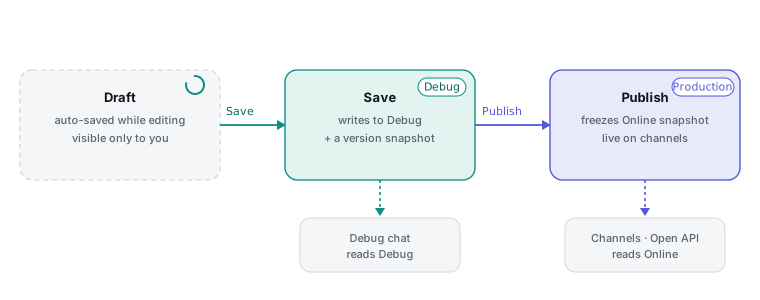
- Draft: automatically saved to the server while editing, visible only to you, and invisible to any conversation (including the debug chat). Closing the editor keeps the draft.
- Save: after you click Save, the content is written to the Debug version and a version snapshot is appended; the debug chat picks it up immediately.
- Version: used for browsing history, diffing, and restoring; up to 100 are kept.
Restoring a historical version is not a one-click rollback: restoring only pours an old version's content back into the editor as a draft; you must click Save again for it to truly take effect. Restoring without saving and then closing the page changes nothing.
Why customers don't see my change
The persona also follows the Save and Publish rule:
- Saving in the editor only updates the Debug version, which the debug chat can verify immediately;
- External channels use the published version. After editing the persona, you must publish this LoopAgent for it to take effect for customers.
@ references and / variables
The persona can directly reference resources already enabled on this agent, shown as clickable "chips" instead of hard-coding IDs:
@can reference: skills, workflows, tools (including built-in tools such as human handoff, form collection, and key events), MCP, knowledge bases, data tables, code, and so on — only resources currently enabled on this agent are listed./can insert: system variables, user attributes, and custom variables.
A chip turning red means the resource is no longer available to this agent (unbound / deleted / disabled, or a leftover from another agent brought in by copying or importing). Just click the delete icon on the red chip, or re-enable the resource in the corresponding module.
Key points
- The main agent and sub-agents share the same persona; editing it once affects both.
- Leaving it blank is allowed: the engine has no preset persona; leaving it empty simply injects no identity section, and the agent still runs normally. A blank is not a configuration error.
- The editor header shows the token count of the whole passage in real time, useful for gauging context usage.
- Be careful referencing variables that change every turn (such as time online or message count): they make the persona change every turn, slowing responses and increasing cost.