
Zoho Sales IQ
You can integrate the Agent service into Zoho Sales IQ, enabling users of Zoho Sales IQ to communicate with the Agent through Zoho Sales IQ.
Preparation
Before integration, you need to configure some parameters in Zoho, which will be used during the integration process with GPTBots.
Create Client ID
Log in to Zoho API Console
Note: If your account is not a US-based account, you need to change the domain. For details, please refer to:
Data Center Developer Console US (United States) https://api-console.zoho.com/add EU(Europe) https://api-console.zoho.eu/add IN(India) http://api-console.zoho.in/add AU(Australia) http://api-console.zoho.com.au/add CN(China) http://api-console.zoho.com.cn/add JP(Japan) http://api-console.zoho.jp/add If you already have an available Application, go to the respective Application, click Client Secret, and copy the corresponding Client ID and Client Secret. These will be used in the GPTBots integration configuration.

If you do not have an available Application, click ADD CLIENT in the top right corner and create an appropriate Client based on the application type.


If you create a new Application, fill in the current service domain name in the Homepage URL, and in Authorized Redirect URIs, fill in the current service domain name + /api/console/bot/zoho/salesiq/redirect. Click CREATE. After successful creation, the system will generate a Client ID and Client Secret. Copy the corresponding Client ID and Client Secret, which will be used in the GPTBots integration configuration.

Note: A Client ID can be authorized successfully up to 20 times simultaneously. If it exceeds 20 times, the Zoho authorization of the first authorized agent will become invalid.
Integration Configuration
Log in to GPTBots.
Enter the organization, select the respective Agent, save the version, and click Publish. After successful publishing, click Integrations.

Select Zoho Sales IQ as the integration method.

Fill in the respective parameters:
- Client ID and Client Secret: Required, obtained during the preparation phase;
- Screen Name: Required, derived from the page of the logged-in account. You need to take the first path string after the domain name. For example, in the address https://salesiq.zoho.com/gptbos/mychats/000000000000003, the Screen Name is gptbots;
- Email: Required, the email bound to the Zoho account profile;
- Server Region: Select the region of the Zoho account;
- Public Key: Optional, if you enable Secure your webhook in the subsequent webhook configuration, first click Integration and then return to fill it in. If not enabled, it is not required.

After clicking Integration, an authorization status popup will appear. Click Accept.

After successful authorization, GPTBots will generate a Webhook URL address. At this point, you need to go to the Setting page.

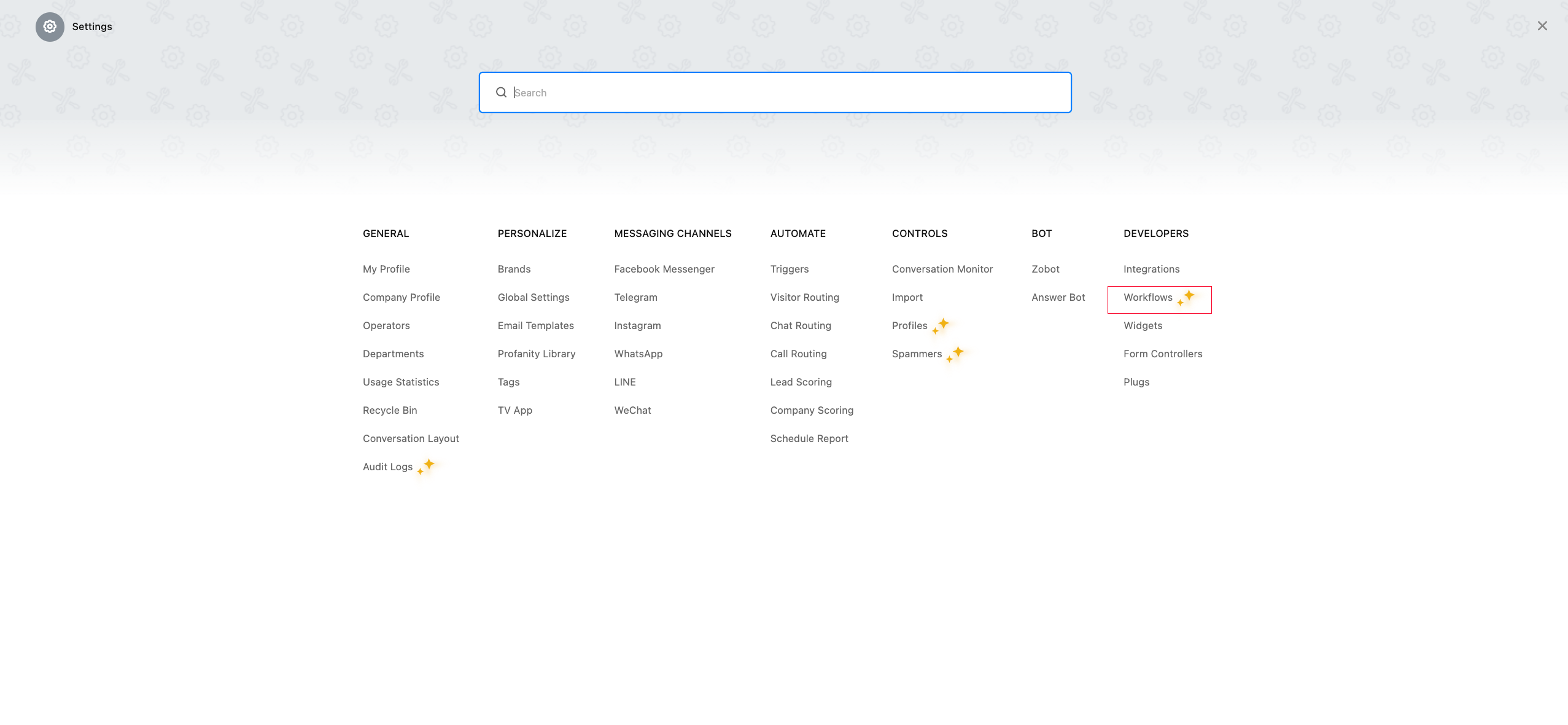
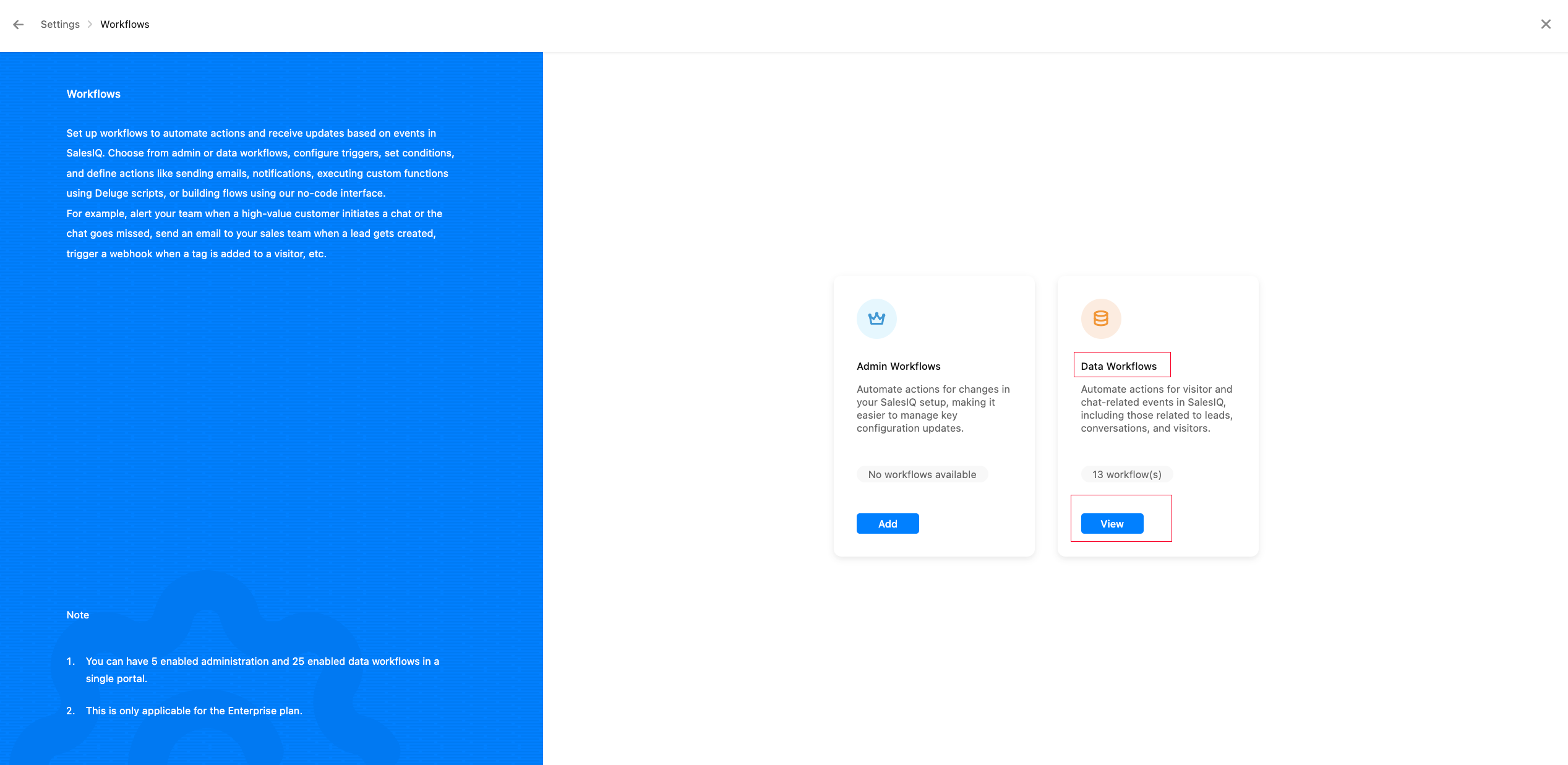
Go to Workflows - Data Workflows, and click Add (View) in the top right corner.
Note: In some account versions, this entry is displayed as Webhooks - Data modifications. Both serve the same purpose.

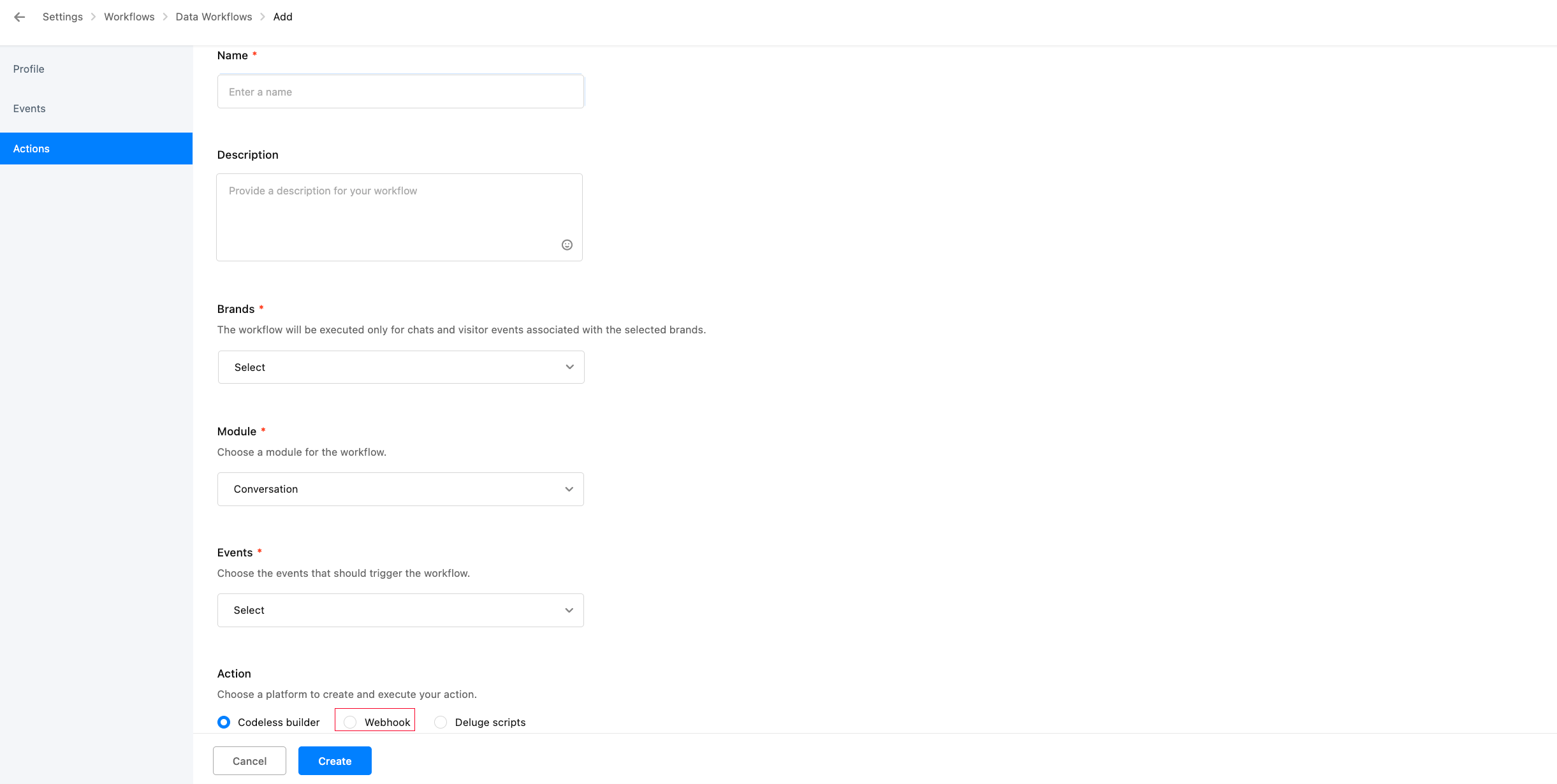
Fill in the webhook content:
Brand: Select the brand to receive Workflows (Webhook) events. It must match the brand the visitor actually uses, i.e. the brand that the widget installation code embedded on your website belongs to. If the wrong brand is selected here, the events generated by that conversation will not trigger this Workflow, and GPTBots will receive no messages at all.
Module: Select Conversation
URL to be invoked: Fill in the Webhook URL obtained from the GPTBots integration configuration. Copy it directly from the integration configuration page. Do not copy the URL from another environment, otherwise messages will be sent to a different environment.
Events: You must select both
conversation.createdandconversation.visitor.replied; neither can be omitted:conversation.created: Notifies GPTBots when a new conversation is created, based on which GPTBots picks up the conversation;conversation.visitor.replied: Notifies GPTBots of each subsequent visitor message. When processing this event, GPTBots verifies the conversation ownership. If the conversation was never picked up becauseconversation.createdis missing, all subsequent visitor messages will be discarded.
Other event types are not processed by GPTBots, so selecting them has no effect.
Action: Select Webhook
After filling in, click Create webhook.
⚠️ Note: The Webhook URL here must be the Webhook URL generated on the integration configuration page. It is not the same address as the callback URL used in the "Human Support - Other to Zoho Sales IQ" scenario (
/api/console/human/callback/zoho/salesiq/event). The two serve different purposes, and mixing them up will cause messages to be discarded. If you need both scenarios, create a separate Data Workflow for each.Secure your webhook: Optional step. You can choose whether to verify the security of the webhook (whether it comes from the official source and not a forged request). After enabling, click to generate a public key, copy the public key marked as In Use, and fill it in on the GPTBots integration configuration page.

Communicating with the Agent in Zoho Sales IQ
After successful integration configuration, you can communicate with the agent in the Zoho service.
FAQ
1. Unable to create a session, error Live chat has been disabled
When the live chat feature of the corresponding brand is disabled on the Zoho side, Zoho refuses to create the conversation and returns this error. Please check:
- Go to Settings - Brands and confirm that the status of the target brand is Active (the toggle on the far right of the list is on). When a brand is deactivated, no conversations can be created under it;
- Go to the brand's Configurations - Channels and confirm that the Live chat toggle is enabled;
- Confirm that the selected Department is not deactivated.
If you cannot find the Live chat toggle in Configurations, this capability is usually disabled at the Zoho account plan level, and you need to contact Zoho official support.
2. Messages sent in the Zoho widget reach the Zoho help desk, but the agent never replies
Understand one premise first: After receiving Zoho's webhook, GPTBots returns success immediately and then processes it asynchronously. Therefore, even if a message is discarded on the GPTBots side, the Failures column in Zoho's Data Workflows list remains 0, so Failures cannot be used to judge whether there is a problem. The only valid indicator is the Last Triggered column.
Step 1: Use Last Triggered to determine which side the problem is on
Go to Settings - Workflows - Data Workflows, find the entry pointing to the integration Webhook URL, and check Last Triggered. Note that this column shows the time in the time zone of the Zoho account, which may differ from your local time by several hours. Convert it before comparing.
- Empty, or not the time you just sent the message → Zoho never sent the request; the problem is on the Zoho side (see A below);
- Exactly the time you just sent the message → The request was sent; the problem lies in the processing conditions on the GPTBots side (see B below).
A. Zoho side: the Workflow was not triggered
The toggle on the far right of the Workflow is in the ENABLED (green) state;
Brands includes the brand the visitor actually uses. Open the conversation and check the brand name shown at the top of the conversation detail page, then compare it. This is the most common cause: the widget belongs to brand A while the Workflow is bound to brand B, so the events never trigger;
Module is
Conversation;Events includes both
conversation.createdandconversation.visitor.replied.Note: The Workflow for the "Human Support - Other to Zoho Sales IQ" scenario selects
conversation.operator.replied/conversation.completed, and visitor messages will not trigger it. Having that Workflow does not mean the integration scenario works; each scenario needs its own Workflow.
B. GPTBots side: the request was received but discarded
- Wrong URL scenario: The integration scenario uses
/api/console/bot/integration/chat/zoho/salesiq/{clientId}, while the human support scenario uses/api/console/human/callback/zoho/salesiq/event. If they are swapped, the message is discarded because no matching configuration is found, while the Zoho side still shows success; - URL points to another environment: Confirm that the domain matches the environment you are currently using;
- Secure your webhook is enabled but no Public Key is filled in: Once enabled, Zoho signs every callback. If the Public Key on the GPTBots side is empty, the verification will inevitably fail and the request will be discarded. It is recommended to disable this option during debugging;
- The agent is not published: The integration channel reads the published version. If the Agent has never had a published version, messages will be discarded. Save the version and click Publish first;
- The conversation was picked up by another operator: The integration scenario requires the conversation to belong to the Zoho account corresponding to the Email filled in the integration configuration. If the conversation is manually picked up by another operator, subsequent visitor messages will no longer be forwarded to the agent;
- Authorization has expired: Go back to the GPTBots integration configuration page to confirm that the authorization status is normal. After the same Client ID has been authorized successfully more than 20 times, the earliest authorized agent becomes invalid (see the note above) and needs to be re-authorized.
3. The Zoho side receives messages, but replies from human support are not sent back
This is a typical "one-way communication" symptom caused by the Webhook not taking effect. Please check:
- Go to Settings - Workflows - Data Workflows and confirm that the corresponding Workflow status is ENABLED;
- Confirm that the Brands selected in the Workflow matches the brand actually in use;
- Confirm that the required Events are selected and that the URL is the address for the corresponding scenario (the integration scenario and the human support scenario use different addresses; see the note in step 8 above);
- Check the Last Triggered column in the list. If it is always empty or the time does not match this conversation, the events were never triggered; recheck the configuration above. The Failures column cannot be used as an indicator (see the previous FAQ for the reason).
4. Callbacks fail after enabling Secure your webhook
After enabling this option, Zoho attaches a signature to every callback. If the corresponding Public Key is not filled in on the GPTBots side, the signature verification will fail and the request will be rejected. Copy the public key marked In Use in Zoho to the GPTBots integration configuration page; during debugging, you can also disable this option first to verify the link connectivity.