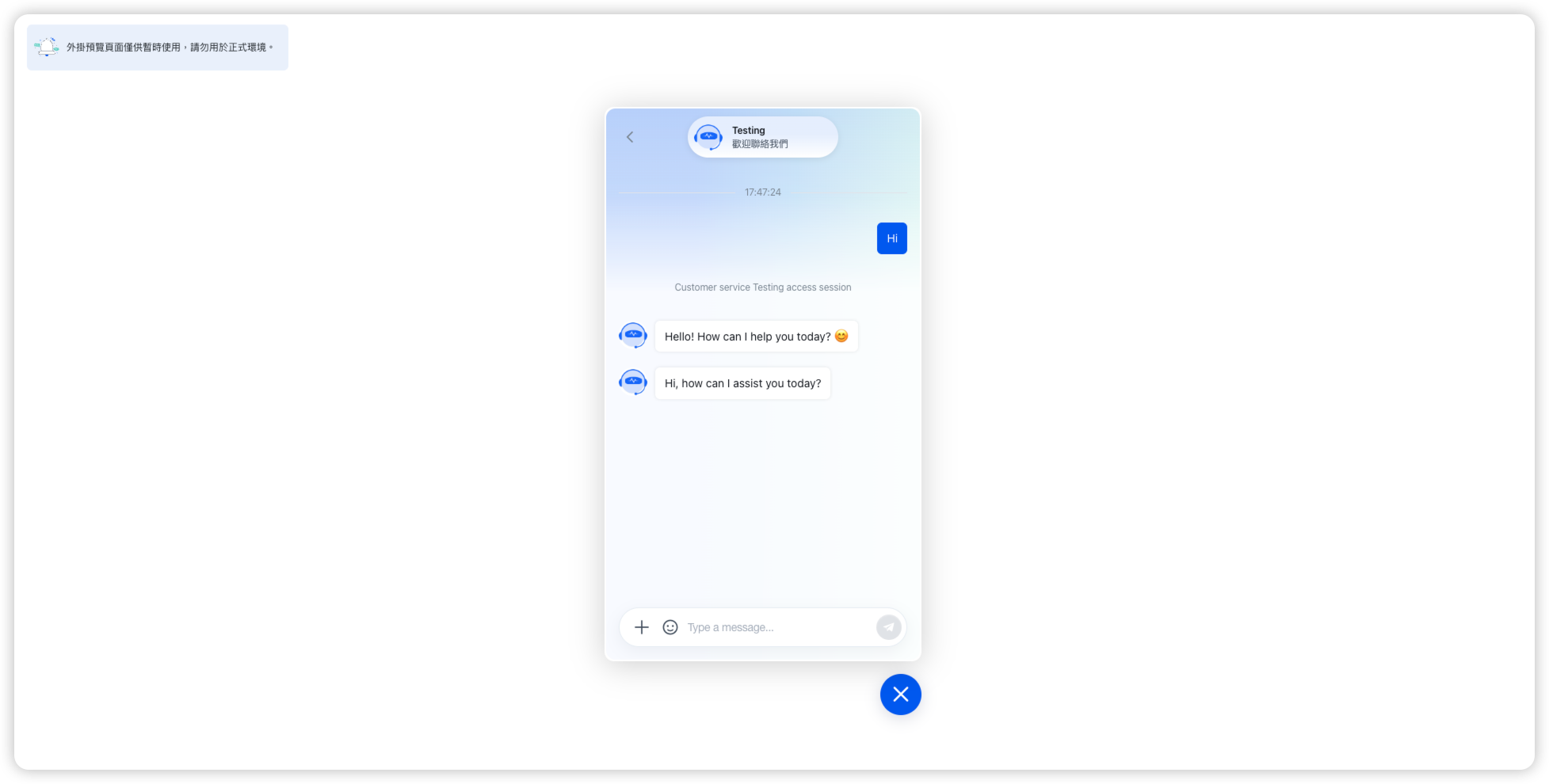
SaleSmartly
By integrating GPTBots' Agent service into SaleSmartly, you can configure dedicated intelligent bots for different social media channels. When a user starts a conversation in SaleSmartly, the system automatically invokes the Agent you configured in GPTBots, enabling efficient, intelligent customer communication, with support for handing conversations off to human agents.
Note: Human handoff and automatic tagging require a SaleSmartly Max plan or above.
Obtain the Webhook URL in GPTBots
Log in to the GPTBots console, select the target Agent, click Integrations, find the SaleSmartly integration card, and click Manage.
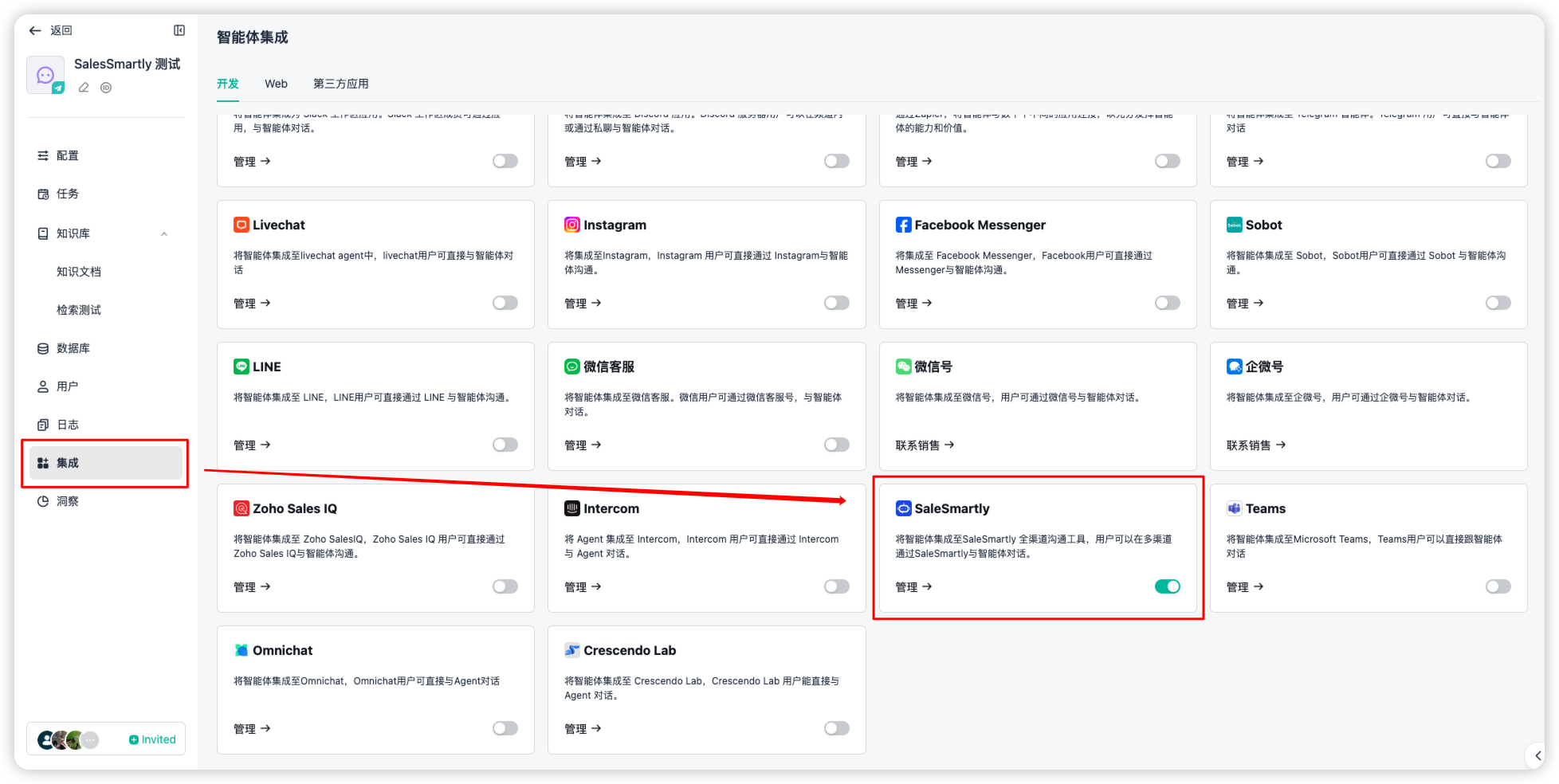
Note: Unpublished Agents cannot use the integration feature. If you have modified the configuration, save and publish it before integrating.
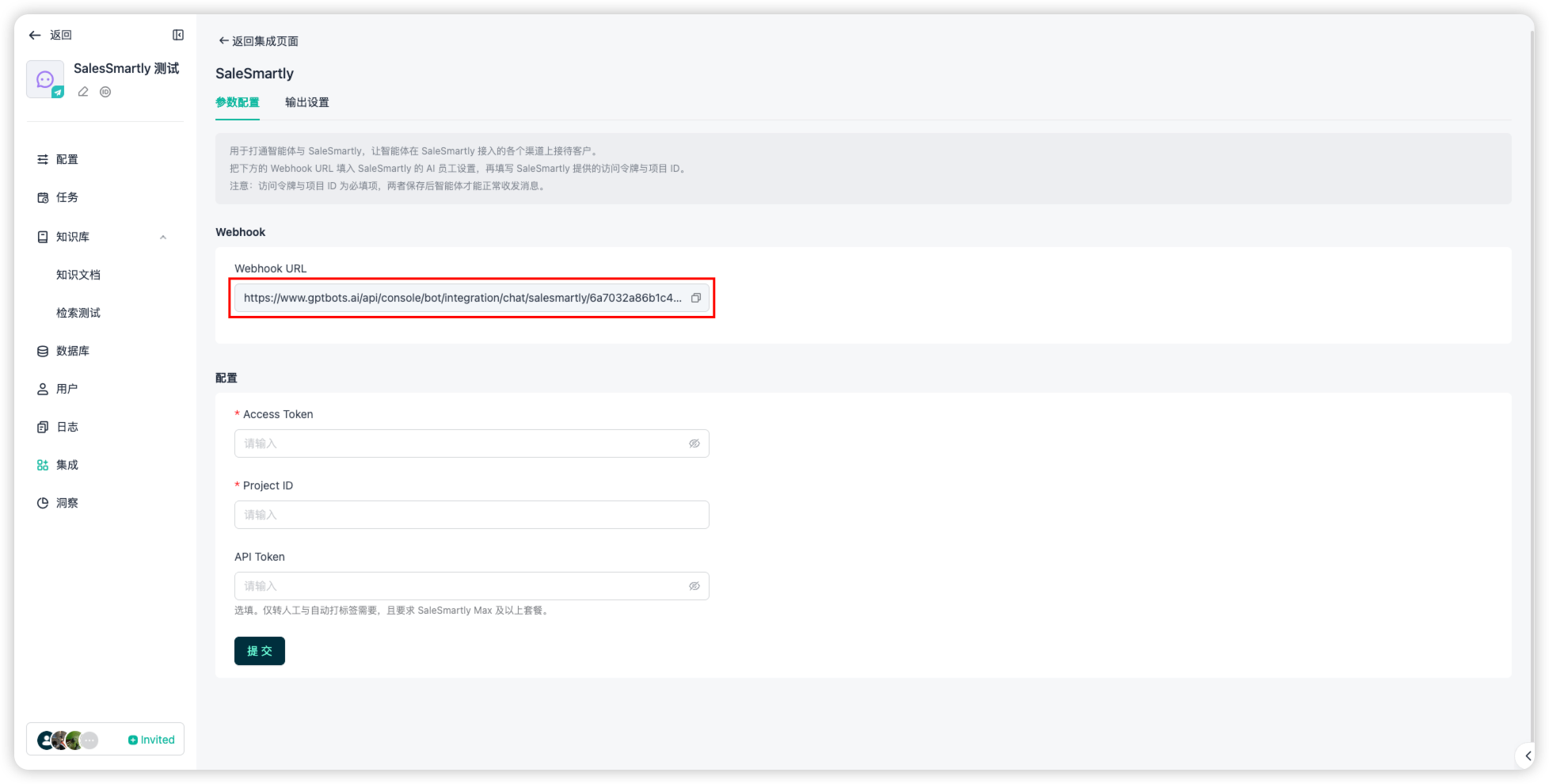
Copy the Webhook URL; you will paste it into SaleSmartly later.
Create an AI Employee in SaleSmartly
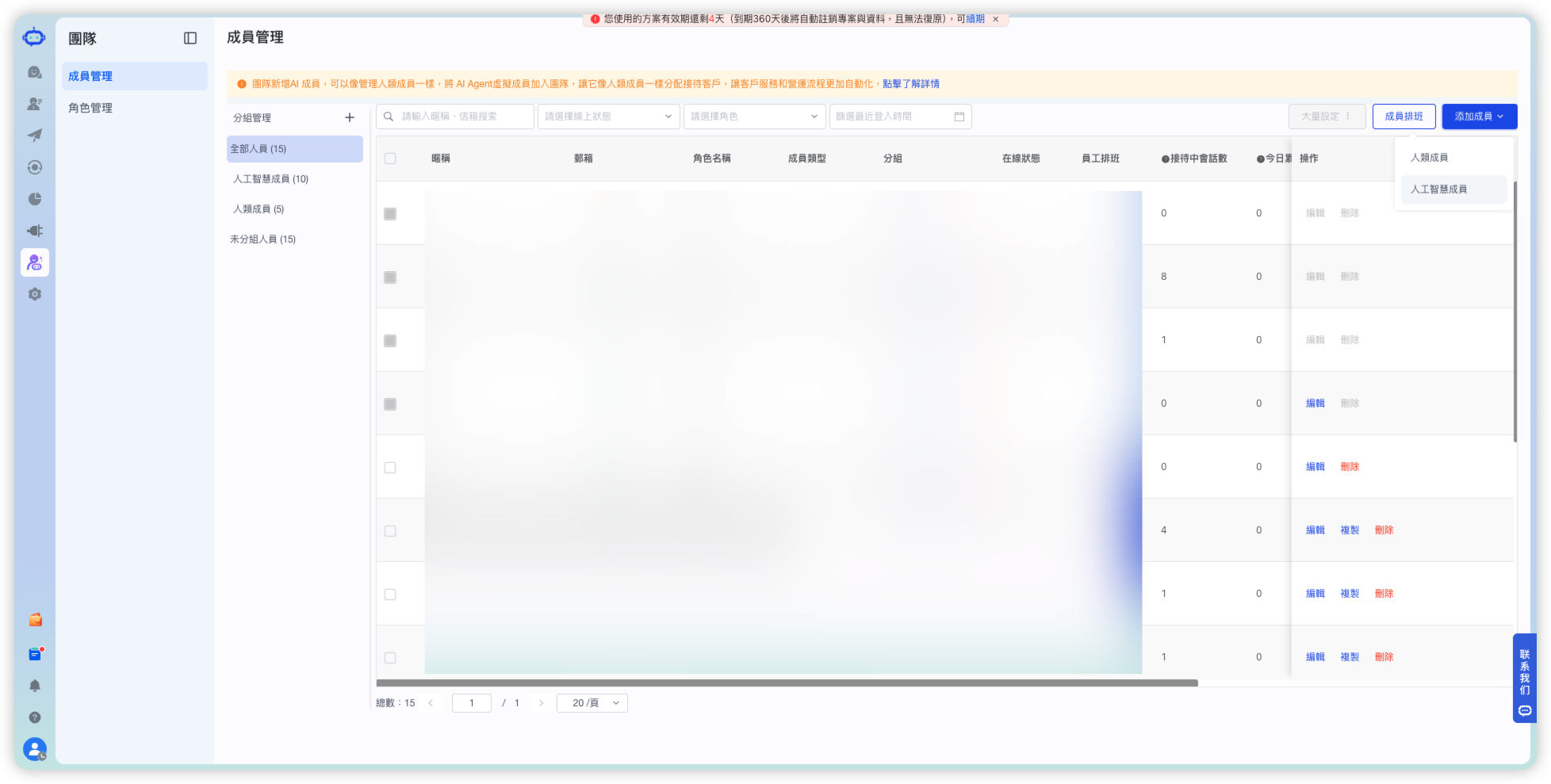
Log in to the SaleSmartly console, go to Team > Member Management, and click Add Member in the upper-right corner.
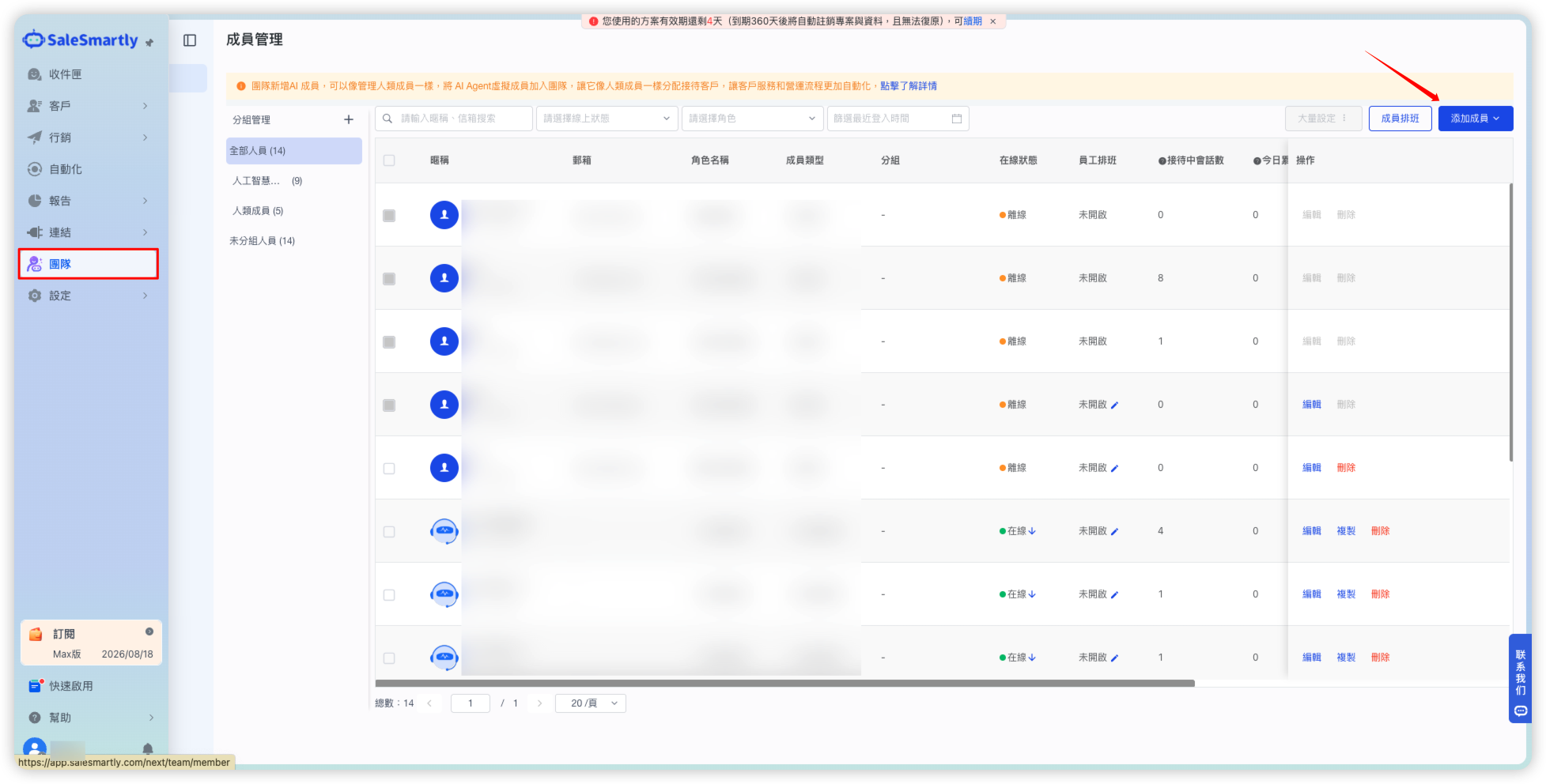
Select AI Member from the drop-down menu.
In the pop-up window, select Custom Webhook.
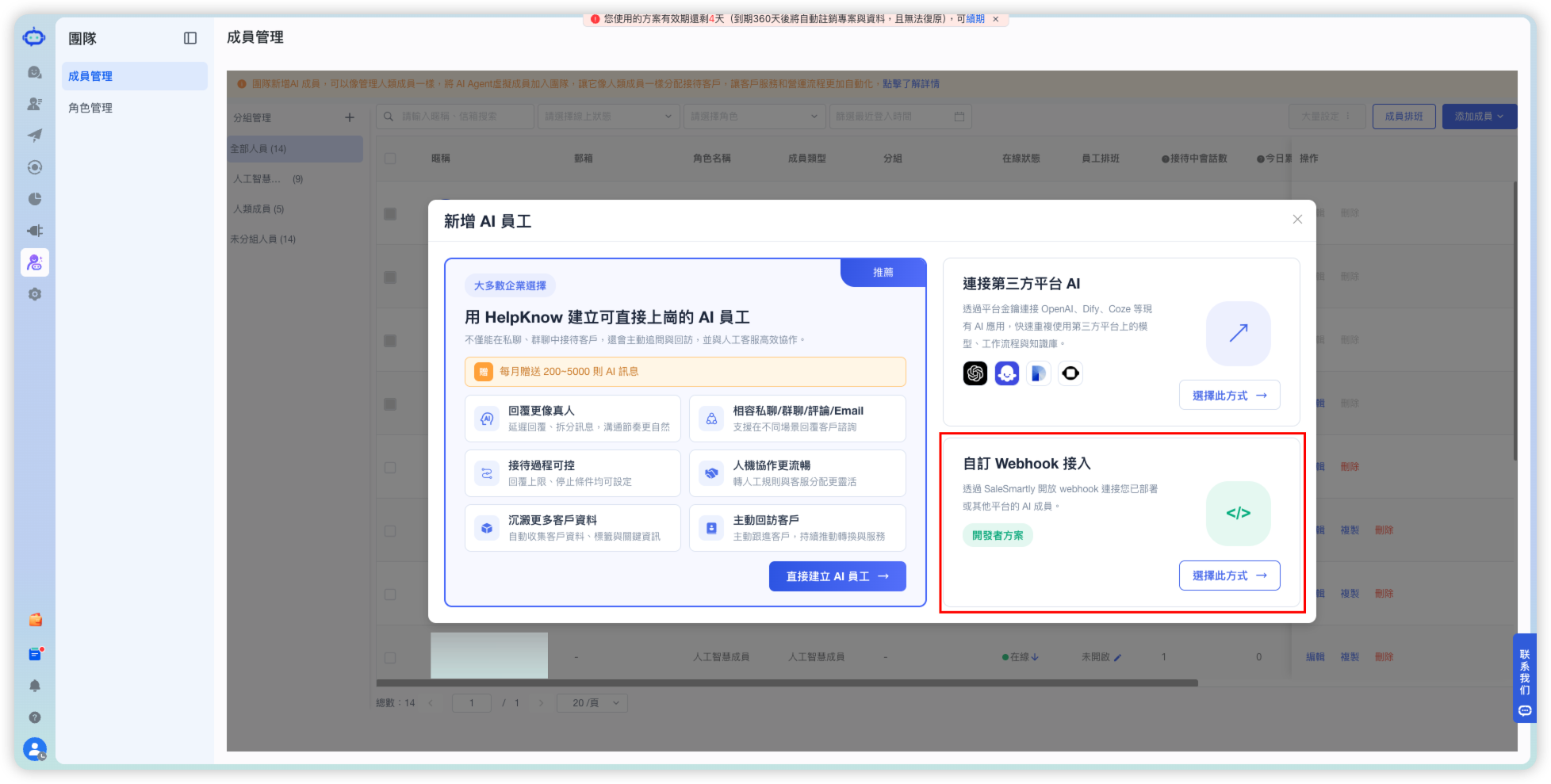
Fill in the AI employee information, then click Create:
- Nickname: enter the Agent name.
- Social media accounts: click Configure and select the channels this Agent will serve.
- Message receiving URL: paste the Webhook URL you just copied from GPTBots.
- Access token: copy and save it; you will need to fill it back into GPTBots later.
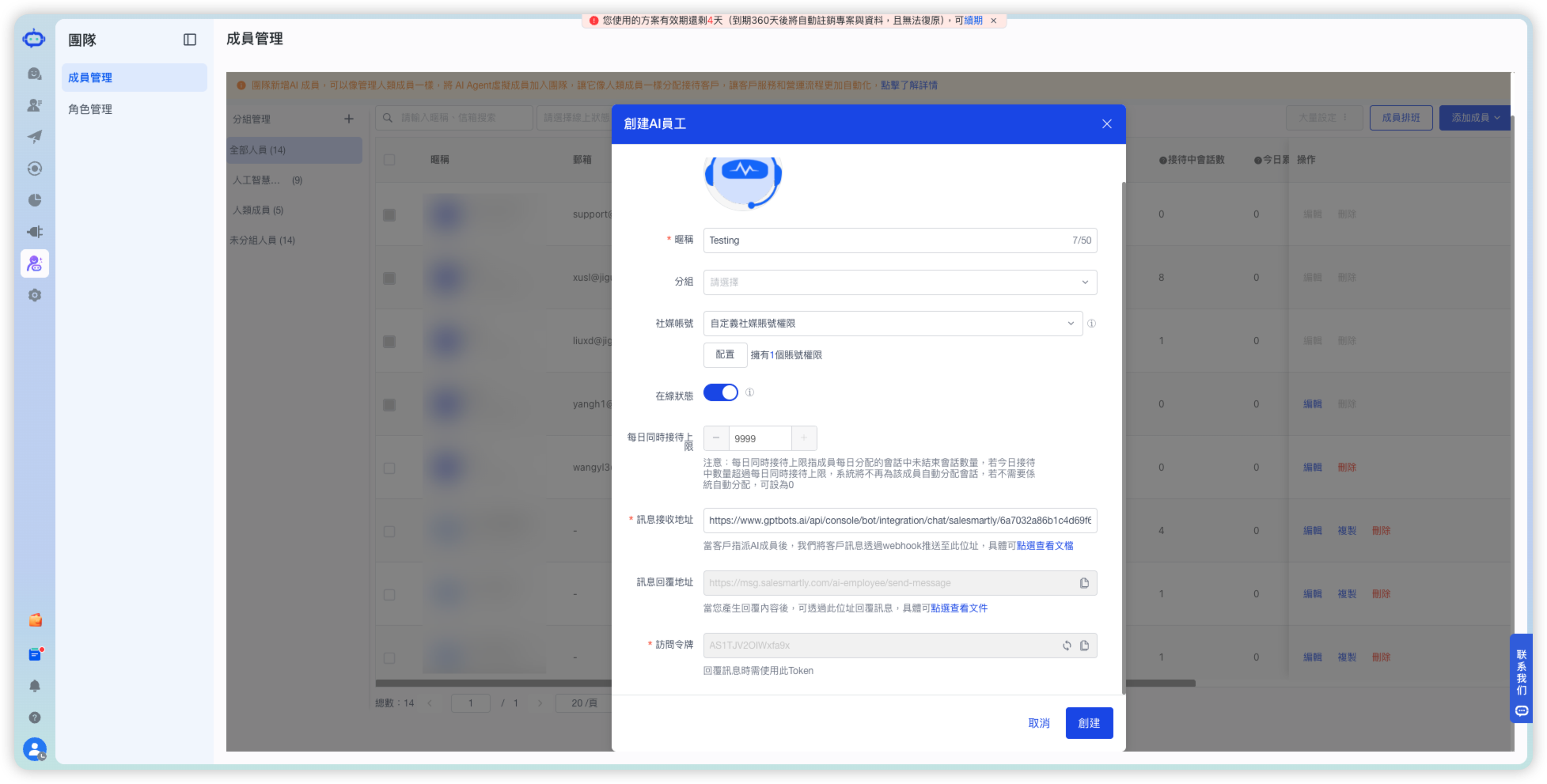
Obtain Configuration Parameters in SaleSmartly
Click your avatar in the lower-left corner and copy the Workspace ID.
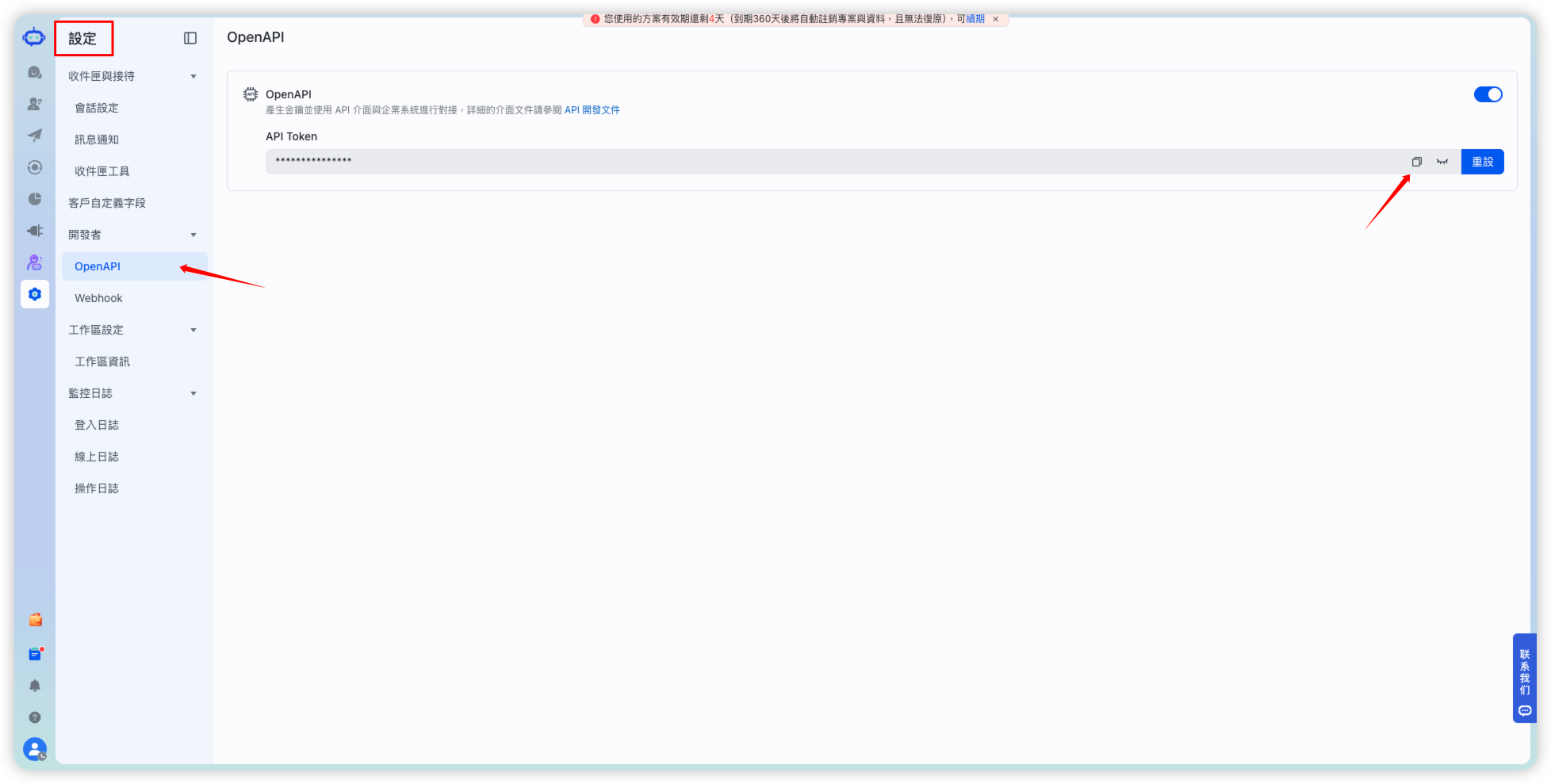
(Optional) Go to Settings > Developer > OpenAPI, enable OpenAPI, and copy the API Token.
Note: The API Token is only required for human handoff and requires a SaleSmartly Max plan or above. If you don't need these features, you can skip this step.
Complete the Integration Configuration in GPTBots
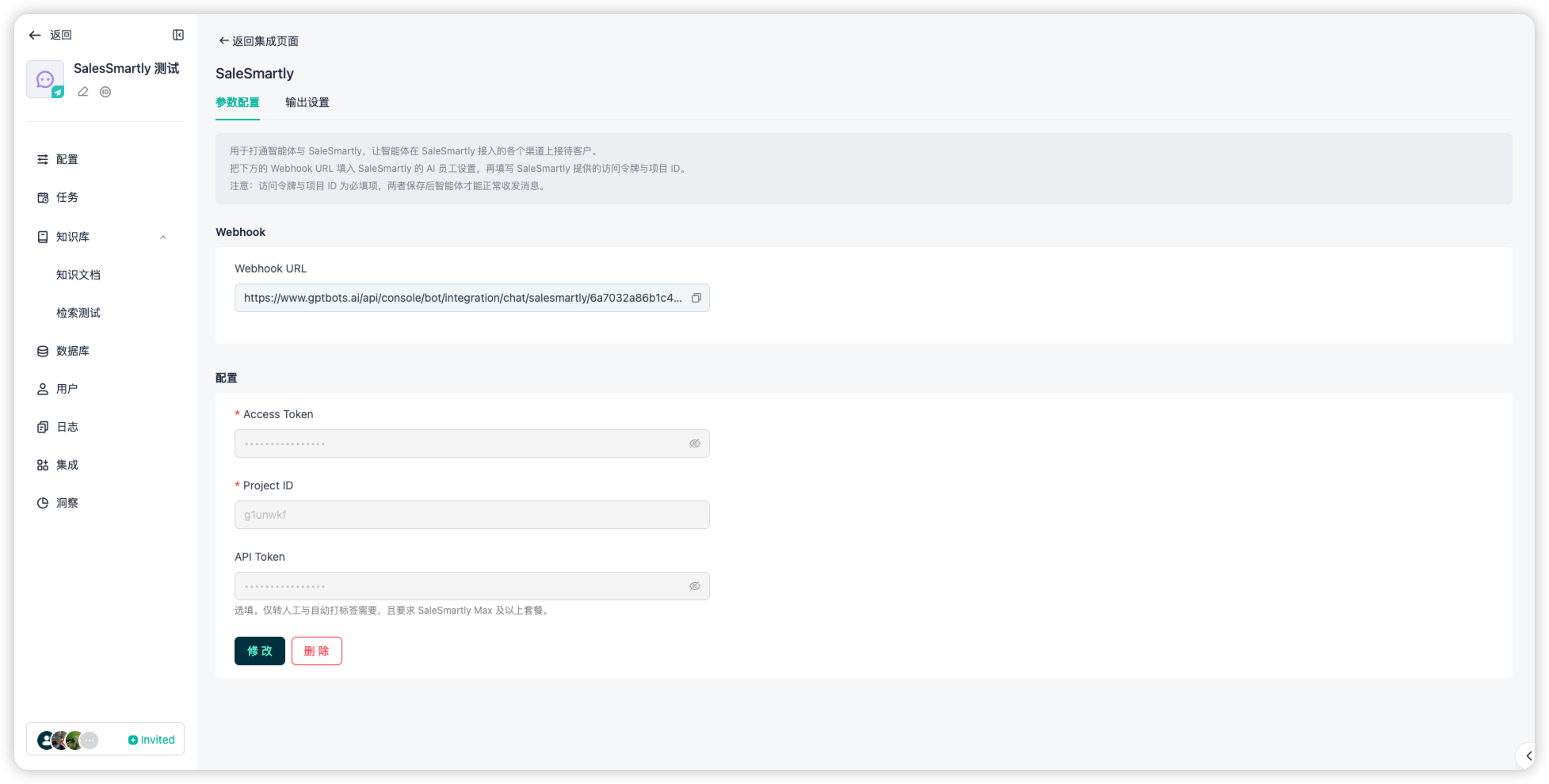
Return to the SaleSmartly integration configuration page in GPTBots and fill in the following parameters:
- Access Token: enter the access token of the SaleSmartly AI employee.
- Project ID: enter the SaleSmartly Workspace ID.
- API Token: optional; enter the API Token from SaleSmartly OpenAPI.
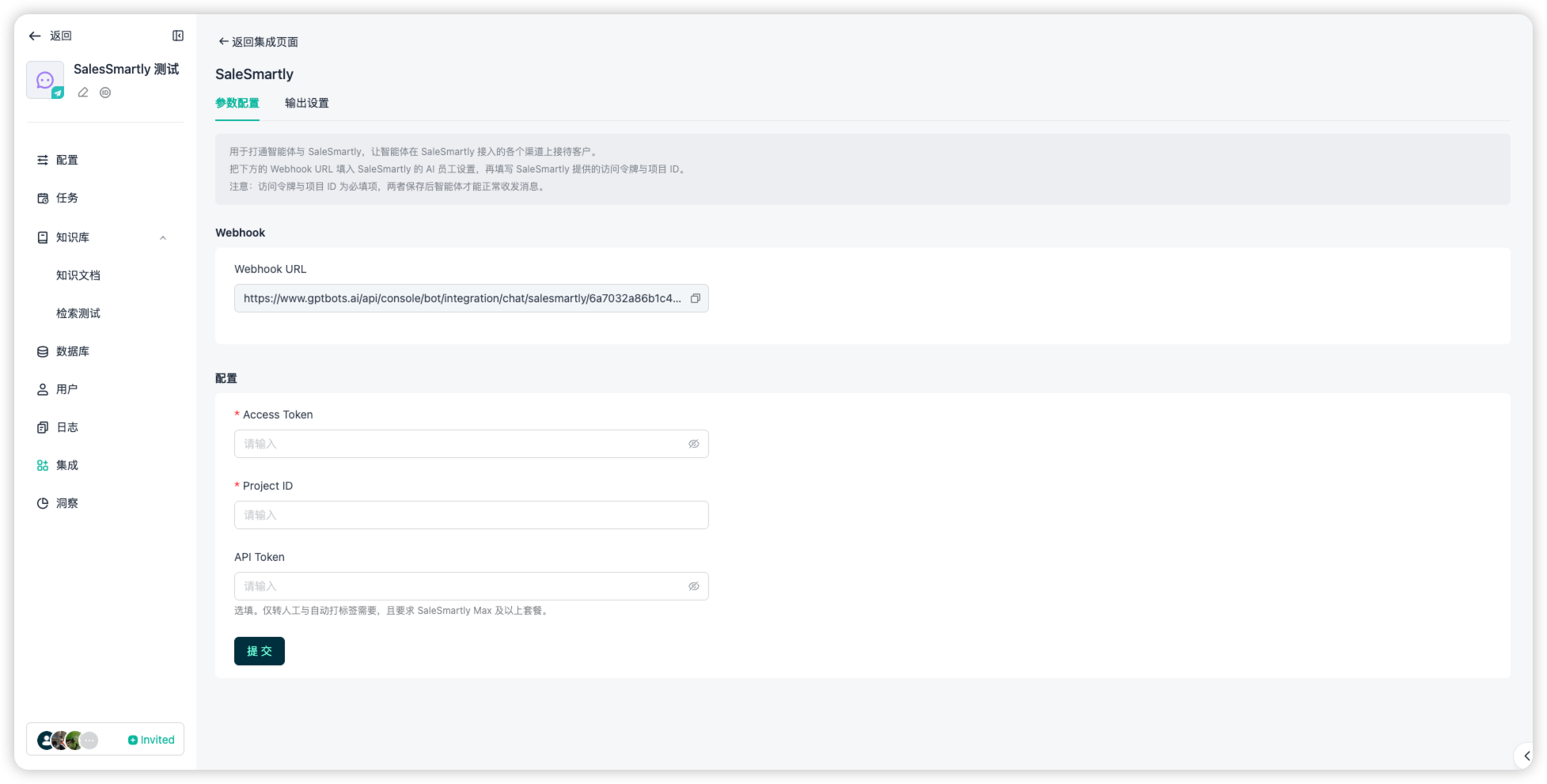
Click Submit. Once saved successfully, the integration is complete.
Configure Human Handoff (Optional)
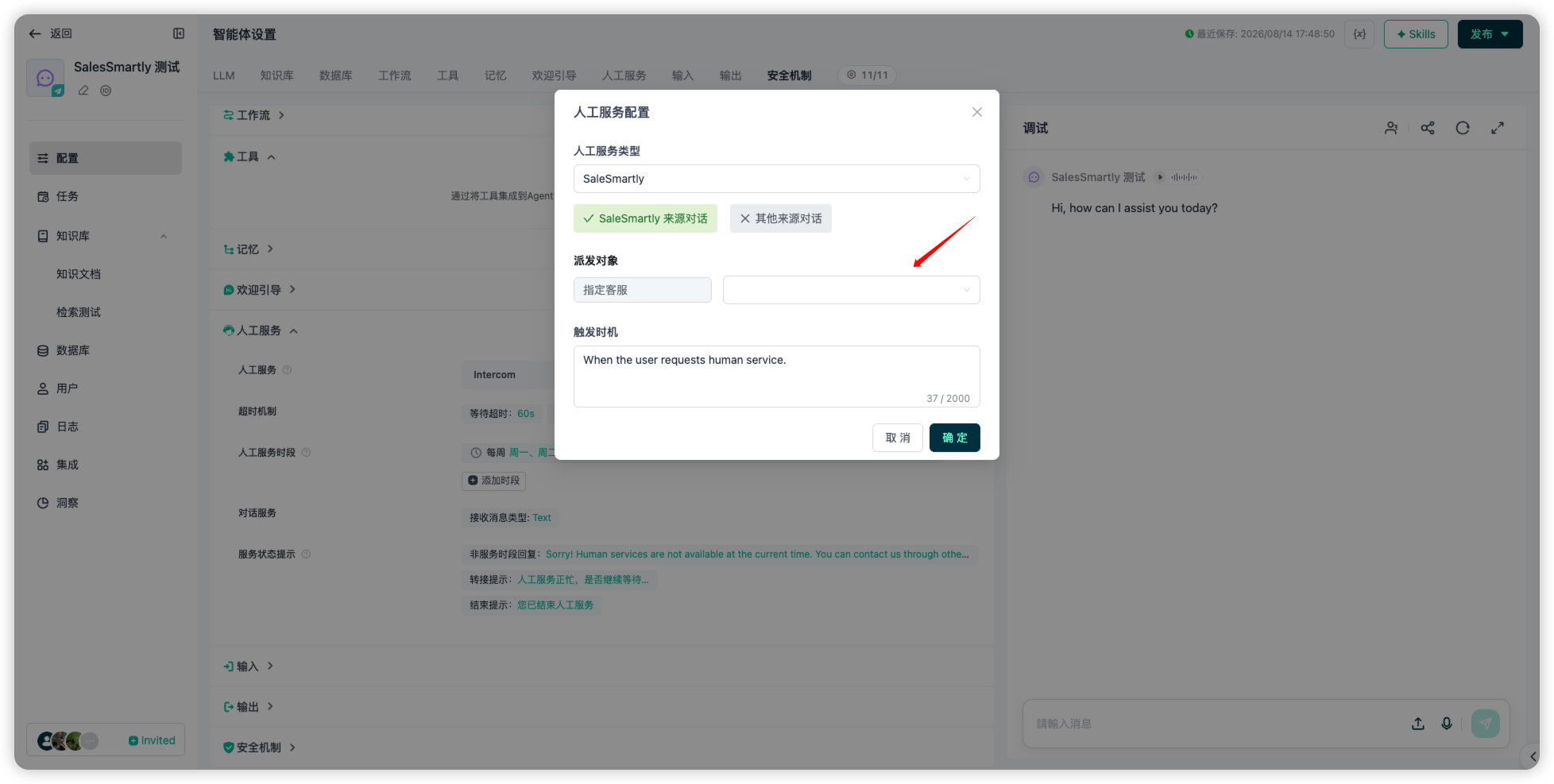
To support handing conversations off to human agents, go to the Human Service module in the Agent settings, set the human service type to SaleSmartly, and configure the dispatch targets and trigger timing.
Note: Human handoff requires the API Token to be filled in the integration configuration, and a SaleSmartly Max plan or above.
Chat with the Agent in SaleSmartly
Once the integration is complete, when a customer starts a conversation on any channel connected to SaleSmartly and it is assigned to this AI employee, the Agent will automatically take over and reply to the customer's messages.