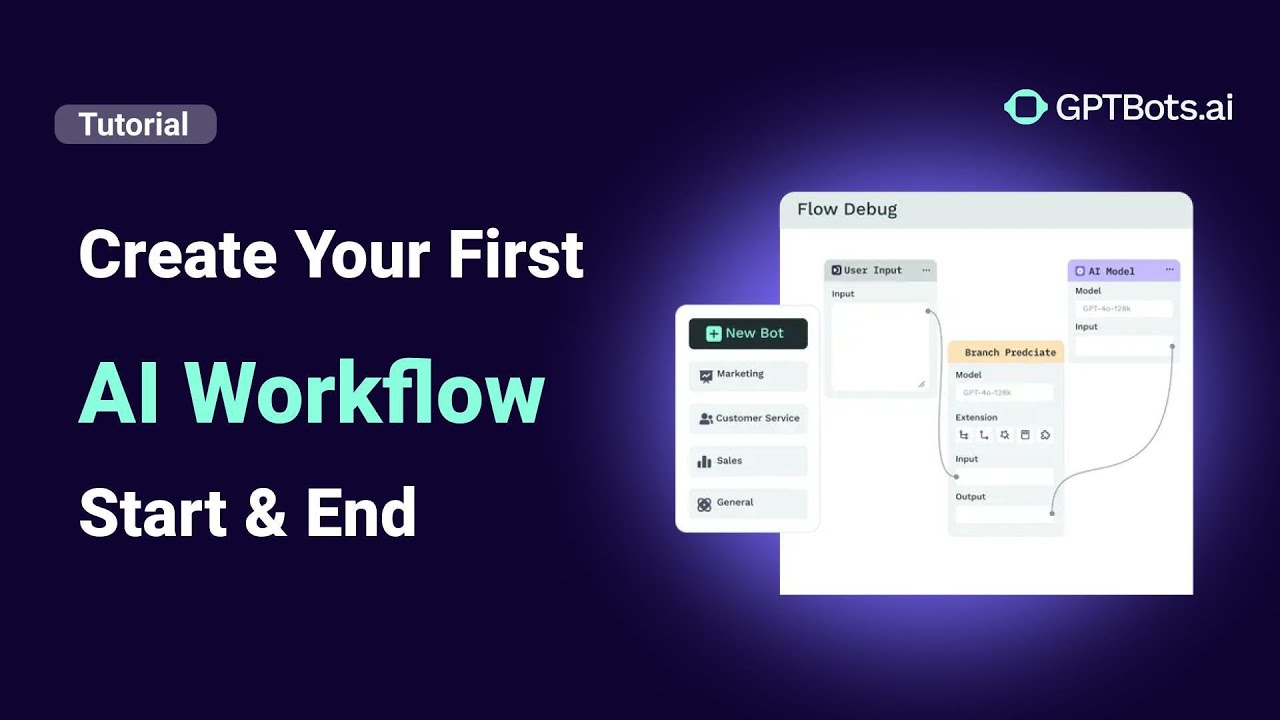
flowchart TD
      C["Agents"] --> n2["Agent"] & D["FlowAgent"] & n1["MultiAgent"]
    n4["DevSpace"] --> C & n3["Workflows"]
    n3 --> n5["Workflow"]
    n2@{ shape: rect}
    n1@{ shape: rect}
    n4@{ shape: rect}
    n3@{ shape: rect}
    style n2 color:#D50000
    style n1 color:#000000
    style n3 color:#000000
    style n5 color:#000000
Estimated Reading Time: 5 minutes
Welcome to the GPTBots Academy. This guide will take you through the crucial journey from zero to one, helping you build your very first AI Agent in 4 simple steps.
Preparation
Before we begin, ensure you have access to the platform.
- Sign up for an account: You’ll need a GPTBots account to get started.
- Action: Sign up for free here to create your GPTBots account.
Step 1: Create Your Agent
- Log in to the GPTBots platform.
- Click “New Agent” and then select “Create from Scratch.”
- Choose the "Agent" category (simple conversational bot) and give your Agent a unique name.
Step 2: Guide Your Agent (Identity Prompt)
In the Identity Prompt field, enter your instructions. This is the core of your AI's personality.
Tip: If you’re new to AI, don’t worry about writing the perfect prompt immediately. Just type your idea in plain words, then click the AI icon to auto-optimize it.
**💡 What is an Identity Prompt?**An Identity Prompt is the AI’s "role setting." It tells the AI what role to play, what tone to use, and what style to maintain during conversations.
Test & Debug:
Next, use the Debug chatbox on the right to test your Agent. Check if the responses meet your expectations. If not, adjust your Identity Prompt until the Agent behaves as expected.
(Note: In later guides, we’ll show you how to use advanced settings to further improve your Agent.)
Step 3: Publish Your Agent
Once you’ve finished debugging and are satisfied with the performance:
- Click “Publish.”
- Go to the Integrations page. GPTBots provides a variety of integration channels (like WhatsApp, Discord, Slack) so you can use your Agent across different platforms.
- Learn more: What is Integration in AI Agents?
- Alternatively, publish it to the Workspace, which is the quickest way for internal teams to start using it.
**💡 What is a Workspace?**A Workspace is a collaborative platform where team members can access and use all the Agents published within their organization.
Review Process:
After publishing, you’ll need to approve your Agent in the Workspace:
- Return to the homepage and click Workspace.
- Go to Space Management -> Audit & Publish tab.
- Find the Agent you just published.
- Click “Review” in the bottom-right corner. Once approved, your Agent is ready to use.
Step 4: Use Your Agent
In the sidebar, find the Agent icon. Click it, and you can start using the Agent you just created!
Next Steps
Now that you’ve built your first AI Agent, you’ve completed the crucial step from zero to one.
To explore advanced configurations, optimization, and management techniques, continue reading:
👉 From One to Pro: Advanced Configuration and Management of Your AI Agent
Build an AI Workflow to Analyze Meeting Minutes with GPTBots & Notion
Deploy an AI Chatbot for Customer Support on Your Website
Connect GPTBots Agent with LiveChat for Automated Customer Support
How to Use Tools in GPTBots: Complete Step-by-Step Guide
How to Integrate on Telegram (Full Guide)