Line Assistant User Guide
Line Assistant is an extension installed in the Chrome browser. Customer service agents can use it while replying to user messages in Line OA. It notifies you of which users need human handoff and provides AI Reply Suggestions.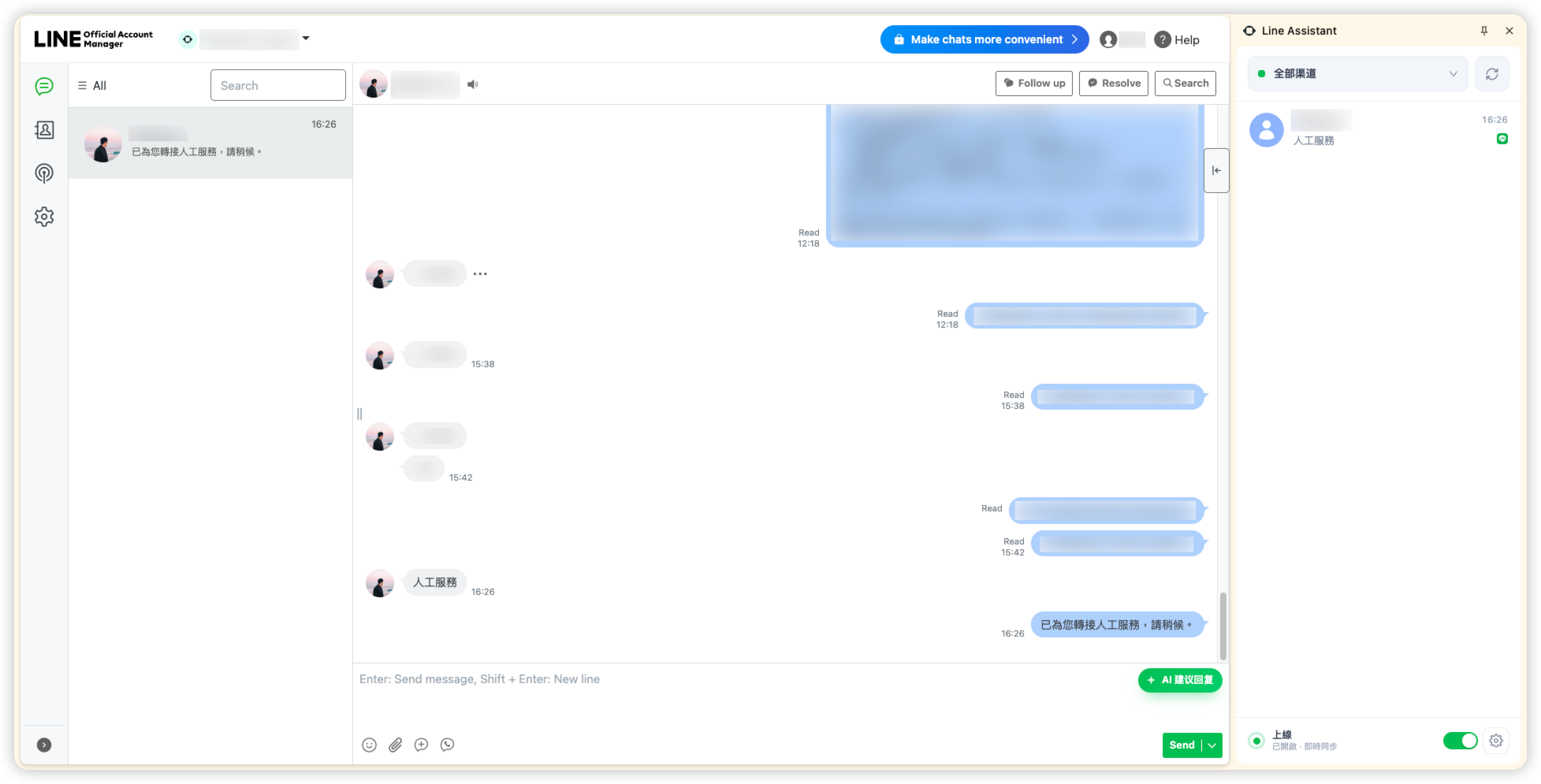
Setup Guide
- Download the extension package: https://jg-aws-zjh-gptbots-s3-bucket.s3.ap-southeast-1.amazonaws.com/ailab/extension/line-assistant-1.1.1.zip
- Unzip the package to get the extension files.
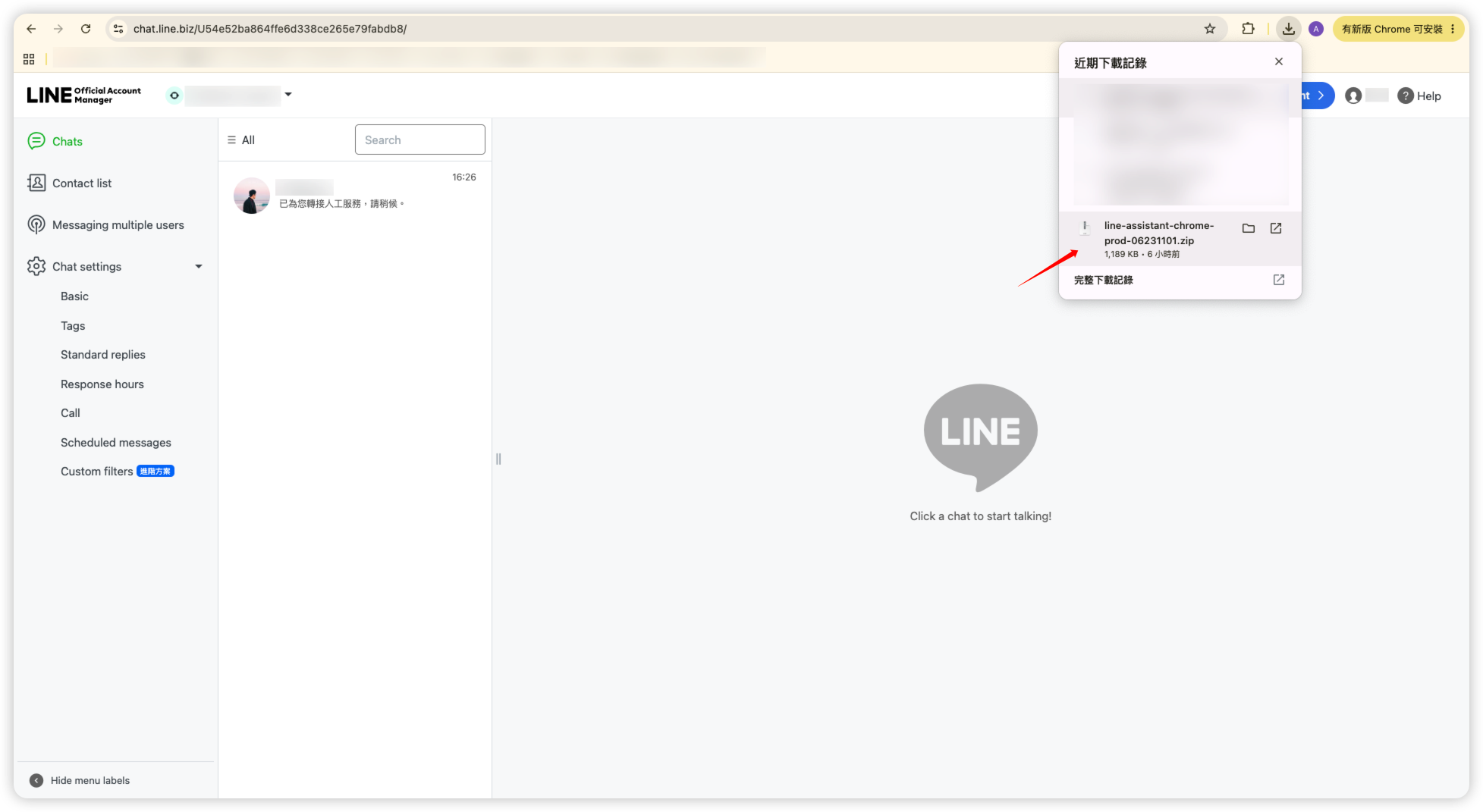
- Open the Chrome browser and click Extensions > Manage Extensions to open the extension management page.
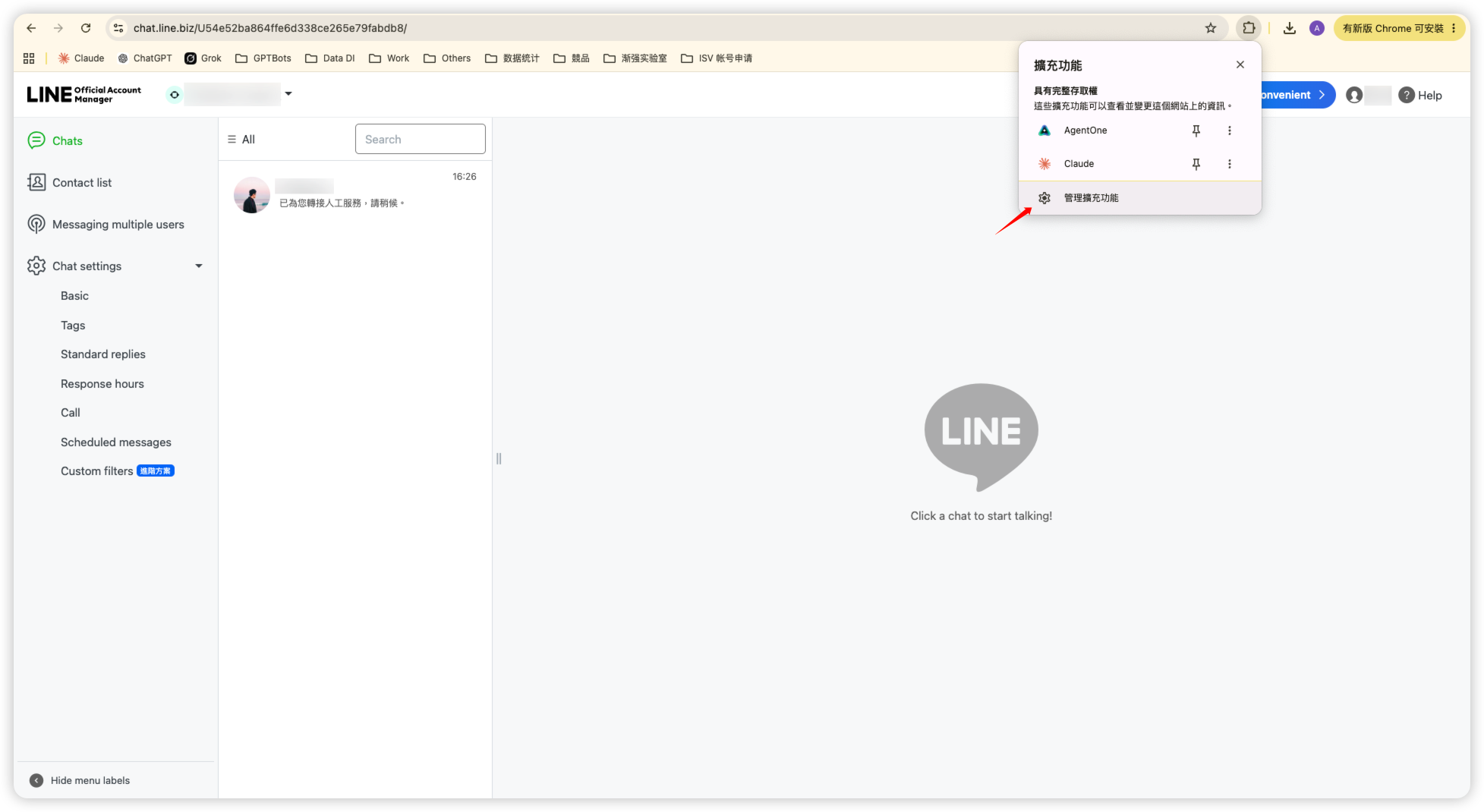
- Turn on
Developer modein the top-right corner, clickLoad unpackedon the left, select the extension folder you just unzipped, and confirm to complete the installation.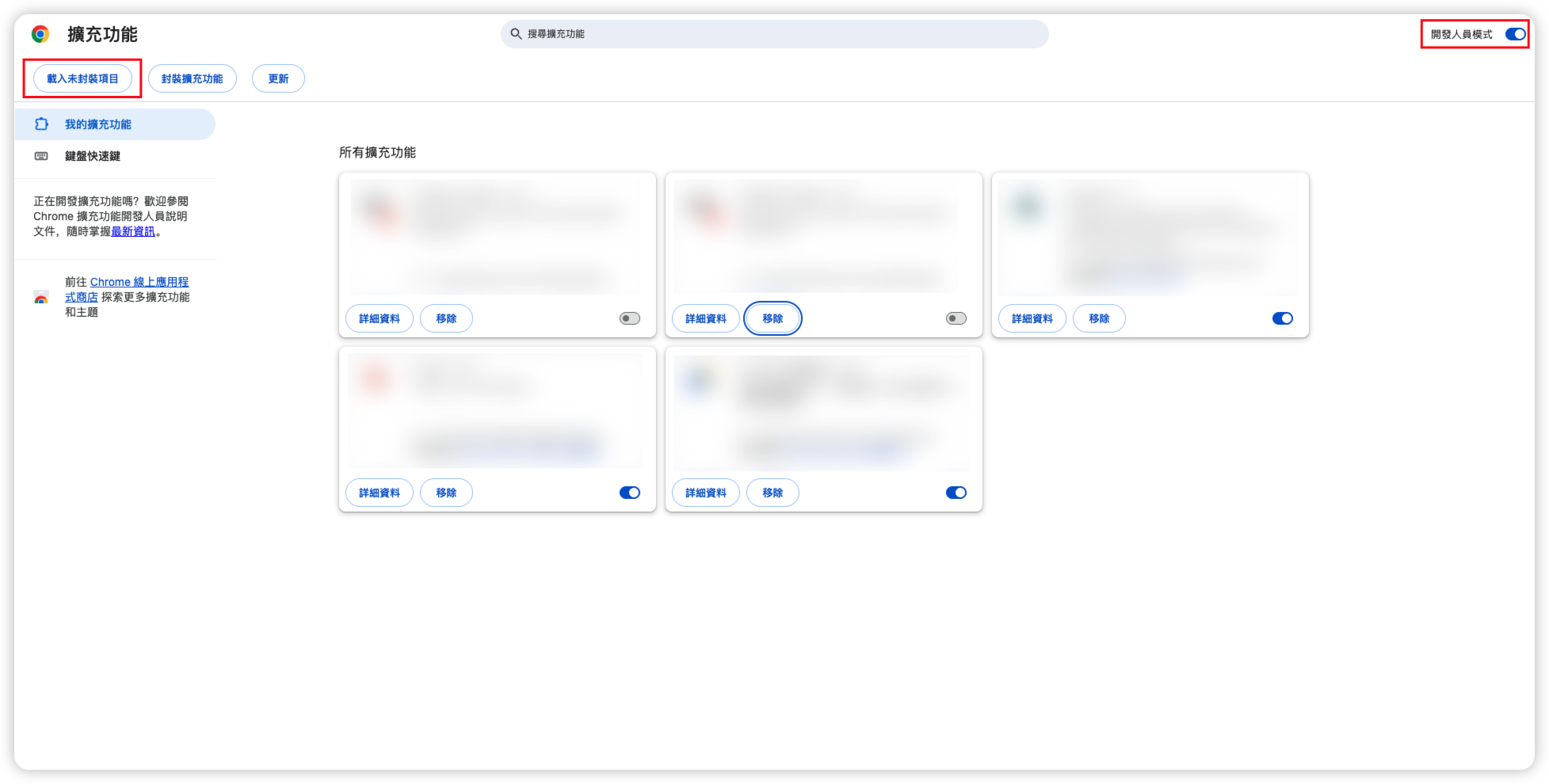
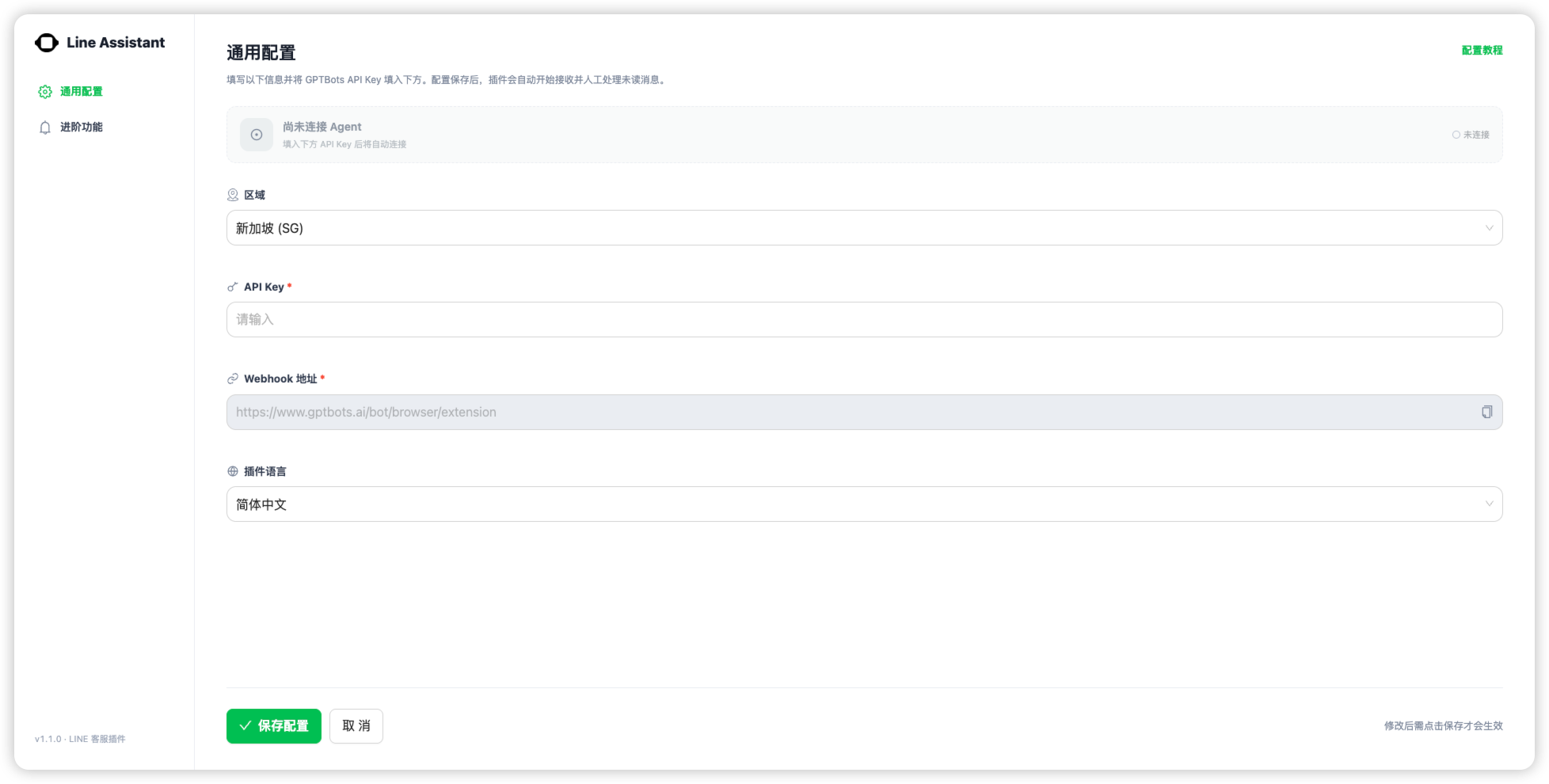
- Once installed, the configuration screen will open automatically.
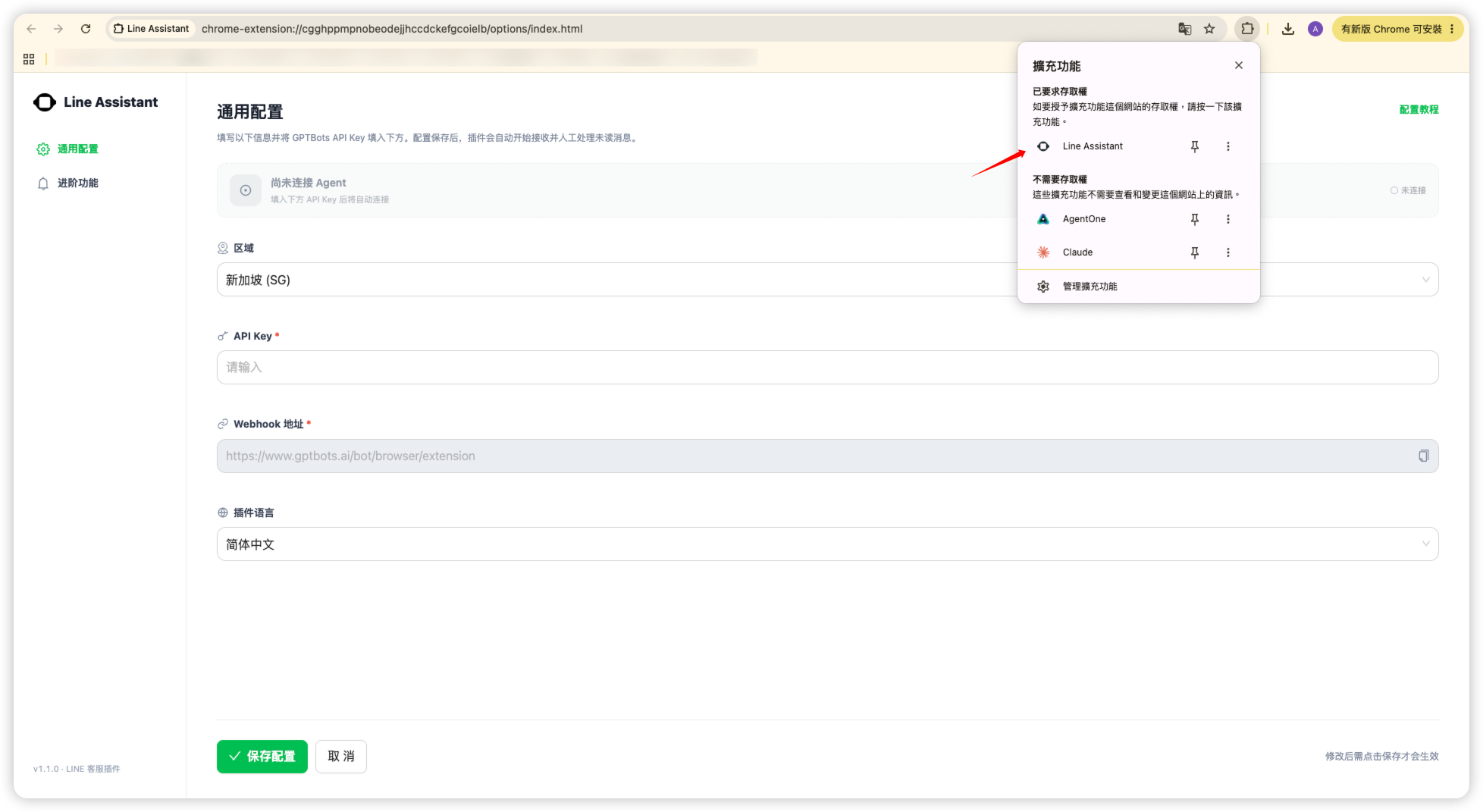
- Click the extension icon to open the extension itself.
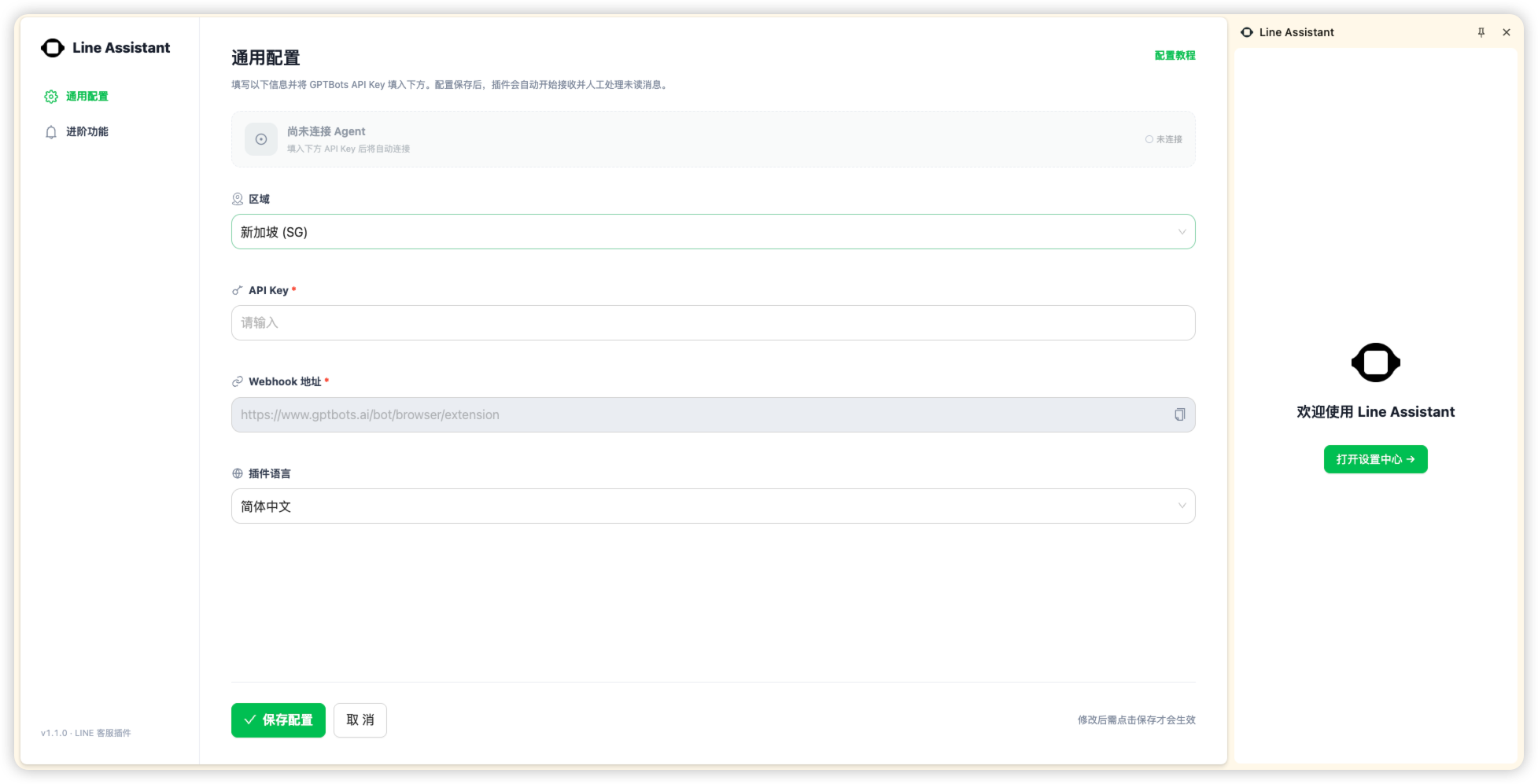
- Next, select the corresponding
Regionin the general settings.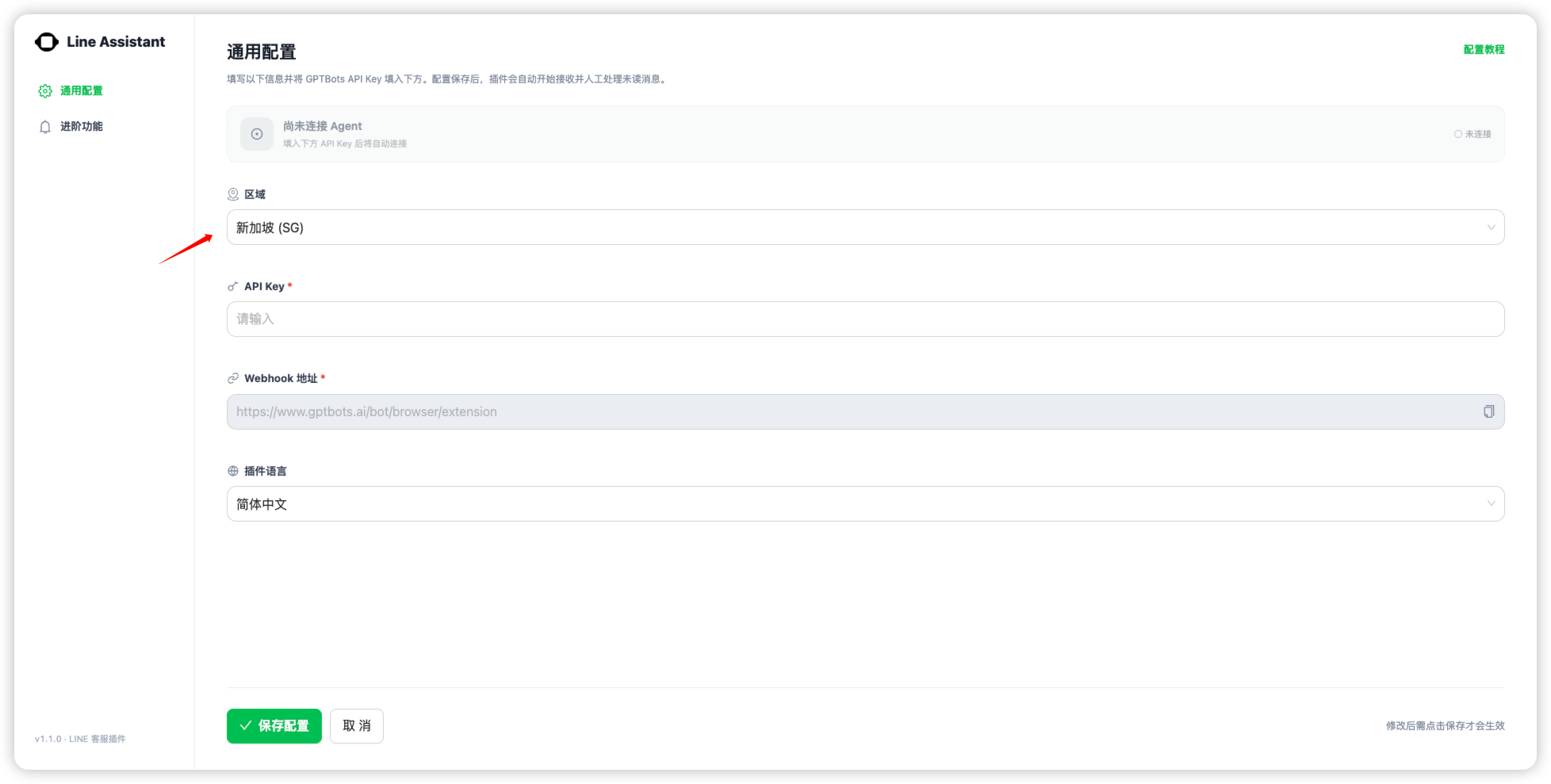
How do I choose the region?
This region represents thedata center location of your GPTBots organization. Taking the Demo organization in the image as an example, the region should be set to Singapore.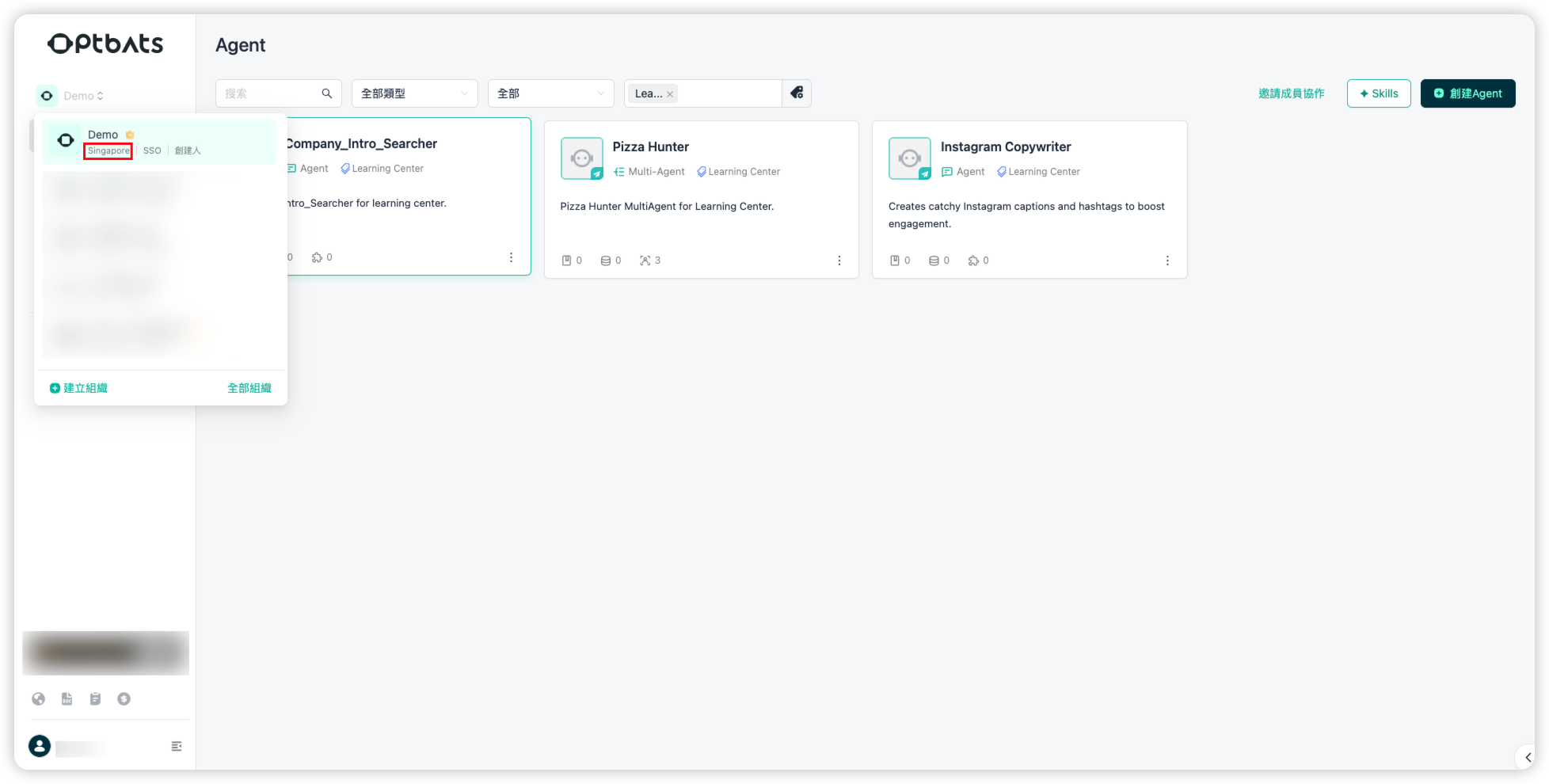
- Then enter your API key and click Save Configuration below.
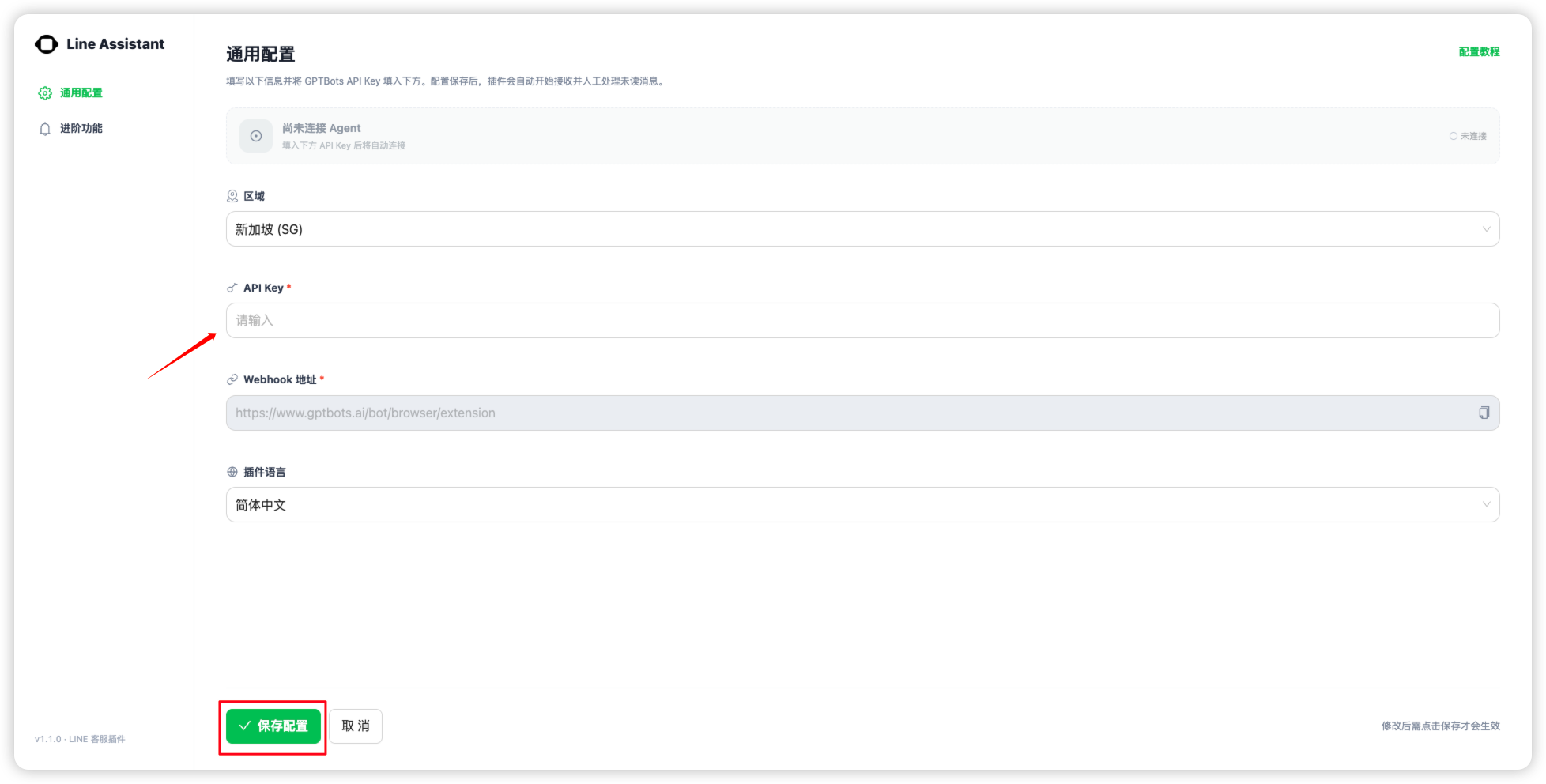
How do I get an API Key?
Find the corresponding Agent in GPTBots, turn on the API switch, and then click Manage.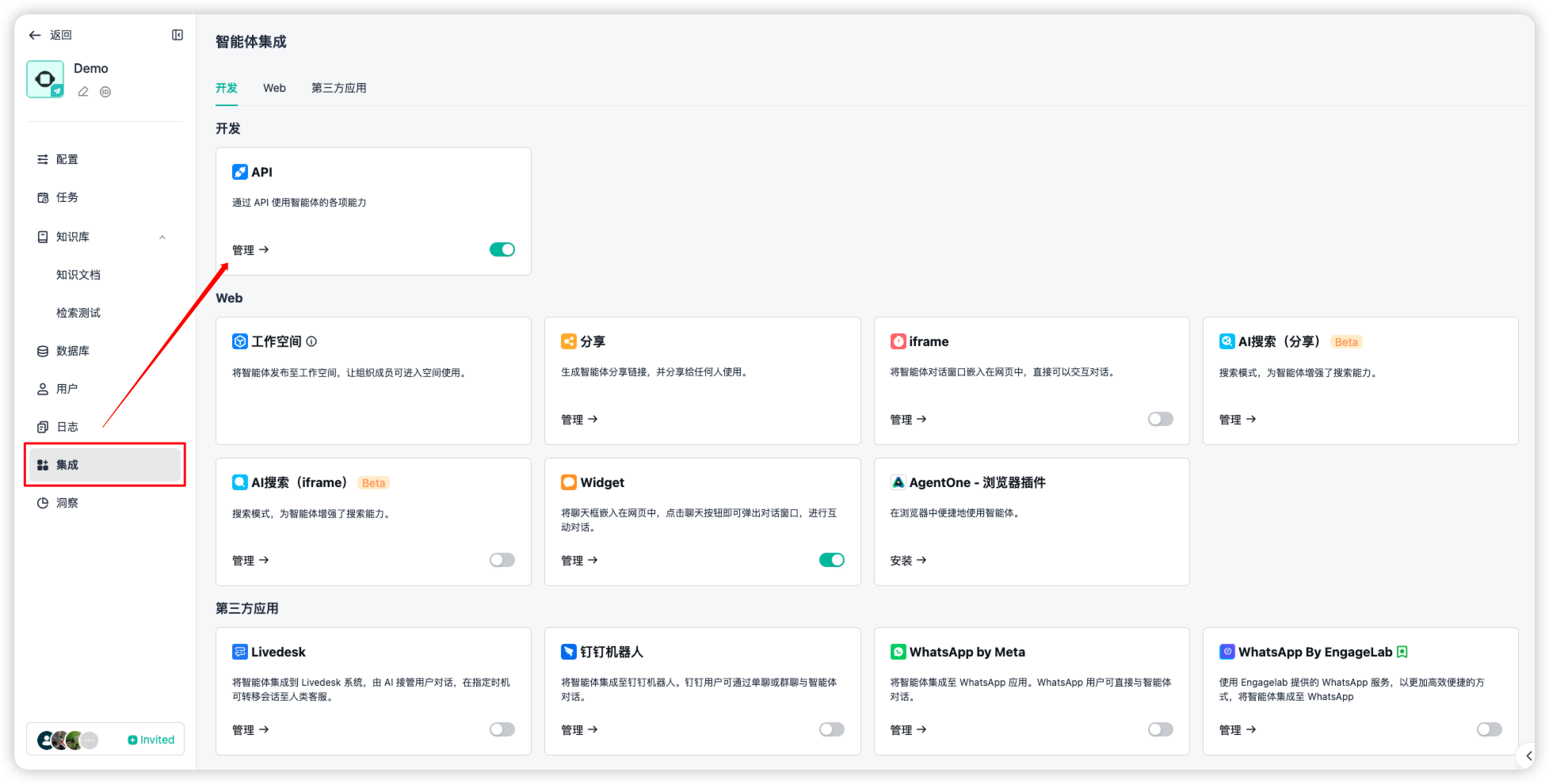
Click Create API Key to obtain one.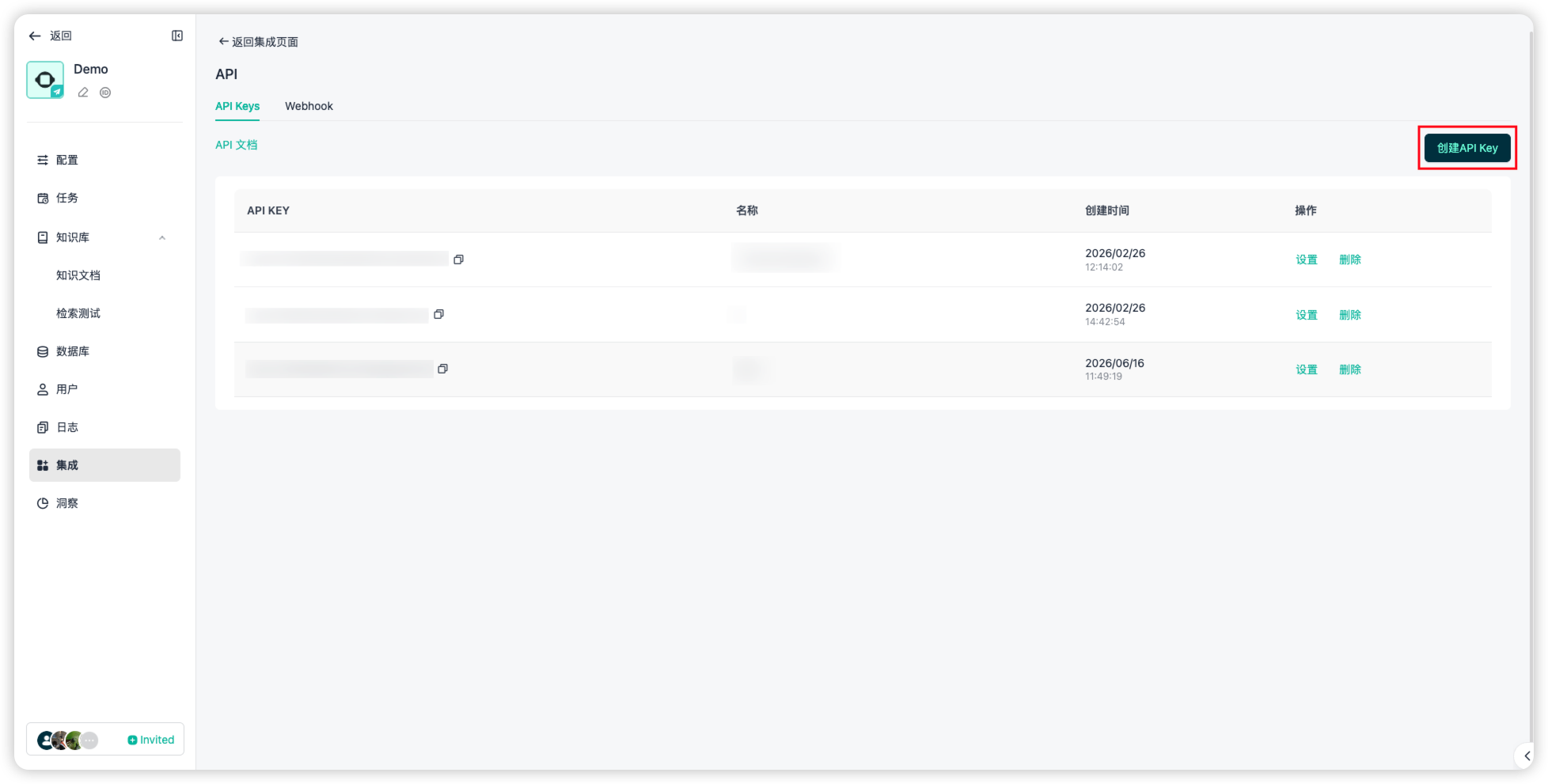
- Finally, return to the extension and copy the webhook URL.
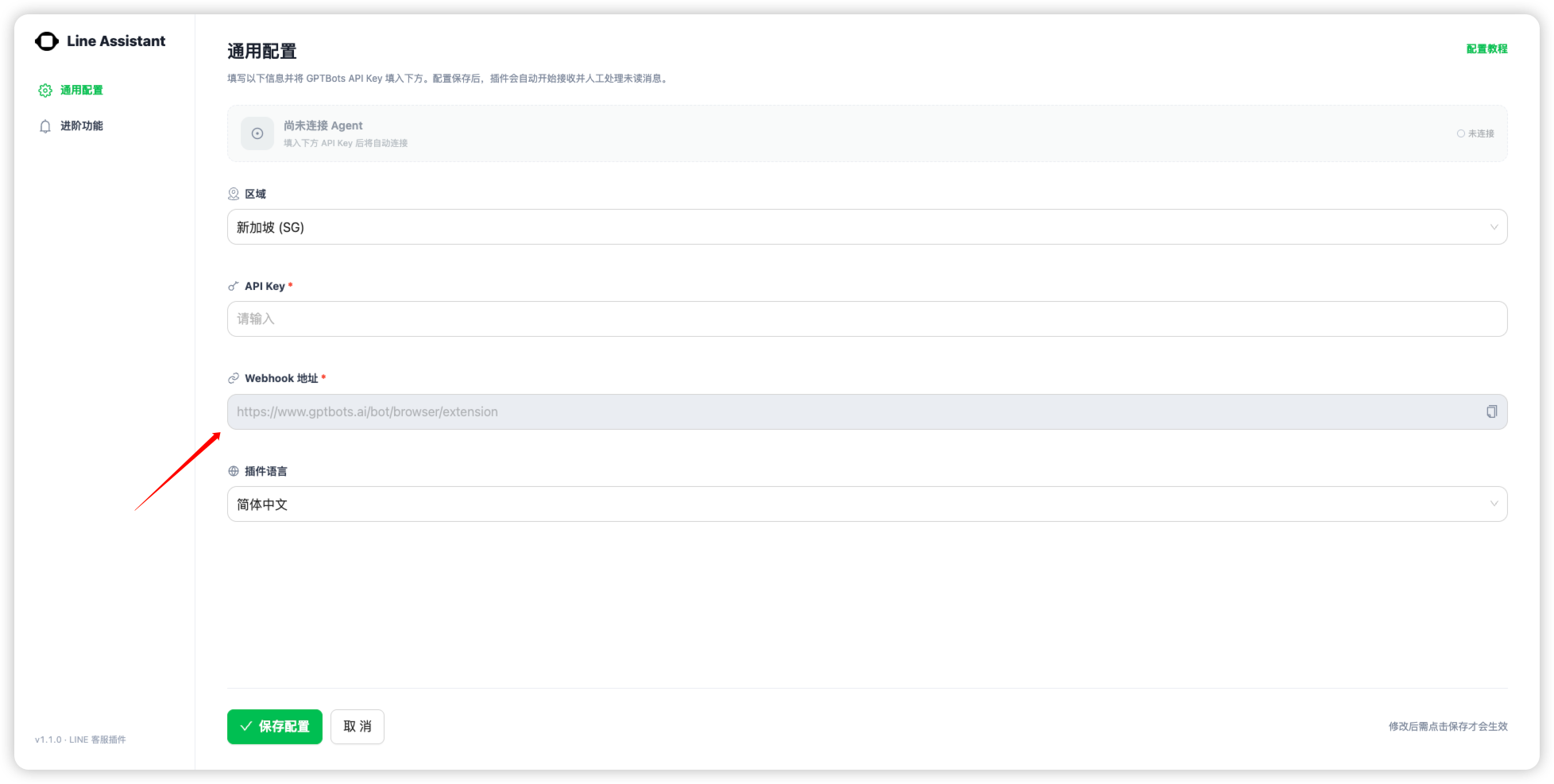
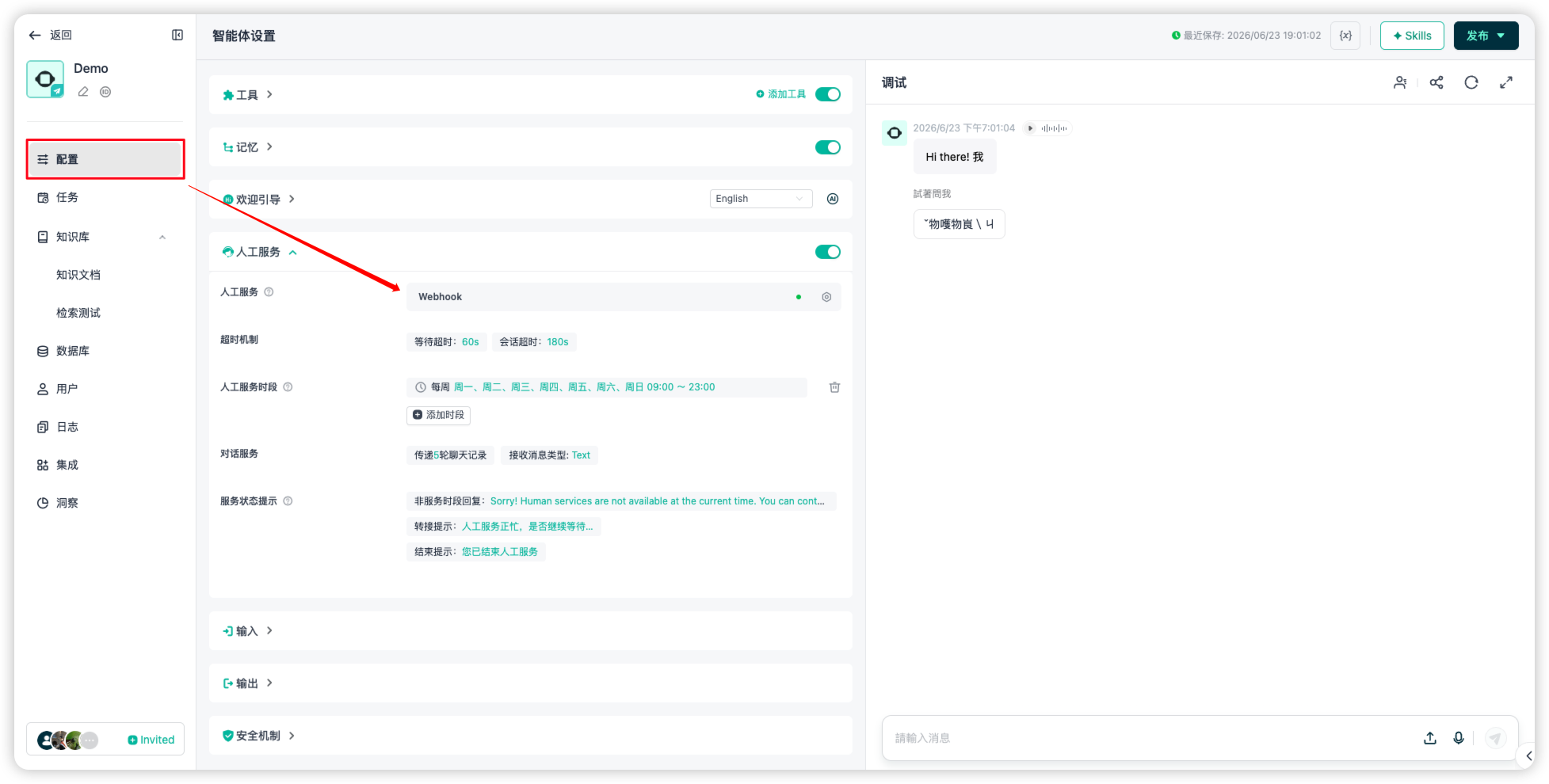
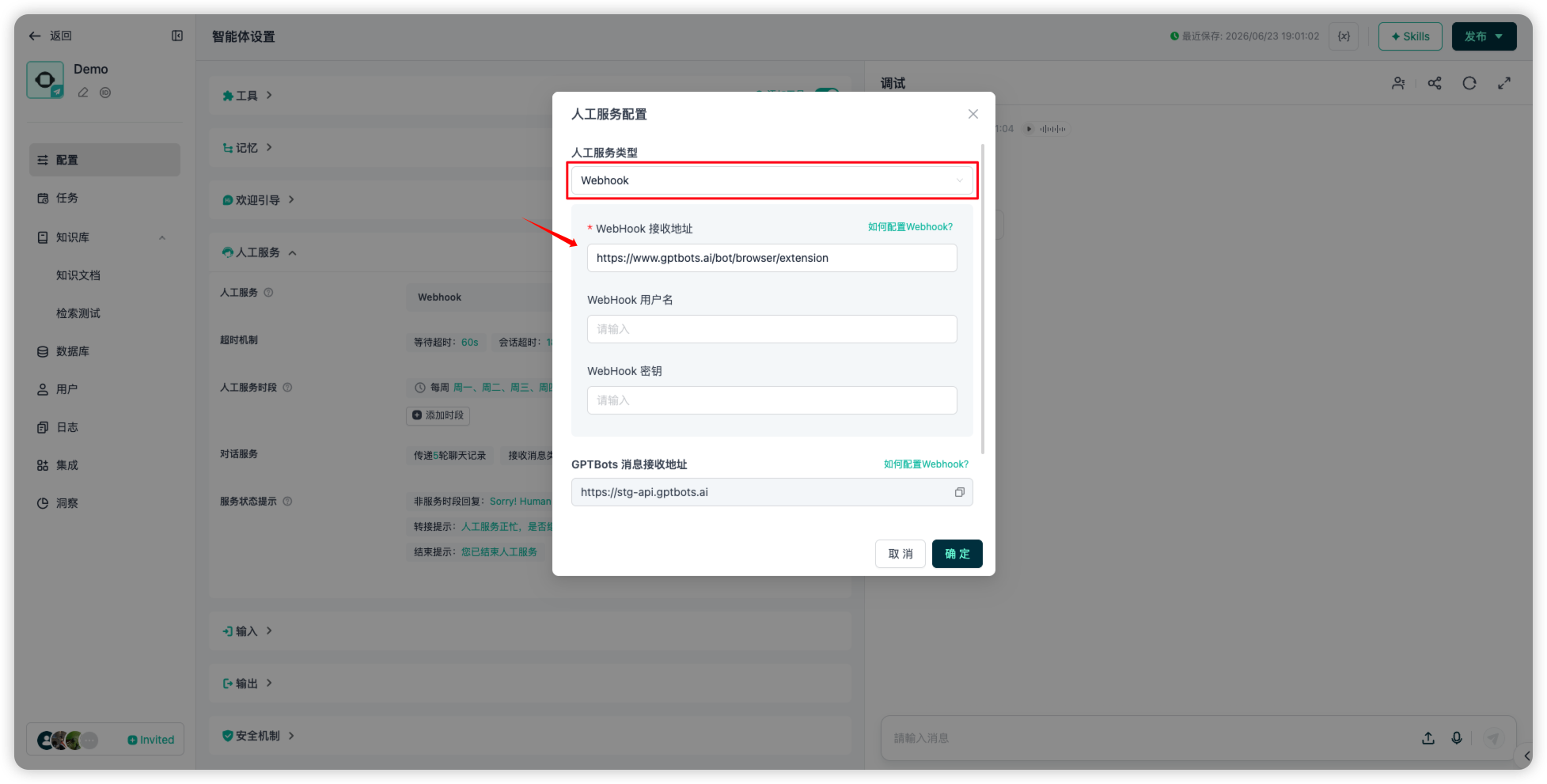
- In the Agent sidebar, go to Configuration > Human Handoff, set the human handoff type to Webhook, then paste the URL you just copied into the Webhook Receiving URL field and click Confirm to complete the setup.
Usage Guide
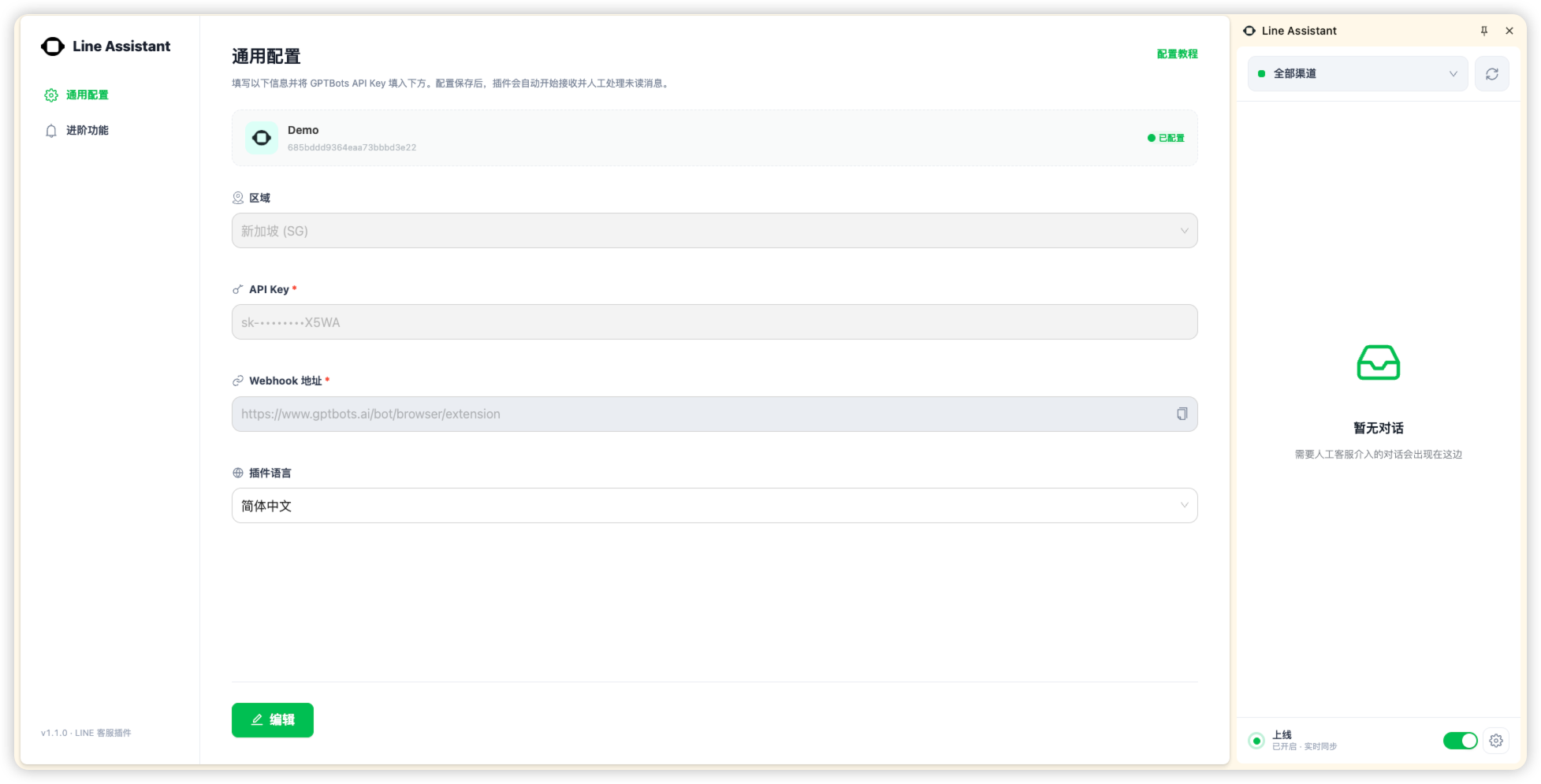
- After completing the setup, the extension panel on the right will show that it is ready to work. Once you click
Online, the Agent will push conversations that need human handoff to the list.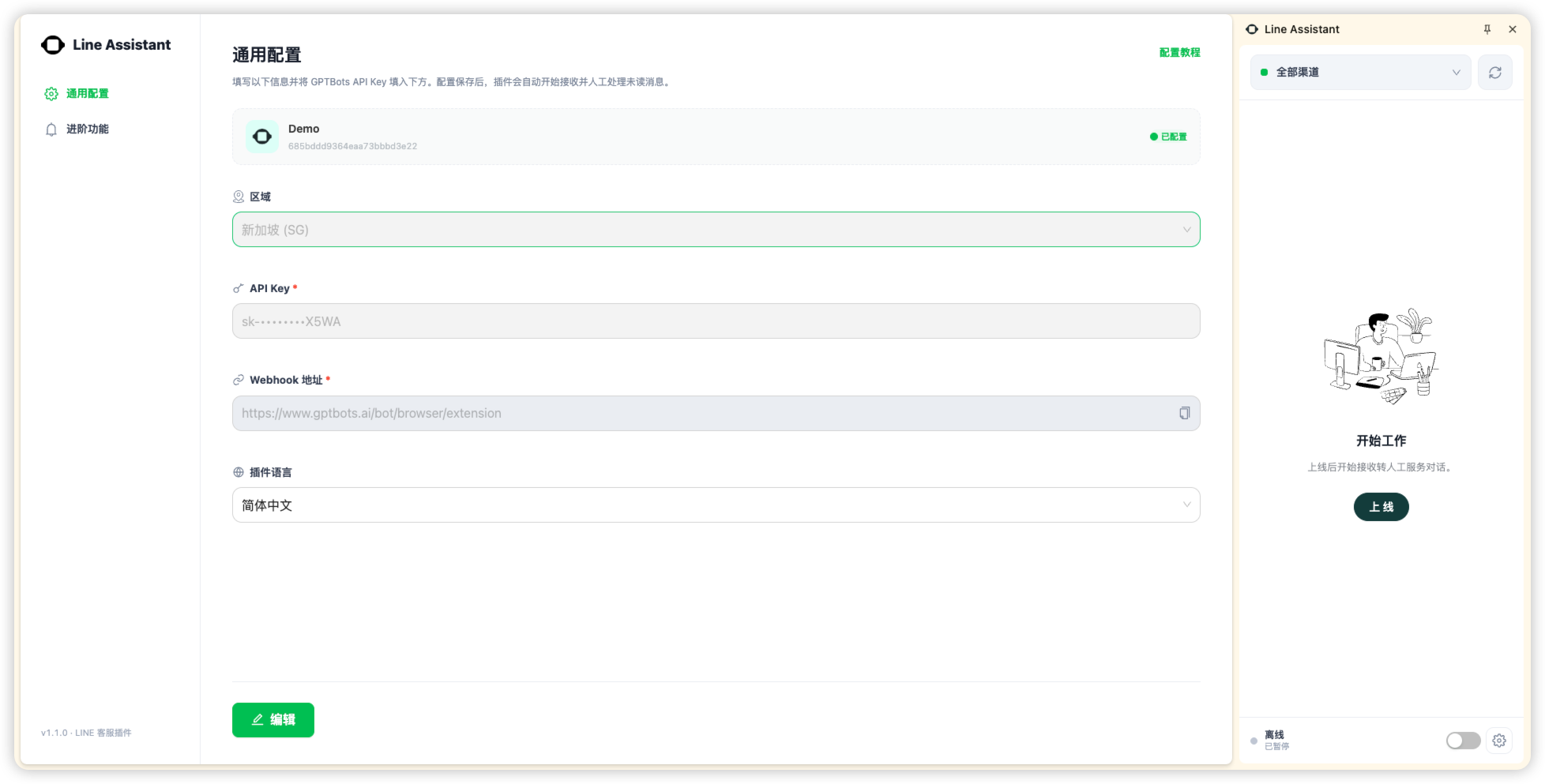
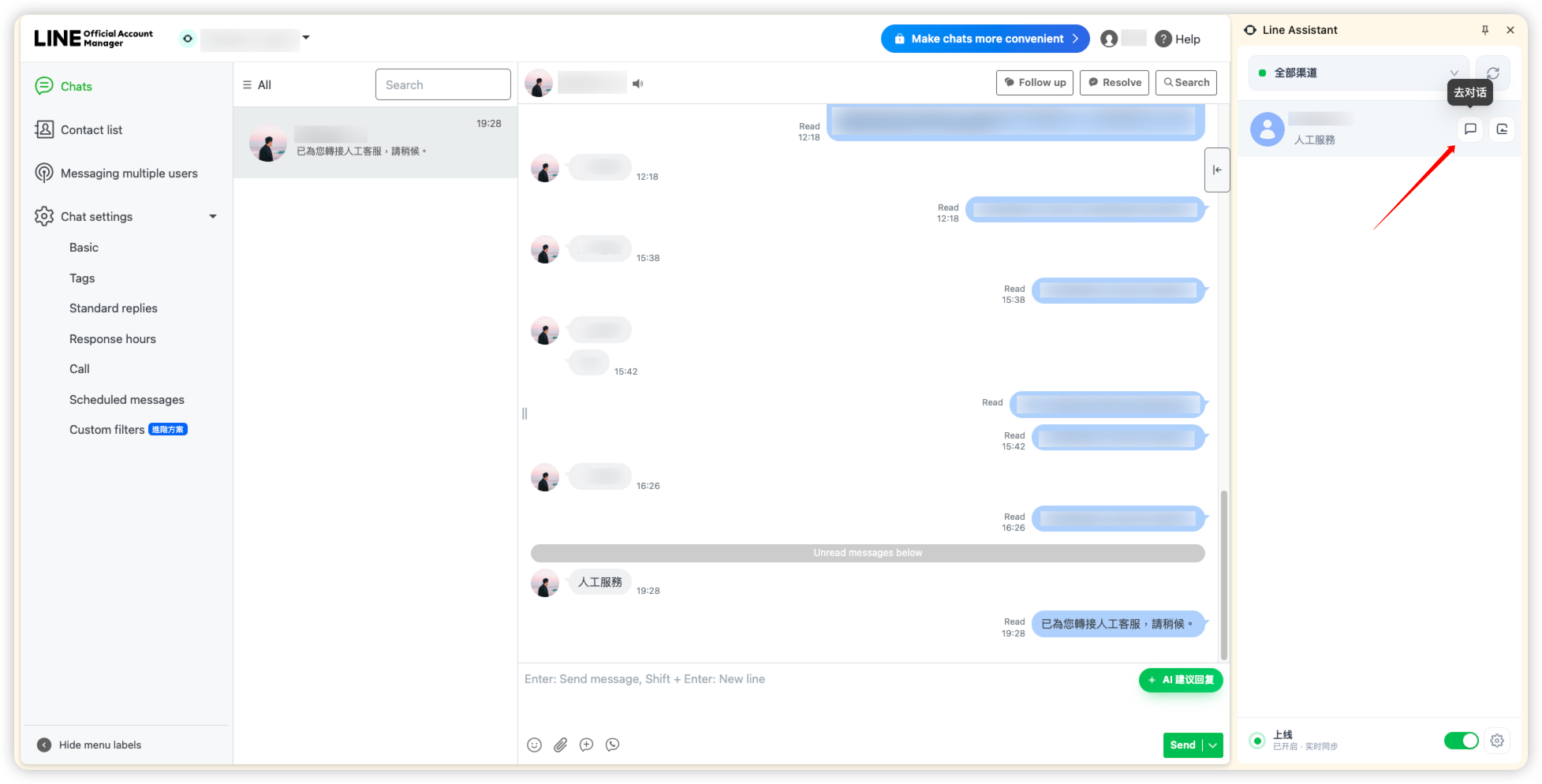
- When a user appears in the list, click the "Go to Chat" button and the extension will take you directly to that chat room.
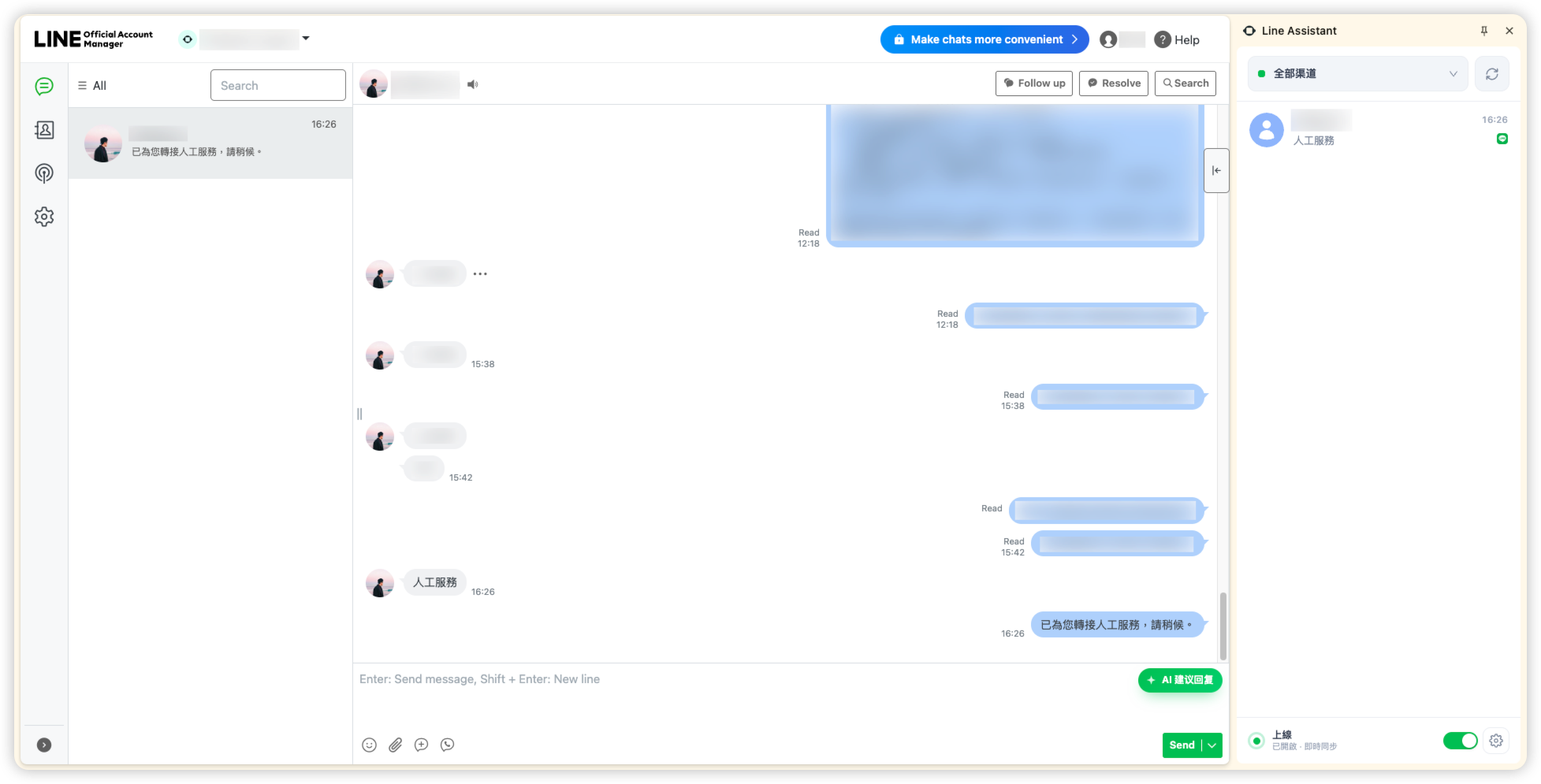
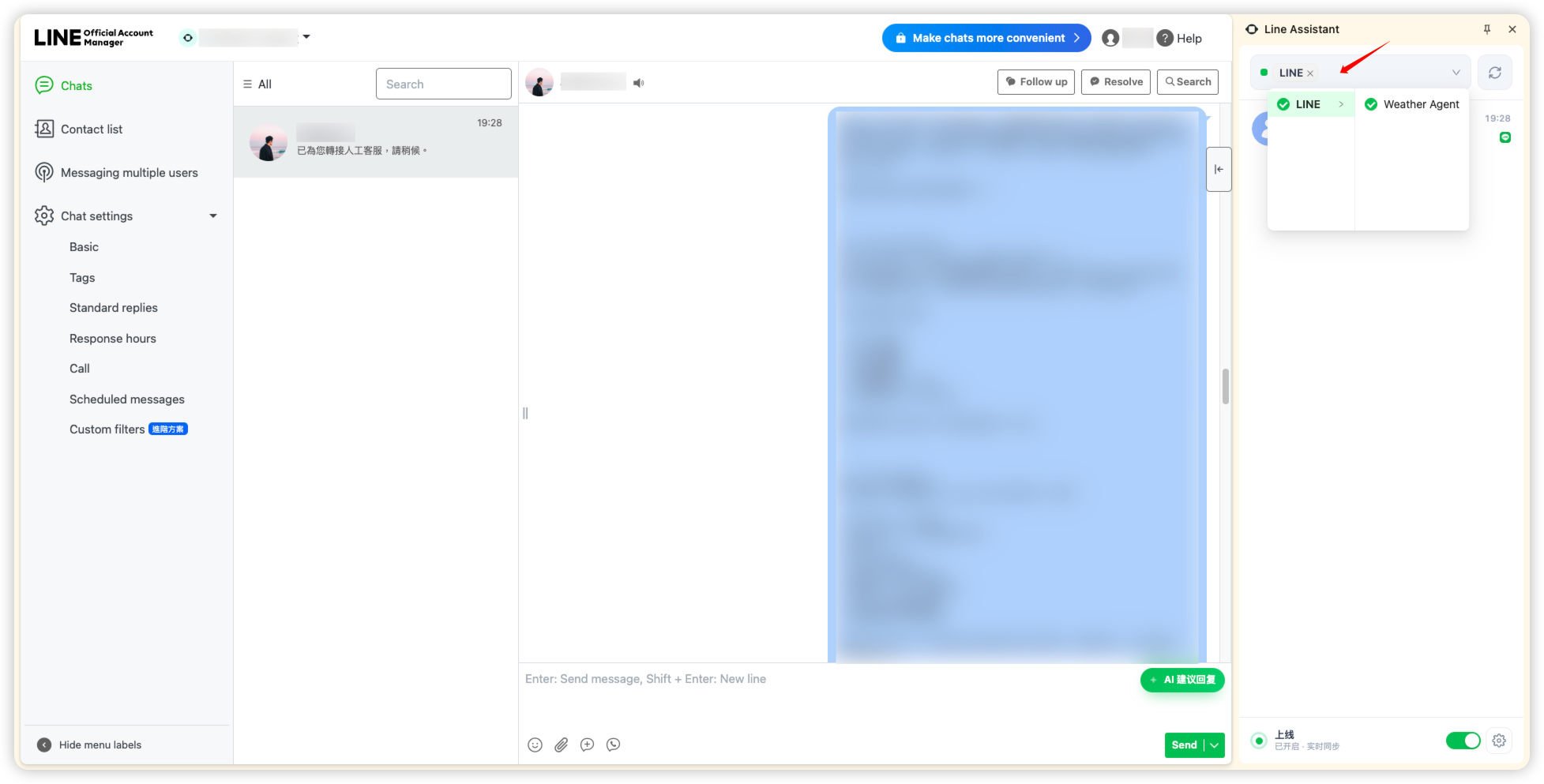
- You can also filter channels by selecting the corresponding Line Channel from the dropdown.
- While chatting with the user, click
AI Reply Suggestionsto generate a reply suggestion.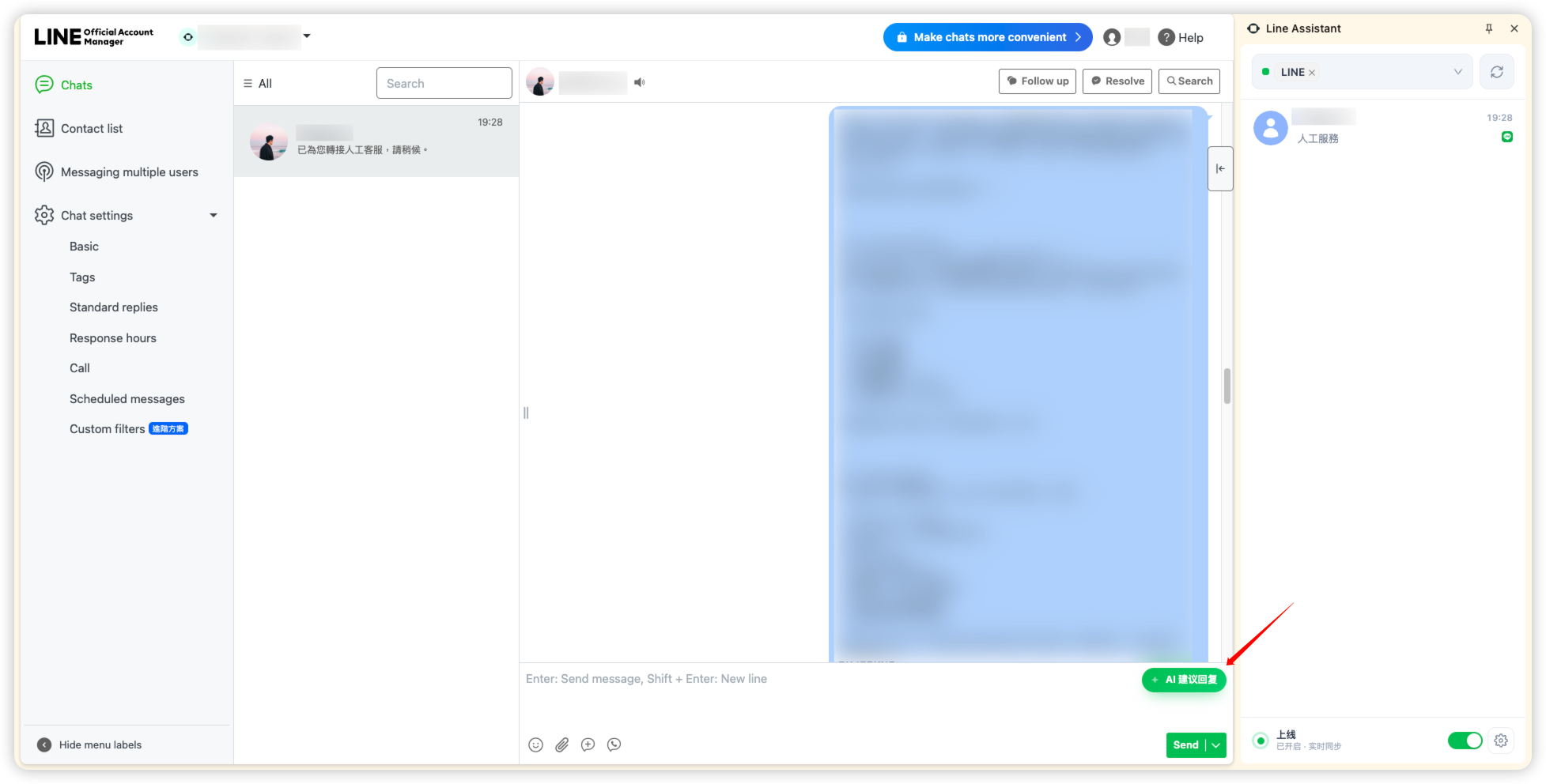
How AI Reply Suggestions work:
- When the user sends a new message, you can click the button to generate a suggestion.
- If you have already sent a message to the user, the feature is temporarily unavailable until the user sends a new message.
- The generated suggestion is appended after the text in the input box; it does not overwrite your existing input, nor is it sent to the user automatically.
- When generating a suggestion, the Agent takes the most recent rounds of conversation between you and the user into account. The number of rounds can be adjusted under Advanced Settings >
Short-term Memory.
- After resolving the user's issue, click
Return to Agentto hand the conversation back to the Agent. The conversation will then be removed from the list.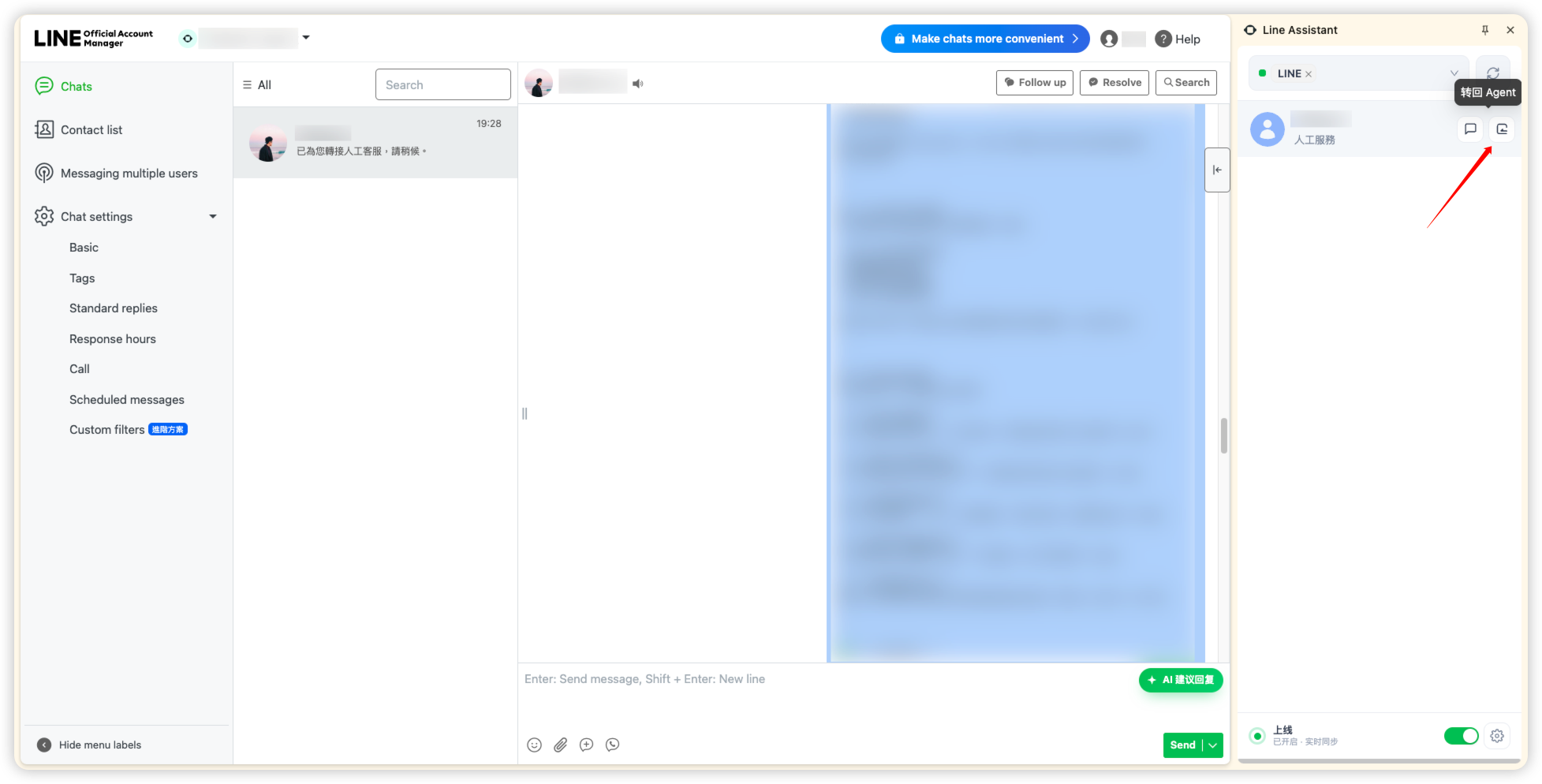
- When you finish working, be sure to click the switch at the bottom of the extension to set your status to Offline.
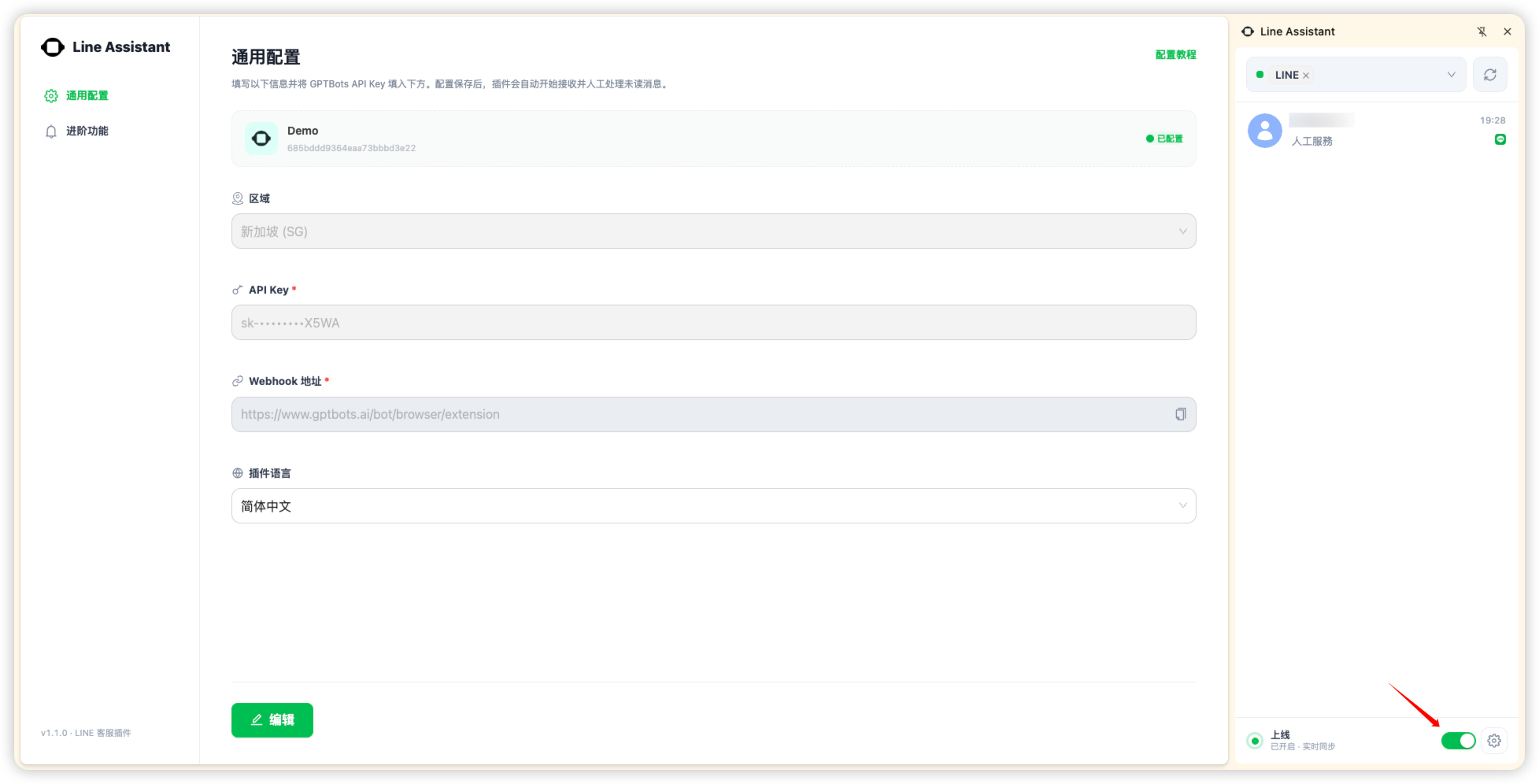
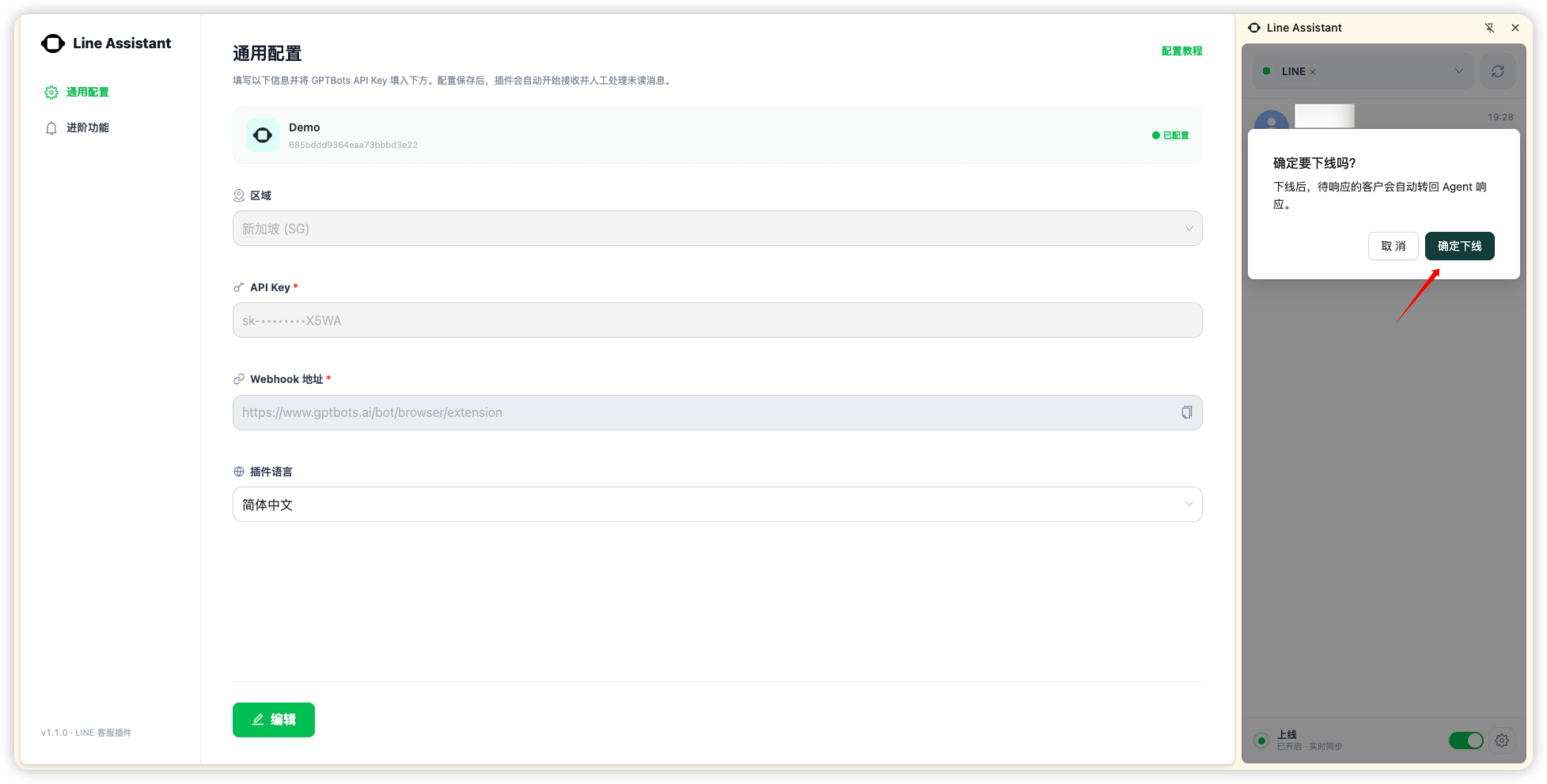
Note:
- If there are still unanswered customers when you go offline, they will all be handed back to the Agent to respond.
- Simply closing the extension side panel does not take you offline; new human handoff conversations will still be sent to you.
Advanced Settings
- Click the settings button in the bottom-right corner of the extension to open the settings screen.
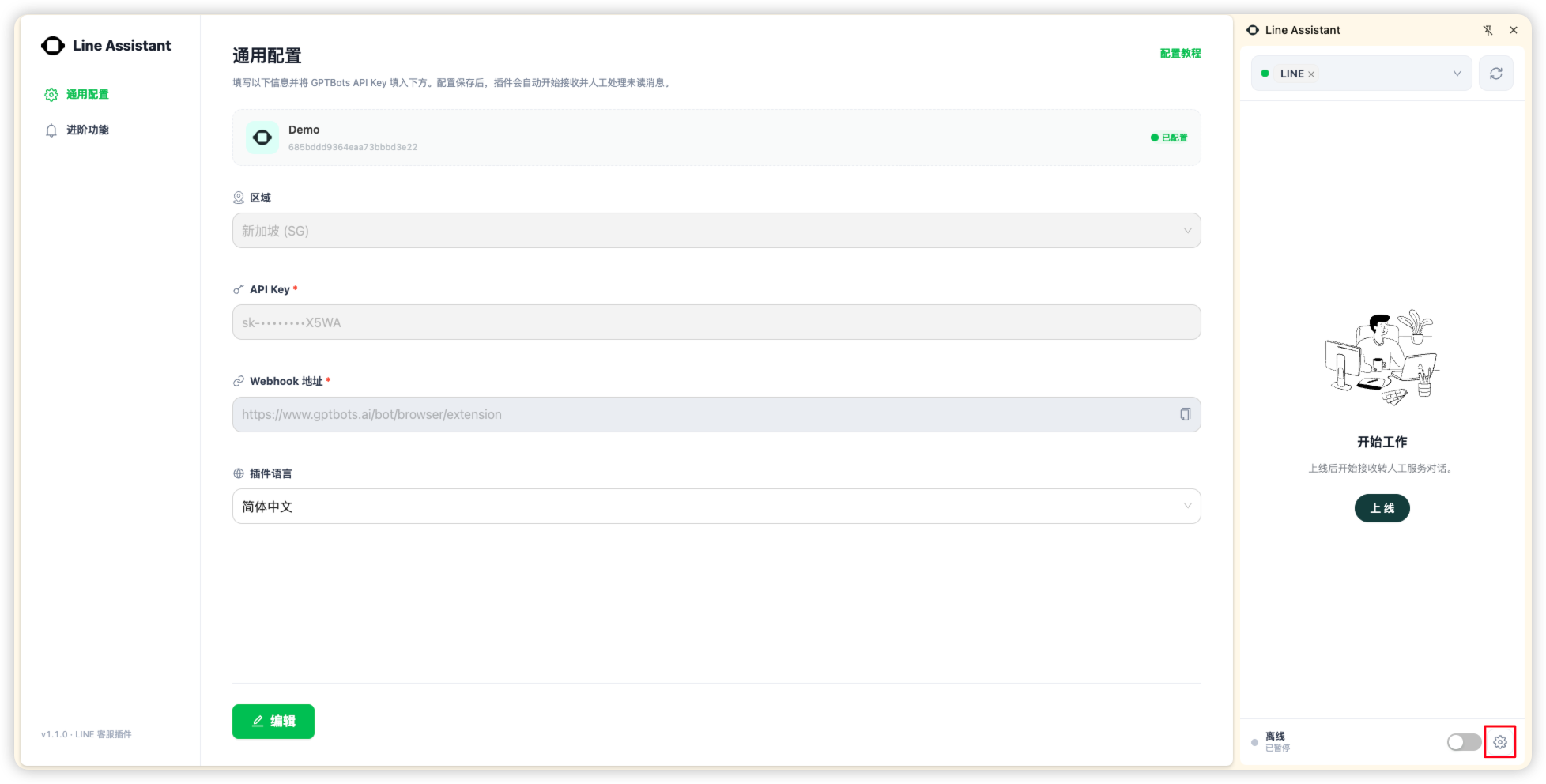
- Under Advanced Features you will see two toggles:
NotificationsandAI Reply Suggestions.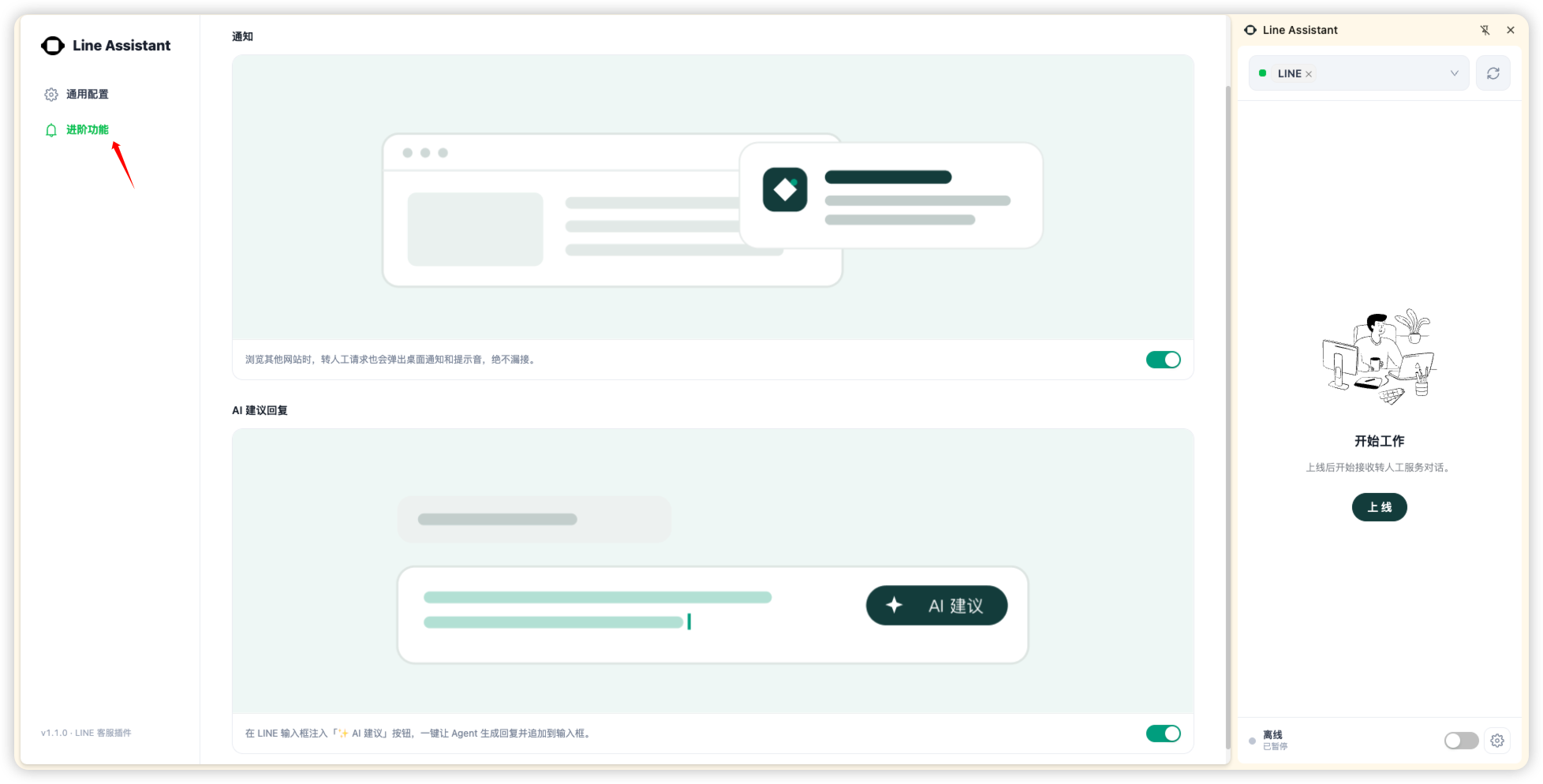
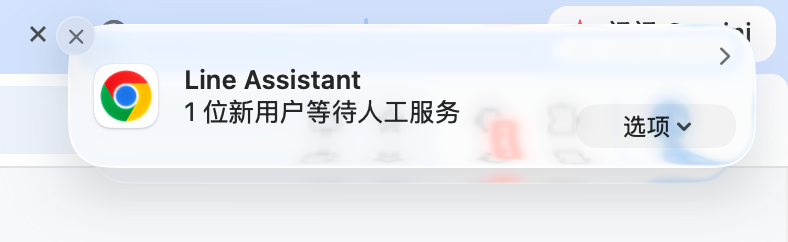
- With Notifications enabled, a pop-up alert appears whenever a new human handoff conversation arrives, even if the extension side panel is closed or you are browsing other web pages.
- With AI Reply Suggestions enabled, an AI Reply Suggestions button appears in the input box.
- With AI Reply Suggestions enabled, a
Short-term Memorysetting appears below. When generating a suggestion, the most recent rounds of conversation between you and the user are provided to the Agent, making the suggestion fit the current conversation context better.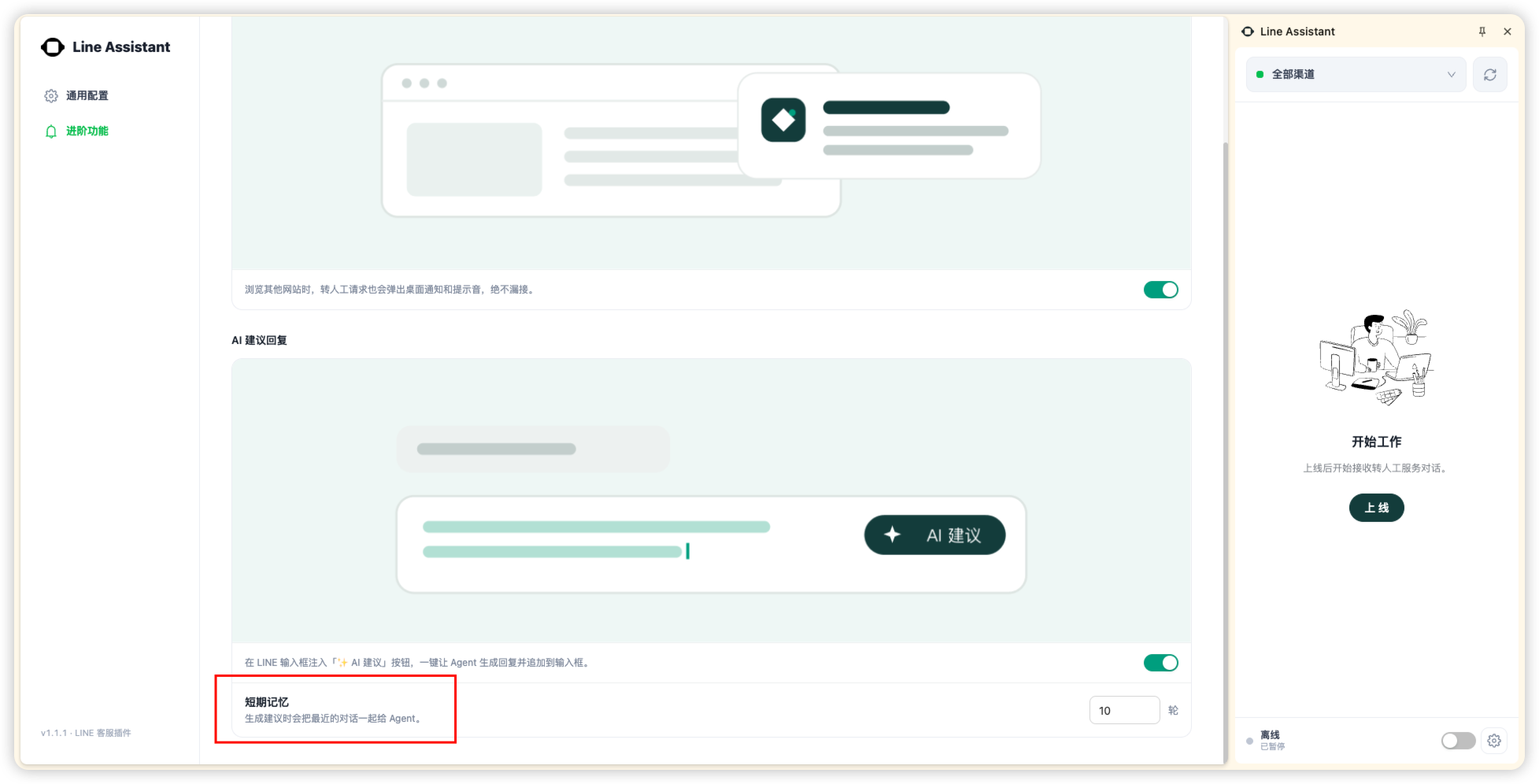
Note: We do not recommend setting too many rounds, as this may affect the response time of AI Reply Suggestions.
FAQ
Q: What is the notification badge on the extension?
A: The number indicates how many users currently in the list need human handoff.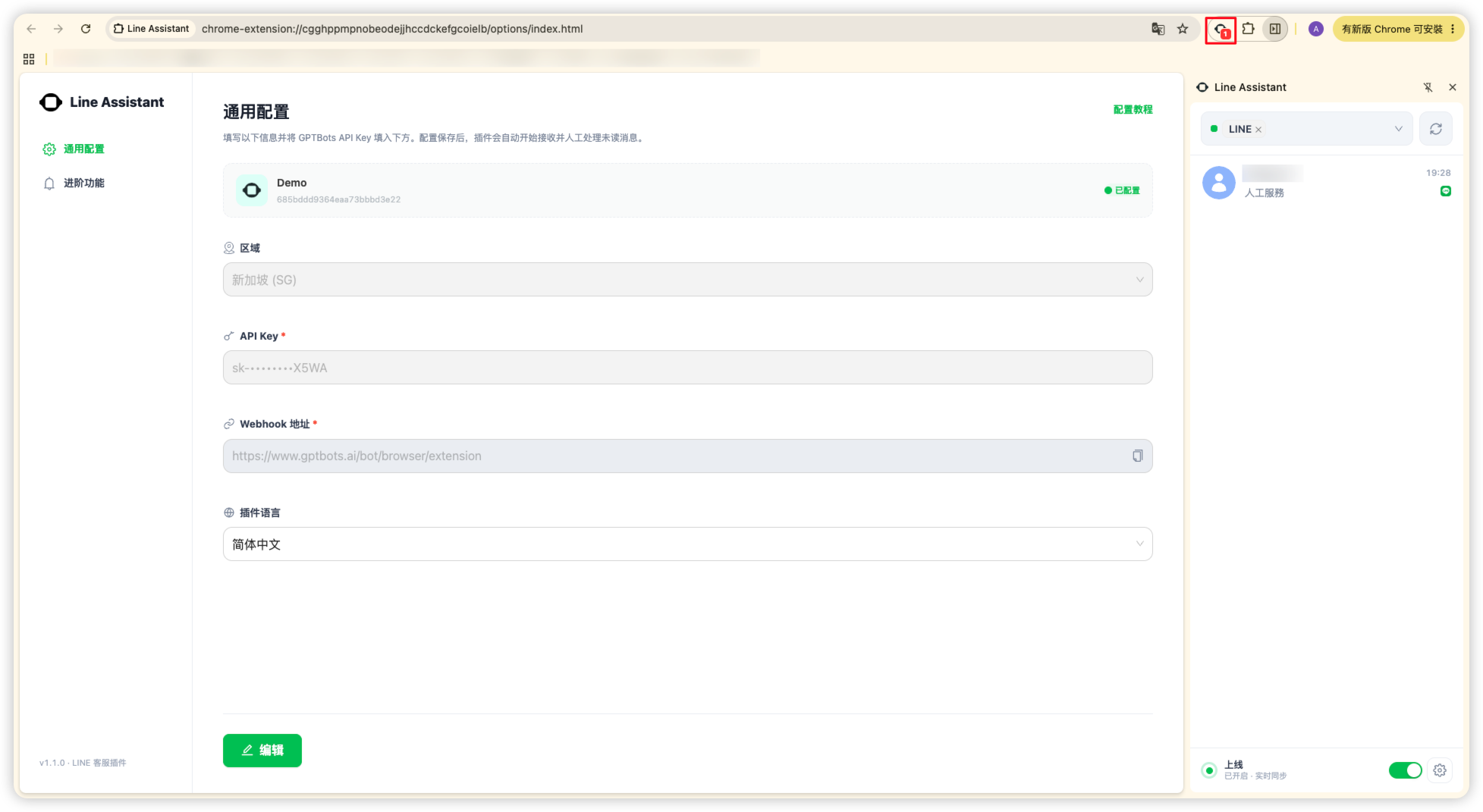
Q: Does the extension support multiple customer service agents being online at the same time?
A: Yes. If multiple agents are online at the same time, human handoff conversations are randomly assigned to different online agents.
Q: Why do users disappear from the extension list automatically?
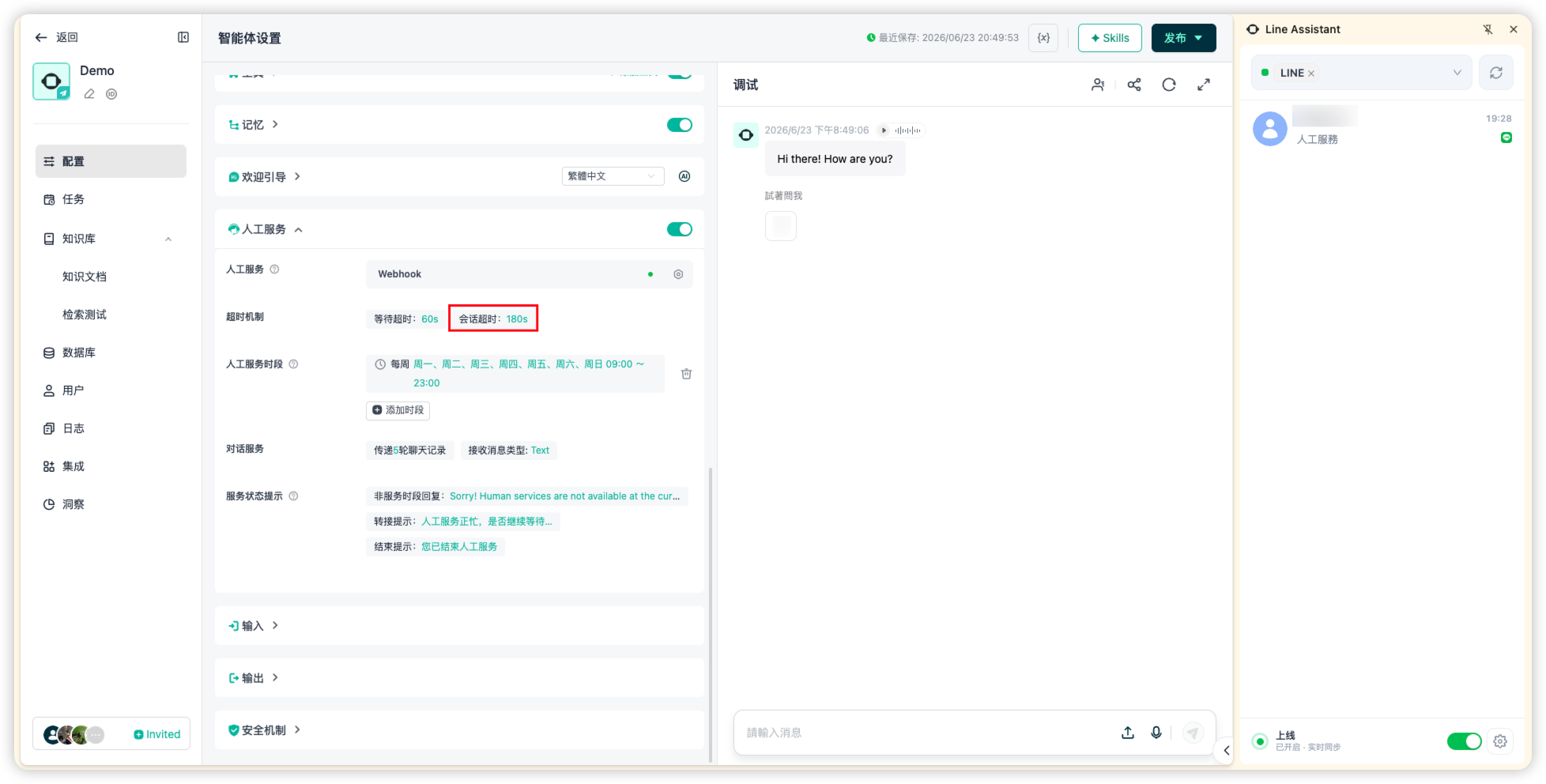
A: When the user and the agent have not sent any messages for a certain period of time, the conversation is automatically handed back to the Agent. The exact duration is determined by the Conversation Timeout setting under Agent Configuration > Human Handoff.